
Author: Ashish Kumar Singh
How to generate diagnostic logs for SRM if you cannot login to the SRM via vSphere Client
Browse to the below path on the server where SRM() is intalled:
- In 32bit Windows –
C:\Program Files (32 bit)\VMware\VMware vCenter Site Recovery Manager\bin\ - In 64bit Windows –
C:\Program Files\VMware\VMware vCenter Site Recovery Manager\bin\
SRM 1.0 – C:\Program Files\VMware\VMware Site Recovery Manager\bin\
Double Click the file srm-support.wsf, in a few seconds a compressed log bundle named srm-plugin-support- MM-DD-YYYY-hh-mm.zip will be placed on the Desktop of the current user. You can share this log with VMware support for analysis.
Depending on the issue, VMware support may need Site Recovery Manager logs from the protected site, the recovery site, or both.
Site Recovery Manager log bundles do not specify the role of the site where they were collected, as a single site may have both protected and recovery roles at the same time. To help VMware support quickly distinguish between logs, VMware recommends that you prepend the wordsprotected or recovery to each log bundle name before uploading. For example:
protected-srm-support-MM-DD-YYYY-hh-mm.ziprecovery-srm-support-MM-DD-YYYY-hh-mm.zip
To upload to VMware, please check How to generate VMware ESXi logs and how to Upload via the FTP portal using a third party FTP client for a VMware Support Case
Storage Replication Adapters (SRAs) write logs in locations specific to the SRA type and vendor. Contact the SRA vendor’s documentation for more information. Common locations include:
C:\Program Files\VMware\VMware vCenter Site Recovery Manager\scripts\SAN\<SRA Vendor Name>\log\C:\Program Files\<SRA Vendor Name>\
Note: The logs can also be gathered from the GUI of the vSphere Client if connection to the SRM plug-in is still available. The Gather Logslink from the SRM Site window imports the logs from the preceding location(s).
-
\config\extention.xml -
\config\vmware-dr.xml
How to recover the only administrator account for Cisco UCS Manager
Recovering the only administrator account for Cisco UCS Manager:
If we lost/forgot the password of the only administrator account, you cannot retrieve the original password. However you have the option to recover it by changing the password for which you need to to power cycle all fabric interconnects (FI) in a Cisco UCS domain.
You can reset the password for all other local accounts through Cisco UCS Manager. However, you must log in to Cisco UCS Manager with an account that includes aaa or admin privileges. If you do not have access to a admin account then read below:
I am going to tell you in steps how to do that:
Prerequisite 1: Determining the Leadership Role of a Fabric Interconnect
- In the Navigation pane, click the Equipment tab.
- In the Equipment tab, expand Equipment > Fabric Interconnects.
- Click the fabric interconnect for which you want to identify the role.
- In the Work pane, click the General tab.
- In the General tab, click the down arrows on the High Availability Details bar to expand that area.
- View the Leadership field to determine whether the fabric interconnect is the primary or subordinate.
Prerequisite 2: Verifying the Firmware Versions on a Fabric Interconnect
You can use the following procedure to verify the firmware versions on all fabric interconnects in a Cisco UCS domain. You can verify the firmware for a single fabric interconnect through the Installed Firmware tab for that fabric interconnect.
- In the Navigation pane, click the Equipment tab.
- In the Equipment tab, click the Equipment node.
- In the Work pane, click the Firmware Management tab.
- In the Installed Firmware tab, verify that the following firmware versions for each fabric interconnect match the version to which you updated the firmware:
Kernel version
System version
Scenario 1: Recovering the Admin Account Password in a Standalone Configuration
This procedure will help you to recover the password that you set for the admin account when you performed an initial system setup on the fabric interconnect. The admin account is the system administrator or superuser account.
Before You Begin:
- Physically connect the console port on the fabric interconnect to a computer terminal or console server
- Determine the running versions of the following firmware:
The firmware kernel version on the fabric interconnect
The firmware system version
- Connect to the console port.
- Power cycle the fabric interconnect:
Turn off the power to the fabric interconnect.
Turn on the power to the fabric interconnect.
- In the console, press one of the following key combinations as it boots to get the loader prompt:
Ctrl+l
Ctrl+Shift+r
You may need to press the selected key combination multiple times before your screen displays the loader prompt.
- Boot the kernel firmware version on the fabric interconnect.
loader >
boot /installables/switch/
kernel_firmware_version
Example:
loader >
boot /installables/switch/ucs-6100-k9-kickstart.4.1.3.N2.1.0.11.gbin
- Enter config terminal mode.
Fabric(boot)#
config terminal
- Reset the admin password.
Fabric(boot)(config)#
admin-password
password
Choose a strong password that includes at least one capital letter and one number. The password cannot be blank. The new password displays in clear text mode.
- Exit config terminal mode and return to the boot prompt.
- Boot the system firmware version on the fabric interconnect.
Fabric(boot)#
load /installables/switch/
system_firmware_version
Example:
Fabric(boot)#
load /installables/switch/ucs-6100-k9-system.4.1.3.N2.1.0.211.bin
- After the system image loads, log in to Cisco UCS Manager.
Scenario 2: Recovering the Admin Account Password in a Cluster Configuration
This procedure will help you to recover the password that you set for the admin account when you performed an initial system setup on the fabric interconnects. The admin account is the system administrator or superuser account.
Before You Begin
- Physically connect a console port on one of the fabric interconnects to a computer terminal or console server.
- Obtain the following information:
The firmware kernel version on the fabric interconnect
The firmware system version
Which fabric interconnect has the primary leadership role and which is the subordinate
- Connect to the console port.
- For the subordinate fabric interconnect.
- Turn off the power to the fabric interconnect.
- Turn on the power to the fabric interconnect.
- In the console, press one of the following key combinations as it boots to get the loader prompt:
Ctrl+l
Ctrl+Shift+r
You may need to press the selected key combination multiple times before your screen displays the loader prompt.
- Power cycle the primary fabric interconnect:
- Turn off the power to the fabric interconnect.
- Turn on the power to the fabric interconnect.
- In the console, press one of the following key combinations as it boots to get the loader prompt:
Ctrl+l
Ctrl+Shift+r
You may need to press the selected key combination multiple times before your screen displays the loader prompt.
- Boot the kernel firmware version on the primary fabric interconnect.
loader > boot /installables/switch/
kernel_firmware_version
Example:
loader > boot /installables/switch/ucs-6100-k9-kickstart.4.1.3.N2.1.0.11.gbin
- Enter config terminal mode.
Fabric(boot)# config terminal
- Reset the admin password.
Fabric(boot)(config)# admin-password password
Choose a strong password that includes at least one capital letter and one number. The password cannot be blank. The new password displays in clear text mode.
- Exit config terminal mode and return to the boot prompt.
- Boot the system firmware version on the primary fabric interconnect.
Fabric(boot)# load /installables/switch/
system_firmware_version
Example:
Fabric(boot)# load /installables/switch/ucs-6100-k9-system.4.1.3.N2.1.0.211.bin
- After the system image loads, log in to Cisco UCS Manager.
- In the console for the subordinate fabric interconnect, do the following to bring it up:
- Boot the kernel firmware version on the subordinate fabric interconnect.
loader > boot /installables/switch/
kernel_firmware_version
- Boot the system firmware version on the subordinate fabric interconnect.
Fabric(boot)# load /installables/switch/
system_firmware_version
How to configure a Dell iDRAC card without rebooting
First of all download the Racadm tool from the this link. It is included in Dell OpenManage DRAC Tools. The Dell Remote Access Controller (DRAC) console is management station software designed to provide remote management capabilities for the Dell systems. You can remotely connect to the DRAC hardware and access the DRAC features either by using a web browser or the RACADM Command Line Interface (CLI). RACADM CLI is the command line user interface to the DRAC.
Syntax Usage
The following shows an example of a simple RACADM subcommand, getsysinfo, used with each RACADM utility. See the end of this article for links to documentation containing the full list of RACADM commands.
Remote RACADM
Remote RACADM commands must include the ip address or hostname of the idrac, and the idrac username and password.
racadm -r <ip address or hostname> -u <username> -p <password> <subcommand>
racadm -r 10.1.1.1 -u root -p calvin getsysinfo
NOTE: Remote racadm uses the web server SSL certificate of the iDRAC to authenticate the session. You will receive a warning message if certificates have not been configured or if the certificate is invalid. However, the command will execute normally following the message. If you wish to halt the command on certificate errors, use the -S option in the command. For information on configuring certificates on the iDRAC, see the user’s guide for your iDRAC linked at the end of this article.
Local RACADM
You do not have to specify the ip address, username, or password in Local RACADM commands.
racadm <subcommand> eg. racadm getsysinfo
racadm getniccfg
racadm setniccfg –s 172.17.2.124 255.255.252.0 172.17.0.5racadm getconfig -g cfgLanNetworkingracadm config -g cfgLanNetworking -o cfgNicIpAddress 172.17.2.124racadm config -g cfgLanNetworking -o cfgNicNetmask 255.255.252.0racadm config -g cfgLanNetworking -o cfgNicGateway 172.17.0.7racadm config -g cfgLanNetworking -o cfgDNSServer1 172.17.0.6racadm config -g cfgLanNetworking -o cfgDNSServer2 172.17.0.5racadm config -g cfgLanNetworking -o cfgDNSRacName ServerName-DRACracadm config -g cfgLanNetworking -o cfgDNSDomainName corp.company.comSSH/Telnet/Serial (Firmware) RACADM
You do not have to specify the ip address, username, or password in Firmware RACADM commands.
racadm <subcommand> eg. racadm getsysinfo
or
racadm <Enter> – takes you to a racadm>> prompt eg. racadm>>getsysinfo
Raising a support case for ProLiant/Blades Series Servers, the step by step approach!
Now a days HP has segregated the support types, the server support comes under Hewlett Packard Enterprise.
Select your product
HP ProLiant DL Multi Node Servers
HP ProLiant Packaged Cluster Servers
HP ProLiant WS Workstation Blades
Or
if you are not able to find your product, check the below link to manually search the server model/ number in the Hewlett Packard Enterprise Products: eg. ProLiant DL360 Gen9

You will get log of results like below:
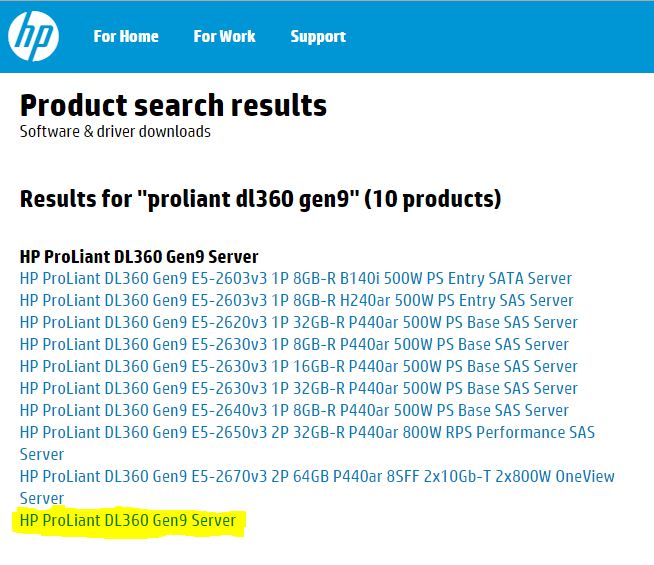

Finally if the above of these do not help then you can raise case by clicking the below link. You need to create a HP passport login in case you do not have an account. HP Passport is a single sign in service that lets you use one User ID and password for all HP Passport-enabled websites.
Submit or manage support cases

You may also check existing ticket updates by providing the case ID.
I hope techies find it useful 🙂
Connections and Ports in ESX and ESXi
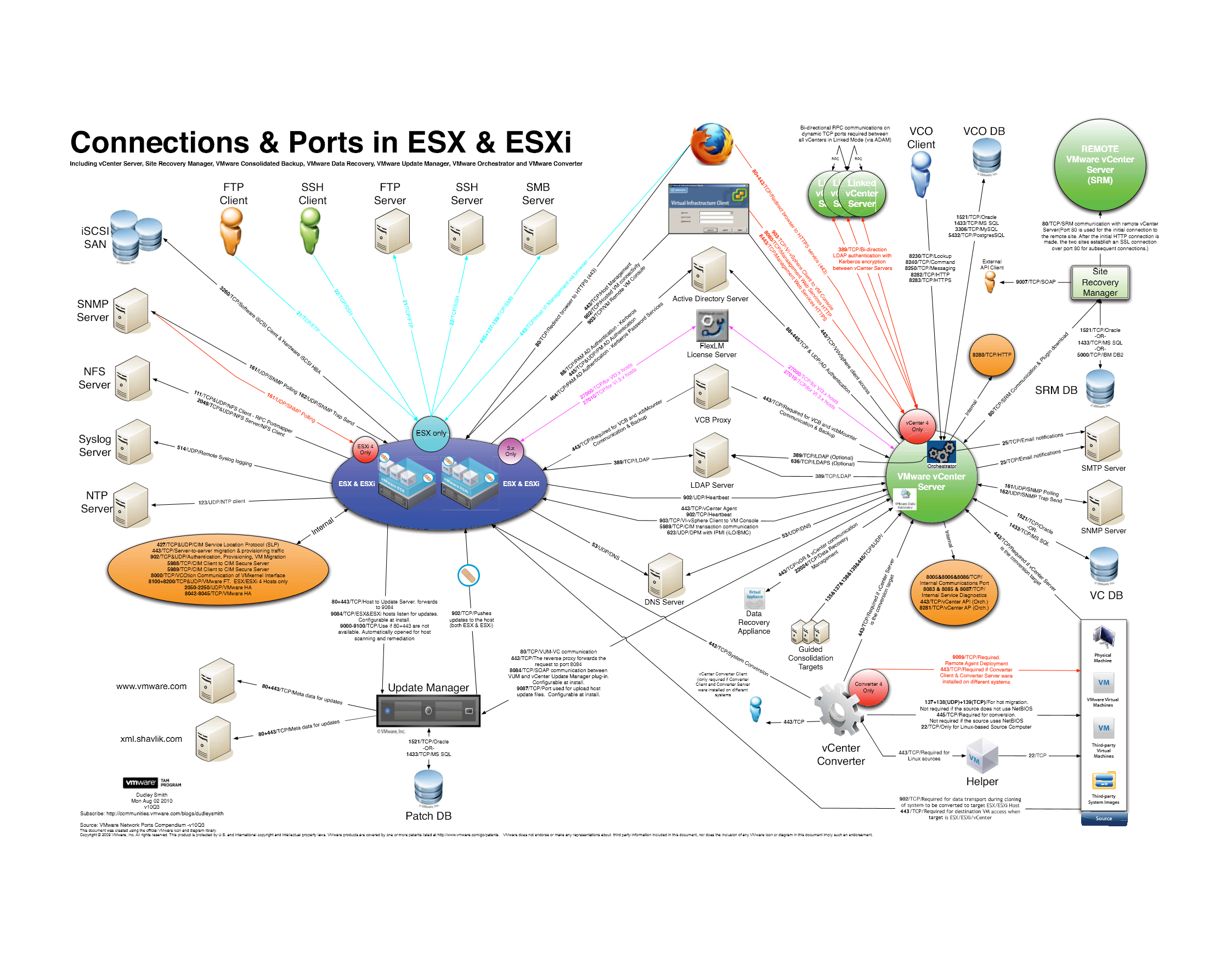
A high resolution pdf can be downloaded here Connections and Ports in ESX and ESXi
VMware ESXi Release and Build Number History – A must for confirming your ESXi hosts are up to date!
The following listings are a comprehensive collection of the flagship hypervisor product by VMware. All bold versions are downloadable releases.
vSphere ESXi 6.0
| Name | Version | Release | Build |
|---|---|---|---|
| ESXi600-201511001 | ESXi 6.0 Express Patch 4 | 2015-11-25 | 3247720 |
| ESXi600-201510001 | ESXi 6.0 Update 1a | 2015-10-06 | 3073146 |
| VMware ESXi 6.0 Update 1 | ESXi 6.0 Update 1 | 2015-09-10 | 3029758 |
| ESXi600-201507001 | ESXi 6.0b | 2015-07-07 | 2809209 |
| ESXi600-201505001 | ESXi 6.0 Express Patch 2 | 2015-05-14 | 2715440 |
| ESXi600-201504001 | ESXi 6.0 Express Patch 1 | 2015-04-09 | 2615704 |
| VMware ESXi 6.0 | ESXi 6.0 GA | 2015-03-12 | 2494585 |
vSphere ESXi 5.5
| Name | Version | Release | Build |
|---|---|---|---|
| ESXi550-201512001 | 2015-12-08 | 3248547 | |
| ESXi550-201510001 | ESXi 5.5 Update 3a | 2015-10-06 | 3116895 |
| VMware ESXi 5.5 Update 3 | ESXi 5.5 Update 3 | 2015-09-16 | 3029944 |
| ESXi550-201505002 | ESXi 5.5 Patch 5 | 2015-05-08 | 2718055 |
| ESXi550-201504002 | Recalled | 2015-04-30 | 2702864 |
| ESXi550-201504001 | ESXi 5.5 Express Patch 7 | 2015-04-07 | 2638301 |
| ESXi550-201502001 | ESXi 5.5 Express Patch 6 | 2015-02-05 | 2456374 |
| ESXi550-201501001 | ESXi 5.5 Patch 4 | 2015-01-27 | 2403361 |
| ESXi550-201412001 | ESXi 5.5 Express Patch 5 | 2014-12-02 | 2302651 |
| ESXi550-201410001 | ESXi 5.5 Patch 3 | 2014-10-15 | 2143827 |
| VMware ESXi 5.5 Update 2 | ESXi 5.5 Update 2 | 2014-09-09 | 2068190 |
| ESXi550-201407001 | ESXi 5.5 Patch 2 | 2014-07-01 | 1892794 |
| ESXi550-201406001 | ESXi 5.5 Express Patch 4 | 2014-06-10 | 1881737 |
| ESXi550-201404020 | ESXi 5.5 Express Patch 3 | 2014-04-19 | 1746974 |
| ESXi550-201404001 | ESXi 5.5 Update 1a | 2014-04-19 | 1746018 |
| VMware ESXi 5.5.1 Driver Rollup | 2014-03-11 | 1636597 | |
| VMware ESXi 5.5 Update 1 | ESXi 5.5 Update 1 | 2014-03-11 | 1623387 |
| ESXi550-201312001 | ESXi 5.5 Patch 1 | 2013-12-22 | 1474528 |
| vSAN Beta Refresh | 2013-11-25 | 1439689 | |
| VMware ESXi 5.5 | ESXi 5.5 GA | 2013-09-22 | 1331820 |
vSphere ESXi 5.1
| Name | Version | Release | Build |
|---|---|---|---|
| ESXi510-201510001 | 2015-10-01 | 3070626 | |
| ESXi510-201503001 | 5.1.0 Patch 7 | 2015-03-26 | 2583090 |
| VMware ESXi 5.1 Update 3 | 5.1.0 U3 | 2014-12-04 | 2323236 |
| ESXi510-201410001 | 5.1.0 Patch 6 | 2014-10-31 | 2191751 |
| ESXi510-201407001 | 5.1.0 Patch 5 | 2014-07-31 | 2000251 |
| ESXi510-201406001 | 5.1.0 Express Patch 5 | 2014-06-17 | 1900470 |
| ESXi510-201404001 | 5.1.0 Patch 4 | 2014-04-29 | 1743533 |
| ESXi510-201402001 | 5.1.0 Express Patch 4 | 2014-02-27 | 1612806 |
| VMware ESXi 5.1 Update 2 | 5.1.0 U2 | 2014-01-16 | 1483097 |
| ESXi510-201310001 | 5.1.0 Patch 3 | 2013-10-17 | 1312873 |
| ESXi510-201307001 | 5.1.0 Patch 2 | 2013-07-25 | 1157734 |
| ESXi510-201305001 | 5.1.0 Express Patch 3 | 2013-05-22 | 1117900 |
| VMware ESXi 5.1 Update 1 | 5.1.0 U1 | 2013-04-25 | 1065491 |
| ESXi510-201303001 | 5.1.0 Express Patch 2 | 2013-03-07 | 1021289 |
| ESXi510-201212001 | 5.1.0 Patch 1 | 2012-12-20 | 914609 |
| ESXi510-201210001 | 5.1.0a | 2012-10-24 | 838463 |
| KB2034796 | 5.1.0 | Hot-Patch | 837262 |
| VMware ESXi 5.1 | 5.1.0 GA | 2012-09-11 | 799733 |
vSphere ESXi 5.0
| Name | Version | Release | Build |
|---|---|---|---|
| ESXi500-201510001 | 2015-10-01 | 3086167 | |
| ESXi500-201502001 | 5.0.0 Patch 11 | 2015-02-26 | 2509828 |
| ESXi500-201412001 | 5.0.0 Patch 10 | 2014-12-04 | 2312428 |
| ESXi500-201408001 | 5.0.0 Patch 9 | 2014-08-28 | 2000308 |
| ESXi500-201407001 | 5.0.0 Express Patch 6 | 2014-07-01 | 1918656 |
| ESXi500-201405001 | 5.0.0 Patch 8 | 2014-05-29 | 1851670 |
| ESXi500-201401001 | 5.0.0 Patch 7 | 2014-01-23 | 1489271 |
| VMware ESXi 5.0 Update 3 | 5.0.0 U3 | 2013-10-17 | 1311175 |
| ESXi500-201308001 | 5.0.0 Patch 6 | 2013-08-29 | 1254542 |
| ESXi500-201305001 | 5.0.0 Express Patch 5 | 2013-05-15 | 1117897 |
| ESXi500-201303001 | 5.0.0 Patch 5 | 2013-03-28 | 1024429 |
| VMware ESXi 5.0 Update 2 | 5.0.0 U2 | 2012-12-20 | 914586 |
| ESXi500-201209001 | 5.0.0 Patch 4 | 2012-09-27 | 821926 |
| ESXi500-201207001 | 5.0.0 Patch 3 | 2012-07-12 | 768111 |
| ESXi500-201206001 | 5.0.0 Express Patch 4 | 2012-06-14 | 721882 |
| ESXi500-201205001 | 5.0.0 Express Patch 3 | 2012-05-03 | 702118 |
| ESXi500-201204001 | 5.0.0 Express Patch 2 | 2012-04-12 | 653509 |
| VMware ESXi 5.0 Update 1 | 5.0.0 U1 | 2012-03-15 | 623860 |
| ESXi500-201112001 | 5.0.0 Patch 2 | 2011-12-15 | 515841 |
| ESXi500-201111001 | 5.0.0 Express Patch 1 | 2011-11-03 | 504890 |
| ESXi500-201109001 | 5.0.0 Patch 1 | 2011-09-13 | 474610 |
| VMware ESXi 5.0 | 5.0.0 | 2011-08-24 | 469512 |
vSphere ESXi 4.1
| Name | Version | Release | Build |
|---|---|---|---|
| ESXi410-201404001 | 4.1.0 Patch 11 | 2014-04-10 | 1682698 |
| ESXi410-201312001 | 4.1.0 Patch 10 | 2013-12-05 | 1363503 |
| ESXi410-201307001 | 4.1.0 Patch 9 | 2013-07-31 | 1198252 |
| ESXi410-201304001 | 4.1.0 Patch 8 | 2013-04-30 | 1050704 |
| ESXi410-201301001 | 4.1.0 Patch 7 | 2013-01-31 | 988178 |
| ESXi410-201211001 | 4.1.0 Patch 6 | 2012-11-15 | 874690 |
| VMware ESXi 4.1 Update 3 | 4.1.0 U3 | 2012-08-30 | 800380 |
| ESXi410-201206001 | 4.1.0 Express Patch 3 | 2012-06-14 | 721871 |
| ESXi410-201205001 | 4.1.0 Express Patch 2 | 2012-05-03 | 702113 |
| ESXi410-201204001 | 4.1.0 Patch 5 | 2012-04-26 | 659051 |
| ESXi410-201201001 | 4.1.0 Patch 4 | 2012-01-30 | 582267 |
| VMware ESXi 4.1 Update 2 | 4.1.0 U2 | 2011-10-27 | 502767 |
| ESXi410-201107001 | 4.1.0 Patch 3 | 2011-07-28 | 433742 |
| ESXi410-201104001 | 4.1.0 Patch 2 | 2011-04-28 | 381591 |
| VMware ESXi 4.1 Update 1 | 4.1.0 U1 | 2011-02-10 | 348481 |
| ESXi410-201011001 | 4.1.0 Express Patch 1 | 2010-11-29 | 320137 |
| ESXi410-201010001 | 4.1.0 Patch 1 | 2010-11-15 | 320092 |
| VMware ESXi 4.1 | 4.1.0 | 2010-07-13 | 260247 |
How to generate VMware ESXi logs and how to Upload via the FTP portal using a third party FTP client for a VMware Support Case
How to generate VMware ESXi logs:
Identify the ESXi host on which the server is hosted, putty to the Host and run the following command. But before you run the command, you need to select a desired datastore to direct the support log bundle to a location using the same command (mentioning the destination path).
For example:
vm-support -s > /vmfs/volumes/datastorexxx/vm-support-Hostname.tgz
Datastorexxx = will be datastore with free space
vm-support-Hostname.tgz = host name
- After the log bundle has been collected and downloaded from the datastore by browsing the particular datastore normally using the vSphere client, then upload the logs to the SFTP/FTP site.
How to Upload via the FTP portal using a Filezilla (FTP Client)
There are many third-party GUI-based FTP clients that run on multiple platforms. These clients are able to perform the operations in this article using an intuitive GUI interface. Feel free to use the FTP client of your choice, which supports passive mode.
FileZilla is a popular third party FTP client.
To upload files from Windows using FileZilla:
- Open the FileZilla client.
- Set the transfer mode to binary:
Go to the Transfer menu > Transfer type > Binary
- Go to the File menu > Site Manager.
- Add the VMware FTP site to My Sites using the Site Manager. The credentials are:
Address = ftpsite.vmware.com
Logon Type = normal
User = inbound
Password = inbound - Click Connect.
- Change to the correct destination directory for your Support Request:
- If this is the first time you are uploading files to the VMware FTP Server for this case, create a directory in the root of the VMware FTP. To do this, right click the root directory on the remote site in the right pane and choose Create directory.
- If this is not the first time you are uploading files for this case, proceed to step 7.
- Change to your SR directory using the Remote site field.
For example:
Remote site: /12345678901
Notes:
- For security reasons, you do not see any files or directories on the VMware FTP server, including files you have uploaded.
- The destination directory should contain numbers only. Do not enter letters or other characters.
- Once you connect to the correct destination directory, browse to the location of the log files on your local system using the file browser in the left pane or enter the full path in the Local site field.
- Right click the file and select Upload to start the transfer.
- Monitor the transfer progress in the Queued files pane.
How to power off a Virtual Machine on an ESXi host via Putty
Sometime a virtual machine may not responsive and cannot be stopped or killed, then this is a workaround to reboot the virtual machine via putty.
The esxcli command can be used locally or remotely to power off a virtual machine running on ESXi 5.x or later.
- Open a console session where the esxcli tool is available, either in the ESXi Shell, the vSphere Management Assistant (vMA), or the location where the vSphere Command-Line Interface (vCLI) is installed.
- Get a list of running virtual machines, identified by World ID, UUID, Display Name, and path to the.vmx configuration file, using this command:esxcli vm process list
- Power off one of the virtual machines from the list using this command:esxcli vm process kill –type=[soft,hard,force]–world-id=WorldNumber
Notes:
Three power-off methods are available. Soft is the most graceful, hard performs an immediate shutdown, and force should be used as a last resort.
Alternate power off command syntax is: esxcli vm process kill -t [soft,hard,force] -w WorldNumber - Repeat Step 2 and validate that the virtual machine is no longer running.
Unable to view Roles and Features and receive error code 0x800706BE in Server Manager
In this scenario, roles and features are not displayed with a yellow bang against them in the Server Manager window. You receive the following error message at the bottom of the Server manager if you try to open it:
Server Manager
Unexpected error refreshing Server Manager: The remote procedure call failed. (Exception from HRESULT: 0x800706BE)
For more information, see the event log: Diagnostics, Event Viewer, Applications and Services Logs, Microsoft, Windows, Server Manager, Operational.)
At the same time, the event below is added into the Microsoft-Windows-ServerManager/Operational log:
Log Name: Microsoft-Windows-ServerManager/Operational
Source: Microsoft-Windows-ServerManager
Date: <date & time>
Event ID: 1601
Task Category: None
Level: Error
Keywords:
User: <user name>
Computer: <computer name>
Description:
Could not discover the state of the system. An unexpected exception was found:
System.Runtime.InteropServices.COMException (0x800706BE): The remote procedure call failed. (Exception from HRESULT: 0x800706BE)
at System.Runtime.InteropServices.Marshal.ThrowExceptionForHRInternal(Int32 errorCode, IntPtr errorInfo)
at Microsoft.Windows.ServerManager.ComponentInstaller.CreateSessionAndPackage(IntPtr& session, IntPtr& package)
at Microsoft.Windows.ServerManager.ComponentInstaller.InitializeUpdateInfo()
at Microsoft.Windows.ServerManager.ComponentInstaller.Initialize()
at Microsoft.Windows.ServerManager.Common.Provider.RefreshDiscovery()
at Microsoft.Windows.ServerManager.LocalResult.PerformDiscovery()
at Microsoft.Windows.ServerManager.ServerManagerModel.CreateLocalResult(RefreshType refreshType)
at Microsoft.Windows.ServerManager.ServerManagerModel.InternalRefreshModelResult(Object state)
Here are the steps to fix the issue:
- Get the Microsoft Update Readiness Tool from the location: http://support.microsoft.com/kb/947821
- Run the Microsoft Update Readiness Tool on the problematic computer.
- You open the %Systemroot%\Windows\logs\CBS\Checksur.log file after the scan was completed.
- You check corrupt information in the files. Here are some samples:
(f) CBS MUM Corrupt 0x00000000 servicing\Packages\Package_for_KB978601~31bf3856ad364e35~amd64~~6.0.1.0.mum Expected file name Package_for_KB978601_server~31bf3856ad364e35~amd64~~6.0.1.0.mum does not match the actual file name
(f) CBS MUM Corrupt 0x00000000 servicing\Packages\Package_for_KB979309~31bf3856ad364e35~amd64~~6.0.1.0.mum Expected file name Package_for_KB979309_server~31bf3856ad364e35~amd64~~6.0.1.0.mum does not match the actual file name
Or
(f) CBS MUM Corrupt 0x800B0100 servicing\Packages\Package_for_KB978601~31bf3856ad364e35~amd64~~6.0.1.0.mum servicing\Packages\Package_for_KB978601~31bf3856ad364e35~amd64~~6.0.1.0.cat Package manifest cannot be validated by the corresponding catalog
(f) CBS MUM Corrupt 0x800B0100 servicing\Packages\Package_for_KB979309~31bf3856ad364e35~amd64~~6.0.1.0.mum servicing\Packages\Package_for_KB979309~31bf3856ad364e35~amd64~~6.0.1.0.cat Package manifest cannot be validated by the corresponding catalog
Or
(f) CBS MUM Missing 0x00000002 servicing\packages\Package_114_for_KB955839~31bf3856ad364e35~amd64~~6.0.1.0.mum
(f) CBS MUM Missing 0x00000002 servicing\packages\Package_83_for_KB955839~31bf3856ad364e35~amd64~~6.0.1.0.mum
Further down you will see:
Unavailable repair files:
servicing\packages\Package_for_KB978601~31bf3856ad364e35~amd64~~6.0.1.0.mum
servicing\packages\Package_for_KB979309~31bf3856ad364e35~amd64~~6.0.1.0.mum
servicing\packages\Package_for_KB978601~31bf3856ad364e35~amd64~~6.0.1.0.cat
servicing\packages\Package_for_KB979309~31bf3856ad364e35~amd64~~6.0.1.0.cat
These files need to be copied into: %systemroot\Windows\Servicing\Packages
- You first need to gain control over that folder. In order to do this use the following commands:
takeown /F c:\Windows\Servicing\Packages /D y /R
- Now assign full control using following command. This will grant you full control over the directory:
cacls c:\Windows\Servicing\Packages /E /T /C /G “UserName”:F
- Now you need to gather the missing or corrupted files from the checksur log:
Download the KB files for the missing files.servicing\packages\Package_for_ KB978601 ~31bf3856ad364e35~amd64~~6.0.1.0.mum
- Unpack them using the following command:
Expand -F:* UpdateKBXXXX.msu x:\DestinationDirectory
- After you expand you will see a UpdateKBXXXX.cab File. Expand it as well:
Expand -F:* UpdateKBXXXX.CAB x:\DestinationDirectoryCAB
Inside of this cab you will need to grab 2 files: update.mum and update.cat - Rename the gathered update.mum and update.cab files exactly as they are in the checksur.log:
Ex.: update.mum for KB978601 will be Package_for_ KB978601 ~31bf3856ad364e35~amd64~~6.0.1.0.mum
Do the same for for all the other missing/corrupt files and place them into the directory specified in checksur.log (/servicing/packages)
After these steps the problem should be fixed. No reboot required.
Robocopy command to copy huge files and monitor their status
robocopy “source_folder” “destination_folder” /s /e /tee /log+:”C:\temp folder\rcpylog.txt”
FYI :- log+ option will create a log file which can be monitored by anyone who have access to the server.
 Lazy Admin Blog