
VMware
Automation: Bulk Create and Delete VM Snapshots Across Linked vCenters | Lazy Admin Blog

In a large environment, taking snapshots before a major patch or application update is a standard safety net. But if you have servers spread across multiple vCenters in Linked Mode (e.g., Datacenter1 and Datacenter2), clicking through the vSphere Client is a waste of time.
Today, I’m sharing a “Lazy Admin” script that allows you to bulk create, check, and remove snapshots using a simple CSV list.
Prerequisites
- VMware PowerCLI: Ensure the PowerCLI module is installed on the machine running the script.
- CSV Setup: Create a file named
snapshot_servers.csvinC:\Temp\VMSnapshots\.
The CSV should look like this: | Host | Location | | :— | :— | | Server01 | Datacenter1 | | Server02 | Datacenter2 |
Part 1: Creating Snapshots
- Open PowerShell ISE with vCenter Administrator credentials.
- Load the functions by running the full script (provided below).
- Run the following command:
Create-VMSnapshots -SS_CSV "C:\Temp\VMSnapshots\snapshot_servers.csv" -SS_Name "Pre-Patching" -SS_Description "Requested by App Team"
The script will iterate through your CSV and create snapshots sequentially. You can monitor the progress in the vSphere Tasks console.
Part 2: Deleting Snapshots
Once your changes are verified, don’t let those snapshots linger and bloat your datastores! To remove them:
- Use the same
snapshot_servers.csvlist. - Run the following command:
Remove-VMSnapshots -SS_CSV "C:\Temp\VMSnapshots\snapshot_servers.csv"
Note: This is a sequential script; it will wait for one snapshot removal to finish before moving to the next to avoid pinning your storage I/O.
The Script: VMSnapshots.ps1
Save this code to C:\Temp\VMSnapshots\VMSnapshots.ps1.
function Create-VMSnapshots { param ( [string]$SS_CSV = $(Read-Host "Enter path to CSV"), [string]$SS_Name = $(Read-Host "Enter name for snapshots"), [string]$SS_Description = $(Read-Host "Enter description for snapshots") ) # Import VMware PowerCLI Module If ( !(Get-Module -Name VMware.VimAutomation.Core -ErrorAction SilentlyContinue) ) { import-module VMware.VimAutomation.Core } $Servers = Import-CSV $SS_CSV $WLM_vCenter = Connect-VIServer vCenter1 -WarningAction SilentlyContinue $EDN_vCenter = Connect-VIServer vCenter2 -WarningAction SilentlyContinue ForEach($Server in $Servers){ If($Server.Location -eq 'Datacenter1'){ New-Snapshot -VM $Server.Host -Name $SS_Name -Description $SS_Description -Quiesce -Server $WLM_vCenter -WarningAction SilentlyContinue } ElseIf($Server.Location -eq 'Datacenter2'){ New-Snapshot -VM $Server.Host -Name $SS_Name -Description $SS_Description -Quiesce -Server $EDN_vCenter -WarningAction SilentlyContinue } } }function Check-VMSnapshots { param ( [string]$SS_CSV = $(Read-Host "Enter path to CSV"), [string]$SS_Name = $(Read-Host "Enter snapshot name") ) # Import VMware PowerCLI Module If ( !(Get-Module -Name VMware.VimAutomation.Core -ErrorAction SilentlyContinue) ) { import-module VMware.VimAutomation.Core } $Servers = Import-CSV $SS_CSV $WLM_vCenter = Connect-VIServer vCenter1 -WarningAction SilentlyContinue $EDN_vCenter = Connect-VIServer vCenter2 -WarningAction SilentlyContinue ForEach($Server in $Servers){ If($Server.Location -eq 'Datacenter1'){ Get-Snapshot -VM $Server.Host -Name $SS_Name -Server $WLM_vCenter | Select VM, Name, @{ n="SpaceUsedGB"; e={[math]::round( $_.SizeGB )}} -WarningAction SilentlyContinue } ElseIf($Server.Location -eq 'Datacenter2'){ Get-Snapshot -VM $Server.Host -Name $SS_Name -Server $EDN_vCenter | Select VM, Name, @{ n="SpaceUsedGB"; e={[math]::round( $_.SizeGB )}} -WarningAction SilentlyContinue } } } function Remove-VMSnapshots { param ( [string]$SS_CSV = $(Read-Host "Enter path to CSV") ) # Import VMware PowerCLI Module If ( !(Get-Module -Name VMware.VimAutomation.Core -ErrorAction SilentlyContinue) ) { import-module VMware.VimAutomation.Core } $Servers = Import-CSV $SS_CSV $WLM_vCenter = Connect-VIServer vCenter1 -WarningAction SilentlyContinue $EDN_vCenter = Connect-VIServer vCenter2 -WarningAction SilentlyContinue ForEach($Server in $Servers){ If($Server.Location -eq 'Datacenter1'){ Get-Snapshot $Server.Host -Server $WLM_vCenter | Remove-Snapshot -Confirm:$false -WarningAction SilentlyContinue } ElseIf($Server.Location -eq 'Datacenter2'){ Get-Snapshot $Server.Host -Server $EDN_vCenter | Remove-Snapshot -Confirm:$false -WarningAction SilentlyContinue } } }
Build Your Own VM Snapshot GUI with PowerShell | Lazy Admin Blog

The ultimate “I’m too busy for CLI” tool for VMware Admins.
Today, I am sharing a complete PowerShell tool that creates a custom Windows Form to manage bulk snapshots across multiple vCenters, complete with a progress bar and an automated HTML email report.
🚀 What this tool does:
- Multi-vCenter Support: Toggle between environments with simple radio buttons.
- Bulk Processing: Paste a list of hostnames directly into the text box.
- Smart Memory Handling: Choose whether to include VM memory in the snapshot.
- Progress Tracking: A real-time progress bar so you know exactly when it’s safe to go grab another coffee.
- Automated Reporting: Generates a CSV on your desktop and sends a formatted HTML email to your team.
The Script: VM-Snapshot-GUI.ps1
Lazy Admin Note: Before running, make sure you have the VMware PowerCLI module installed. Change the
"SMTP Server"and"From@domain.com"strings in the script to match your environment.
<!-- wp:syntaxhighlighter/code -->
<pre class="wp-block-syntaxhighlighter-code">Function Snapshot()
{
Add-Type -AssemblyName System.Drawing
Add-Type -AssemblyName System.Windows.Forms
# Create the Main form.
$form = New-Object System.Windows.Forms.Form
$form.Text = "VM Snapshot"
$form.Size = New-Object System.Drawing.Size(650,320)
$form.FormBorderStyle = 'FixedSingle'
$form.StartPosition = "CenterScreen"
$form.AutoSizeMode = 'GrowAndShrink'
$form.Topmost = $True
$form.ShowInTaskbar = $true
# Create the Email form.
$Emailform = New-Object System.Windows.Forms.Form
$Emailform.Text = "Email Report"
$Emailform.Size = New-Object System.Drawing.Size(420,200)
$Emailform.FormBorderStyle = 'FixedSingle'
$form.StartPosition = "CenterScreen"
$Emailform.AutoSizeMode = 'GrowAndShrink'
$Emailform.Topmost = $True
$Emailform.ShowInTaskbar = $true
#Select vCenter
$groupBox = New-Object System.Windows.Forms.GroupBox
$groupBox.Location = New-Object System.Drawing.Size(10,20)
$groupBox.size = New-Object System.Drawing.Size(180,80)
$groupBox.text = "Select the vCenter:"
$Form.Controls.Add($groupBox)
$RadioButton1 = New-Object System.Windows.Forms.RadioButton
$RadioButton1.Location = new-object System.Drawing.Point(15,15)
$RadioButton1.size = New-Object System.Drawing.Size(160,25)
$RadioButton1.Checked = $true
$RadioButton1.Text = "vCenter 1"
$groupBox.Controls.Add($RadioButton1)
$RadioButton2 = New-Object System.Windows.Forms.RadioButton
$RadioButton2.Location = new-object System.Drawing.Point(15,40)
$RadioButton2.size = New-Object System.Drawing.Size(160,25)
$RadioButton2.Text = "vCenter 2"
$groupBox.Controls.Add($RadioButton2)
#Select Snapshot memory
$groupBox1 = New-Object System.Windows.Forms.GroupBox
$groupBox1.Location = New-Object System.Drawing.Size(200,20)
$groupBox1.size = New-Object System.Drawing.Size(180,80)
$groupBox1.text = "Snapshot Memory:"
$Form.Controls.Add($groupBox1)
$RadioButton3 = New-Object System.Windows.Forms.RadioButton
$RadioButton3.Location = new-object System.Drawing.Point(15,15)
$RadioButton3.size = New-Object System.Drawing.Size(160,25)
$RadioButton3.Checked = $true
$RadioButton3.Text = "Snapshot Without Memory"
$groupBox1.Controls.Add($RadioButton3)
$RadioButton4 = New-Object System.Windows.Forms.RadioButton
$RadioButton4.Location = new-object System.Drawing.Point(15,40)
$RadioButton4.size = New-Object System.Drawing.Size(160,25)
$RadioButton4.Text = "Snapshot With Memory"
$groupBox1.Controls.Add($RadioButton4)
$label = New-Object System.Windows.Forms.Label
$label.Location = New-Object System.Drawing.Size(390,20)
$label.Size = New-Object System.Drawing.Size(280,20)
$label.AutoSize = $true
$label.Text = "Enter Hostname Here..."
# Create the TextBox used to capture the user's text.
$textBox = New-Object System.Windows.Forms.TextBox
$textBox.Location = New-Object System.Drawing.Size(390,40)
$textBox.Size = New-Object System.Drawing.Size(130,230)
$textBox.AcceptsReturn = $true
$textBox.AcceptsTab = $false
$textBox.Multiline = $true
$textBox.ScrollBars = 'Both'
$textbox.CharacterCasing='Upper'
# Getting Input for Snapshot SR#, Snapshot Name, Snapshot Description.
$SR_label = New-Object System.Windows.Forms.Label
$SR_label.Location = New-Object System.Drawing.Size(15,130)
$SR_label.Size = New-Object System.Drawing.Size(280,20)
$SR_label.AutoSize = $true
$SR_label.Text = "*SR#"
$SR_textBox = New-Object System.Windows.Forms.TextBox
$SR_textBox.Location = New-Object System.Drawing.Size(150,130)
$SR_textBox.Size = New-Object System.Drawing.Size(130,20)
$SR_textBox.AcceptsReturn = $true
$SR_textBox.AcceptsTab = $false
$SR_textbox.CharacterCasing='Upper'
$SN_label = New-Object System.Windows.Forms.Label
$SN_label.Location = New-Object System.Drawing.Size(15,160)
$SN_label.Size = New-Object System.Drawing.Size(280,20)
$SN_label.AutoSize = $true
$SN_label.Text = "*Snapshot Name"
$SN_textBox = New-Object System.Windows.Forms.TextBox
$SN_textBox.Location = New-Object System.Drawing.Size(150,160)
$SN_textBox.Size = New-Object System.Drawing.Size(200,20)
$SN_textBox.AcceptsReturn = $true
$SN_textBox.AcceptsTab = $false
#$SN_textbox.CharacterCasing='Upper'
$SD_label = New-Object System.Windows.Forms.Label
$SD_label.Location = New-Object System.Drawing.Size(15,190)
$SD_label.Size = New-Object System.Drawing.Size(280,20)
$SD_label.AutoSize = $true
$SD_label.Text = "Snapshot Description"
$SD_textBox = New-Object System.Windows.Forms.TextBox
$SD_textBox.Location = New-Object System.Drawing.Size(150,190)
$SD_textBox.Size = New-Object System.Drawing.Size(200,50)
$SD_textBox.AcceptsReturn = $true
$SD_textBox.AcceptsTab = $false
$SD_textBox.Multiline = $true
$SD_textBox.ScrollBars = 'Both'
#$SD_textbox.CharacterCasing='Upper'
#Create the Hardening Button.
$HButton = New-Object System.Windows.Forms.Button
$HButton.Location = New-Object System.Drawing.Size(540,40)
$HButton.Size = New-Object System.Drawing.Size(100,40)
$HButton.Text = "Take Snapshot"
#Create the Report Button.
$RButton = New-Object System.Windows.Forms.Button
$RButton.Location = New-Object System.Drawing.Size(540,90)
$RButton.Size = New-Object System.Drawing.Size(100,40)
$RButton.Text = "Generate Report"
#Create the Report Button.
$EmailButton = New-Object System.Windows.Forms.Button
$EmailButton.Location = New-Object System.Drawing.Size(540,140)
$EmailButton.Size = New-Object System.Drawing.Size(100,40)
$EmailButton.Text = "Send Email"
#Create the Progress-Bar.
$label1 = New-Object System.Windows.Forms.Label
$label1.Location = New-Object System.Drawing.Size(20,230)
$label1.Size = New-Object System.Drawing.Size(280,20)
$label1.AutoSize = $true
$label1.Text = "Progress..."
$PB = New-Object System.Windows.Forms.ProgressBar
$PB.Name = "PowerShellProgressBar"
$PB.Value = 0
$PB.Style="Continuous"
$System_Drawing_Size = New-Object System.Drawing.Size
$System_Drawing_Size.Width = 200 - 40
$System_Drawing_Size.Height = 20
$PB.Size = $System_Drawing_Size
$PB.Left = 20
$PB.Top = 250
#Initiate Snapshot
$HButton.Add_Click(
{
$report= @()
$counter = 0
If ($SR_textBox.TextLength -ne 0 -and $SN_textBox.TextLength -ne 0)
{
$S_Name= $SR_textBox.text+ " - " +$SN_textBox.text
}
Else{
[System.Windows.Forms.MessageBox]::Show("SR# or Snapshot Name cannot be blank", "Info")
return
}
If ($textbox.TextLength -eq 0)
{
[System.Windows.Forms.MessageBox]::Show("Server List is empty", "Info")
return
}
[System.Windows.Forms.MessageBox]::Show("Sit back and relax while Snapshot is taken !!!", "VM Snapshot")
$ServerList=$textbox.Text.Split("`n")|%{$_.trim()}
Foreach ($vm in $ServerList)
{
if($vm -eq "")
{
$counter++
[Int]$Percentage = ($Counter/$ServerList.Count)*100
$PB.Value = $Percentage
continue
}
if ($RadioButton1.Checked -eq $True)
{
Add-PSSnapin VMware.VimAutomation.Core
Connect-VIServer -Server vCenter1
}
if ($RadioButton2.Checked -eq $True)
{
Add-PSSnapin VMware.VimAutomation.Core
Connect-VIServer -Server vCenter2
}
$Exists = get-vm -name $vm -ErrorAction SilentlyContinue
If ($Exists)
{
If ($RadioButton3.Checked -eq $True)
{
Get-VM $vm |New-snapshot -Name $S_Name -Description $SD_textBox.Text
$rep = Get-VM $vm | Get-Snapshot | Select-Object @{Name='VM';Expression={$_.vm}},@{Name='Snapshot_Name';Expression={$_.name}},@{Name='Description';Expression={$_.Description}},@{Name='Created';Expression={$_.Created}},@{Name='Remarks';Expression={""}}
$report = $report + $rep
}
If ($RadioButton4.Checked -eq $True)
{
Get-VM $vm |New-snapshot -Name $S_Name -Description $SD_textBox.Text -Memory
$rep = Get-VM $vm | Get-Snapshot | Select-Object @{Name='VM';Expression={$_.vm}},@{Name='Snapshot_Name';Expression={$_.name}},@{Name='Description';Expression={$_.Description}},@{Name='Created';Expression={$_.Created}},@{Name='Remarks';Expression={""}}
$report = $report + $rep
}
}
If (!$Exists)
{
$row= New-Object PSObject -Property @{VM = $vm;Snapshot_Name = "";Description = "";Created = "";Remarks="Server not Found"}
$report += $row
}
$counter++
[Int]$Percentage = ($Counter/$ServerList.Count)*100
$PB.Value = $Percentage
}
[System.Windows.Forms.MessageBox]::Show("Snapshot taken successfully" , "Report Generation")
$report |Select-object @{Name="HOSTNAME"; Expression={$_.VM}},@{Name="Snapshot_Name"; Expression={$_.Snapshot_Name}},@{Name="Description"; Expression={$_.Description}},@{Name="Created: Date & Time"; Expression={$_.Created}},@{Name='Remarks';Expression={$_.Remarks}}| Export-Csv $file -NoTypeInformation
})
#Report Generation
$RButton.Add_Click(
{
ii $path
})
#Send Email
$EmailButton.Add_Click(
{
#Create Label
$ToLabel = New-Object System.Windows.Forms.Label
$ToLabel.Location = New-Object System.Drawing.Size(20,20)
$ToLabel.Size = New-Object System.Drawing.Size(100,20)
$ToLabel.AutoSize = $true
$ToLabelFont = New-Object Drawing.Font("Times New Roman",12,[System.Drawing.FontStyle]::Bold)
$ToLabel.Font = $ToLabelFont
$ToLabel.Text = "*To:"
$CcLabel = New-Object System.Windows.Forms.Label
$CcLabel.Location = New-Object System.Drawing.Size(20,50)
$CcLabel.Size = New-Object System.Drawing.Size(100,20)
$CcLabel.AutoSize = $true
$CcLabelFont = New-Object Drawing.Font("Times New Roman",12,[System.Drawing.FontStyle]::Bold)
$CcLabel.Font = $CcLabelFont
$CcLabel.Text = "Cc: (Optional)"
#Create the TextBox Email Address.
$ToBox = New-Object System.Windows.Forms.TextBox
$ToBox.Location = New-Object System.Drawing.Size(140,20)
$ToBox.Size = New-Object System.Drawing.Size(250,20)
$ToBoxFont = New-Object Drawing.Font("Times New Roman",8)
$ToBox.Font=$ToBoxFont
$ToBox.AcceptsReturn = $true
$ToBox.AcceptsTab = $false
#$ToBox.text=""
$ToBox.CharacterCasing='lower'
$CcBox = New-Object System.Windows.Forms.TextBox
$CcBox.Location = New-Object System.Drawing.Size(140,50)
$CcBox.Size = New-Object System.Drawing.Size(250,20)
$CcBoxFont = New-Object Drawing.Font("Times New Roman",8)
$CcBox.Font=$CcBoxFont
$CcBox.AcceptsReturn = $true
$CcBox.AcceptsTab = $false
$CcBox.text=""
$CcBox.CharacterCasing='lower'
#Create Email Send Button
$SendButton = New-Object System.Windows.Forms.Button
$SendButton.Location = New-Object System.Drawing.Size(20,100)
$SendButton.Size = New-Object System.Drawing.Size(100,40)
$ButtonFont = New-Object Drawing.Font("Times New Roman",8,[System.Drawing.FontStyle]::Bold)
$SendButton.Font=$ButtonFont
$SendButton.Text = "Send Email"
$CancelButton = New-Object System.Windows.Forms.Button
$CancelButton.Location = New-Object System.Drawing.Size(150,100)
$CancelButton.Size = New-Object System.Drawing.Size(100,40)
$CancelButton.Font=$ButtonFont
$CancelButton.Text = "Cancel"
$Emailform.Controls.Add($ToLabel)
$Emailform.Controls.Add($CcLabel)
$Emailform.Controls.Add($ToBox)
$Emailform.Controls.Add($CCBox)
$Emailform.Controls.Add($SendButton)
$Emailform.Controls.Add($CancelButton)
$SendButton.Add_Click(
{
If ($ToBox.Text.Length -eq 0)
{
[System.Windows.Forms.MessageBox]::Show("Email address cannot be empty" , "Email Info")
return
}
#---------------------------------------------------------------------
# Generate the HTML report and output to file
#---------------------------------------------------------------------
$head = "<style>"
$head = $head + "BODY{background-color:white;}"
$head = $head + "TABLE{border-width: 1px;border-style: solid;border-color: black;border-collapse: collapse;}"
$head = $head + "TH{border-width: 1px;padding: 0px;border-style: solid;border-color: black;background-color:#778899}"
$head = $head + "TD{border-width: 1px;padding: 0px;border-style: solid;border-color: black}"
$head = $head + "</style>"
# SMTP info
$Toemail=$ToBox.Text
$strTo=$Toemail
$strCc=$CCBox.Text
$strSubject = "Snapshot Taken : $S_Name"
$StrMsg="Hi All, <br>Snapshot has been taken successfully for below list of servers <br><br>"
$strBody = "Attached is the list of Snapshots"
$strMail = $strmsg
# Write the output to an HTML file
$strOutFile = $Path+"email.html"
$ComputerName=(Get-WmiObject -Class Win32_ComputerSystem -Property Name).Name
Get-Content -Path $File |ConvertFrom-CSV | ConvertTo-HTML -Head $head -Body $StrMsg | Out-File $StrOutFile
# Mail the output file
$msg = new-object Net.Mail.MailMessage
$att = new-object Net.Mail.Attachment($File)
$smtp = new-object Net.Mail.SmtpClient("SMTP Server")
$msg.From ="From@domain.com"
$msg.To.Add($strTo)
If ($strCc.Length -ne 0)
{
$msg.cc.Add($strcc)
}
$msg.Subject = $strSubject
$msg.IsBodyHtml = 1
$msg.Body = Get-Content $strOutFile
$msg.Attachments.Add($att)
$smtp.Send($msg)
[System.Windows.Forms.MessageBox]::Show("Email Send !!!","Info")
$Emailform.close()
})
$CancelButton.Add_Click(
{
$Emailform.close()
})
$Emailform.Add_Shown({$Emailform.Activate()})
$Emailform.ShowDialog() > $null
})
# Add all of the controls to the form.
$form.Controls.Add($label)
$form.Controls.Add($textBox)
$form.Controls.Add($groupBox)
$form.Controls.Add($groupBox1)
$form.Controls.Add($RButton)
$form.Controls.Add($HButton)
$form.Controls.Add($label1)
$form.Controls.Add($SR_label)
$form.Controls.Add($SR_textBox)
$form.Controls.Add($SN_label)
$form.Controls.Add($SN_textBox)
$form.Controls.Add($SD_label)
$form.Controls.Add($SD_textBox)
$form.Controls.Add($PB)
$form.Controls.Add($EmailButton)
# Initialize and show the form.
$form.Add_Shown({$form.Activate()})
$form.ShowDialog() > $null
}
Set-ExecutionPolicy unrestricted -Force
$date=get-Date -format "ddMMyy_HHmm"
$ComputerName=(Get-WmiObject -Class Win32_ComputerSystem -Property Name).Name
$Path=[System.Environment]::GetFolderPath([System.Environment+SpecialFolder]::Desktop)+"\Report\"
If ((Test-Path $Path) -eq $false)
{
New-Item $Path -type directory
}
New-Item -ErrorAction Ignore -ItemType directory -Path Report
$File=$Path + "SnapshotReport_$date.csv"
Snapshot</pre>
<!-- /wp:syntaxhighlighter/code -->
🛠️ How to use the GUI:
- Select your vCenter: Choose which environment the VMs live in.
- Snapshot Specs: Enter the SR# (Service Request) and a Name. These are mandatory to keep your environment organized.
- Input Servers: Paste your list of servers (one per line) into the right-hand text box.
- Hit ‘Take Snapshot’: The tool will cycle through the list. If a server isn’t found, it won’t crash; it just marks it as “Server not Found” in your final report.
- Send Email: Once finished, click ‘Send Email’ to notify your team that the work is done.
Why this belongs in your toolkit:
The “Lazy Admin” way is about standardization. By using this GUI, every snapshot taken by your team will follow the same naming convention: SR# - Snapshot Name. No more guessing what “Snap1” or “Update_v2” means six months from now.
🛠️ The Refactor: Adding the “Cleanup” Tab
In the code below, I’ve introduced the TabControl and TabPage classes. The new Cleanup Tab includes a feature every admin needs: Age-Based Filtering. It can scan for snapshots older than 2 or 3 days and wipe them in bulk.
<!-- wp:syntaxhighlighter/code -->
<pre class="wp-block-syntaxhighlighter-code">Function Snapshot()
{
Add-Type -AssemblyName System.Drawing
Add-Type -AssemblyName System.Windows.Forms
# Create the Main form.
$form = New-Object System.Windows.Forms.Form
$form.Text = "VM Snapshot"
$form.Size = New-Object System.Drawing.Size(650,320)
$form.FormBorderStyle = 'FixedSingle'
$form.StartPosition = "CenterScreen"
$form.AutoSizeMode = 'GrowAndShrink'
$form.Topmost = $True
$form.ShowInTaskbar = $true
# Create the Email form.
$Emailform = New-Object System.Windows.Forms.Form
$Emailform.Text = "Email Report"
$Emailform.Size = New-Object System.Drawing.Size(420,200)
$Emailform.FormBorderStyle = 'FixedSingle'
$form.StartPosition = "CenterScreen"
$Emailform.AutoSizeMode = 'GrowAndShrink'
$Emailform.Topmost = $True
$Emailform.ShowInTaskbar = $true
#Select vCenter
$groupBox = New-Object System.Windows.Forms.GroupBox
$groupBox.Location = New-Object System.Drawing.Size(10,20)
$groupBox.size = New-Object System.Drawing.Size(180,80)
$groupBox.text = "Select the vCenter:"
$Form.Controls.Add($groupBox)
$RadioButton1 = New-Object System.Windows.Forms.RadioButton
$RadioButton1.Location = new-object System.Drawing.Point(15,15)
$RadioButton1.size = New-Object System.Drawing.Size(160,25)
$RadioButton1.Checked = $true
$RadioButton1.Text = "vCenter 1"
$groupBox.Controls.Add($RadioButton1)
$RadioButton2 = New-Object System.Windows.Forms.RadioButton
$RadioButton2.Location = new-object System.Drawing.Point(15,40)
$RadioButton2.size = New-Object System.Drawing.Size(160,25)
$RadioButton2.Text = "vCenter 2"
$groupBox.Controls.Add($RadioButton2)
#Select Snapshot memory
$groupBox1 = New-Object System.Windows.Forms.GroupBox
$groupBox1.Location = New-Object System.Drawing.Size(200,20)
$groupBox1.size = New-Object System.Drawing.Size(180,80)
$groupBox1.text = "Snapshot Memory:"
$Form.Controls.Add($groupBox1)
$RadioButton3 = New-Object System.Windows.Forms.RadioButton
$RadioButton3.Location = new-object System.Drawing.Point(15,15)
$RadioButton3.size = New-Object System.Drawing.Size(160,25)
$RadioButton3.Checked = $true
$RadioButton3.Text = "Snapshot Without Memory"
$groupBox1.Controls.Add($RadioButton3)
$RadioButton4 = New-Object System.Windows.Forms.RadioButton
$RadioButton4.Location = new-object System.Drawing.Point(15,40)
$RadioButton4.size = New-Object System.Drawing.Size(160,25)
$RadioButton4.Text = "Snapshot With Memory"
$groupBox1.Controls.Add($RadioButton4)
$label = New-Object System.Windows.Forms.Label
$label.Location = New-Object System.Drawing.Size(390,20)
$label.Size = New-Object System.Drawing.Size(280,20)
$label.AutoSize = $true
$label.Text = "Enter Hostname Here..."
# Create the TextBox used to capture the user's text.
$textBox = New-Object System.Windows.Forms.TextBox
$textBox.Location = New-Object System.Drawing.Size(390,40)
$textBox.Size = New-Object System.Drawing.Size(130,230)
$textBox.AcceptsReturn = $true
$textBox.AcceptsTab = $false
$textBox.Multiline = $true
$textBox.ScrollBars = 'Both'
$textbox.CharacterCasing='Upper'
# Getting Input for Snapshot SR#, Snapshot Name, Snapshot Description.
$SR_label = New-Object System.Windows.Forms.Label
$SR_label.Location = New-Object System.Drawing.Size(15,130)
$SR_label.Size = New-Object System.Drawing.Size(280,20)
$SR_label.AutoSize = $true
$SR_label.Text = "*SR#"
$SR_textBox = New-Object System.Windows.Forms.TextBox
$SR_textBox.Location = New-Object System.Drawing.Size(150,130)
$SR_textBox.Size = New-Object System.Drawing.Size(130,20)
$SR_textBox.AcceptsReturn = $true
$SR_textBox.AcceptsTab = $false
$SR_textbox.CharacterCasing='Upper'
$SN_label = New-Object System.Windows.Forms.Label
$SN_label.Location = New-Object System.Drawing.Size(15,160)
$SN_label.Size = New-Object System.Drawing.Size(280,20)
$SN_label.AutoSize = $true
$SN_label.Text = "*Snapshot Name"
$SN_textBox = New-Object System.Windows.Forms.TextBox
$SN_textBox.Location = New-Object System.Drawing.Size(150,160)
$SN_textBox.Size = New-Object System.Drawing.Size(200,20)
$SN_textBox.AcceptsReturn = $true
$SN_textBox.AcceptsTab = $false
#$SN_textbox.CharacterCasing='Upper'
$SD_label = New-Object System.Windows.Forms.Label
$SD_label.Location = New-Object System.Drawing.Size(15,190)
$SD_label.Size = New-Object System.Drawing.Size(280,20)
$SD_label.AutoSize = $true
$SD_label.Text = "Snapshot Description"
$SD_textBox = New-Object System.Windows.Forms.TextBox
$SD_textBox.Location = New-Object System.Drawing.Size(150,190)
$SD_textBox.Size = New-Object System.Drawing.Size(200,50)
$SD_textBox.AcceptsReturn = $true
$SD_textBox.AcceptsTab = $false
$SD_textBox.Multiline = $true
$SD_textBox.ScrollBars = 'Both'
#$SD_textbox.CharacterCasing='Upper'
#Create the Hardening Button.
$HButton = New-Object System.Windows.Forms.Button
$HButton.Location = New-Object System.Drawing.Size(540,40)
$HButton.Size = New-Object System.Drawing.Size(100,40)
$HButton.Text = "Take Snapshot"
#Create the Report Button.
$RButton = New-Object System.Windows.Forms.Button
$RButton.Location = New-Object System.Drawing.Size(540,90)
$RButton.Size = New-Object System.Drawing.Size(100,40)
$RButton.Text = "Generate Report"
#Create the Report Button.
$EmailButton = New-Object System.Windows.Forms.Button
$EmailButton.Location = New-Object System.Drawing.Size(540,140)
$EmailButton.Size = New-Object System.Drawing.Size(100,40)
$EmailButton.Text = "Send Email"
#Create the Progress-Bar.
$label1 = New-Object System.Windows.Forms.Label
$label1.Location = New-Object System.Drawing.Size(20,230)
$label1.Size = New-Object System.Drawing.Size(280,20)
$label1.AutoSize = $true
$label1.Text = "Progress..."
$PB = New-Object System.Windows.Forms.ProgressBar
$PB.Name = "PowerShellProgressBar"
$PB.Value = 0
$PB.Style="Continuous"
$System_Drawing_Size = New-Object System.Drawing.Size
$System_Drawing_Size.Width = 200 - 40
$System_Drawing_Size.Height = 20
$PB.Size = $System_Drawing_Size
$PB.Left = 20
$PB.Top = 250
#Initiate Snapshot
$HButton.Add_Click(
{
$report= @()
$counter = 0
If ($SR_textBox.TextLength -ne 0 -and $SN_textBox.TextLength -ne 0)
{
$S_Name= $SR_textBox.text+ " - " +$SN_textBox.text
}
Else{
[System.Windows.Forms.MessageBox]::Show("SR# or Snapshot Name cannot be blank", "Info")
return
}
If ($textbox.TextLength -eq 0)
{
[System.Windows.Forms.MessageBox]::Show("Server List is empty", "Info")
return
}
[System.Windows.Forms.MessageBox]::Show("Sit back and relax while Snapshot is taken !!!", "VM Snapshot")
$ServerList=$textbox.Text.Split("`n")|%{$_.trim()}
Foreach ($vm in $ServerList)
{
if($vm -eq "")
{
$counter++
[Int]$Percentage = ($Counter/$ServerList.Count)*100
$PB.Value = $Percentage
continue
}
if ($RadioButton1.Checked -eq $True)
{
Add-PSSnapin VMware.VimAutomation.Core
Connect-VIServer -Server vCenter1
}
if ($RadioButton2.Checked -eq $True)
{
Add-PSSnapin VMware.VimAutomation.Core
Connect-VIServer -Server vCenter2
}
$Exists = get-vm -name $vm -ErrorAction SilentlyContinue
If ($Exists)
{
If ($RadioButton3.Checked -eq $True)
{
Get-VM $vm |New-snapshot -Name $S_Name -Description $SD_textBox.Text
$rep = Get-VM $vm | Get-Snapshot | Select-Object @{Name='VM';Expression={$_.vm}},@{Name='Snapshot_Name';Expression={$_.name}},@{Name='Description';Expression={$_.Description}},@{Name='Created';Expression={$_.Created}},@{Name='Remarks';Expression={""}}
$report = $report + $rep
}
If ($RadioButton4.Checked -eq $True)
{
Get-VM $vm |New-snapshot -Name $S_Name -Description $SD_textBox.Text -Memory
$rep = Get-VM $vm | Get-Snapshot | Select-Object @{Name='VM';Expression={$_.vm}},@{Name='Snapshot_Name';Expression={$_.name}},@{Name='Description';Expression={$_.Description}},@{Name='Created';Expression={$_.Created}},@{Name='Remarks';Expression={""}}
$report = $report + $rep
}
}
If (!$Exists)
{
$row= New-Object PSObject -Property @{VM = $vm;Snapshot_Name = "";Description = "";Created = "";Remarks="Server not Found"}
$report += $row
}
$counter++
[Int]$Percentage = ($Counter/$ServerList.Count)*100
$PB.Value = $Percentage
}
[System.Windows.Forms.MessageBox]::Show("Snapshot taken successfully" , "Report Generation")
$report |Select-object @{Name="HOSTNAME"; Expression={$_.VM}},@{Name="Snapshot_Name"; Expression={$_.Snapshot_Name}},@{Name="Description"; Expression={$_.Description}},@{Name="Created: Date & Time"; Expression={$_.Created}},@{Name='Remarks';Expression={$_.Remarks}}| Export-Csv $file -NoTypeInformation
})
#Report Generation
$RButton.Add_Click(
{
ii $path
})
#Send Email
$EmailButton.Add_Click(
{
#Create Label
$ToLabel = New-Object System.Windows.Forms.Label
$ToLabel.Location = New-Object System.Drawing.Size(20,20)
$ToLabel.Size = New-Object System.Drawing.Size(100,20)
$ToLabel.AutoSize = $true
$ToLabelFont = New-Object Drawing.Font("Times New Roman",12,[System.Drawing.FontStyle]::Bold)
$ToLabel.Font = $ToLabelFont
$ToLabel.Text = "*To:"
$CcLabel = New-Object System.Windows.Forms.Label
$CcLabel.Location = New-Object System.Drawing.Size(20,50)
$CcLabel.Size = New-Object System.Drawing.Size(100,20)
$CcLabel.AutoSize = $true
$CcLabelFont = New-Object Drawing.Font("Times New Roman",12,[System.Drawing.FontStyle]::Bold)
$CcLabel.Font = $CcLabelFont
$CcLabel.Text = "Cc: (Optional)"
#Create the TextBox Email Address.
$ToBox = New-Object System.Windows.Forms.TextBox
$ToBox.Location = New-Object System.Drawing.Size(140,20)
$ToBox.Size = New-Object System.Drawing.Size(250,20)
$ToBoxFont = New-Object Drawing.Font("Times New Roman",8)
$ToBox.Font=$ToBoxFont
$ToBox.AcceptsReturn = $true
$ToBox.AcceptsTab = $false
#$ToBox.text=""
$ToBox.CharacterCasing='lower'
$CcBox = New-Object System.Windows.Forms.TextBox
$CcBox.Location = New-Object System.Drawing.Size(140,50)
$CcBox.Size = New-Object System.Drawing.Size(250,20)
$CcBoxFont = New-Object Drawing.Font("Times New Roman",8)
$CcBox.Font=$CcBoxFont
$CcBox.AcceptsReturn = $true
$CcBox.AcceptsTab = $false
$CcBox.text=""
$CcBox.CharacterCasing='lower'
#Create Email Send Button
$SendButton = New-Object System.Windows.Forms.Button
$SendButton.Location = New-Object System.Drawing.Size(20,100)
$SendButton.Size = New-Object System.Drawing.Size(100,40)
$ButtonFont = New-Object Drawing.Font("Times New Roman",8,[System.Drawing.FontStyle]::Bold)
$SendButton.Font=$ButtonFont
$SendButton.Text = "Send Email"
$CancelButton = New-Object System.Windows.Forms.Button
$CancelButton.Location = New-Object System.Drawing.Size(150,100)
$CancelButton.Size = New-Object System.Drawing.Size(100,40)
$CancelButton.Font=$ButtonFont
$CancelButton.Text = "Cancel"
$Emailform.Controls.Add($ToLabel)
$Emailform.Controls.Add($CcLabel)
$Emailform.Controls.Add($ToBox)
$Emailform.Controls.Add($CCBox)
$Emailform.Controls.Add($SendButton)
$Emailform.Controls.Add($CancelButton)
$SendButton.Add_Click(
{
If ($ToBox.Text.Length -eq 0)
{
[System.Windows.Forms.MessageBox]::Show("Email address cannot be empty" , "Email Info")
return
}
#---------------------------------------------------------------------
# Generate the HTML report and output to file
#---------------------------------------------------------------------
$head = "<style>"
$head = $head + "BODY{background-color:white;}"
$head = $head + "TABLE{border-width: 1px;border-style: solid;border-color: black;border-collapse: collapse;}"
$head = $head + "TH{border-width: 1px;padding: 0px;border-style: solid;border-color: black;background-color:#778899}"
$head = $head + "TD{border-width: 1px;padding: 0px;border-style: solid;border-color: black}"
$head = $head + "</style>"
# SMTP info
$Toemail=$ToBox.Text
$strTo=$Toemail
$strCc=$CCBox.Text
$strSubject = "Snapshot Taken : $S_Name"
$StrMsg="Hi All, <br>Snapshot has been taken successfully for below list of servers <br><br>"
$strBody = "Attached is the list of Snapshots"
$strMail = $strmsg
# Write the output to an HTML file
$strOutFile = $Path+"email.html"
$ComputerName=(Get-WmiObject -Class Win32_ComputerSystem -Property Name).Name
Get-Content -Path $File |ConvertFrom-CSV | ConvertTo-HTML -Head $head -Body $StrMsg | Out-File $StrOutFile
# Mail the output file
$msg = new-object Net.Mail.MailMessage
$att = new-object Net.Mail.Attachment($File)
$smtp = new-object Net.Mail.SmtpClient("SMTP Server")
$msg.From ="From@domain.com"
$msg.To.Add($strTo)
If ($strCc.Length -ne 0)
{
$msg.cc.Add($strcc)
}
$msg.Subject = $strSubject
$msg.IsBodyHtml = 1
$msg.Body = Get-Content $strOutFile
$msg.Attachments.Add($att)
$smtp.Send($msg)
[System.Windows.Forms.MessageBox]::Show("Email Send !!!","Info")
$Emailform.close()
})
$CancelButton.Add_Click(
{
$Emailform.close()
})
$Emailform.Add_Shown({$Emailform.Activate()})
$Emailform.ShowDialog() > $null
})
# Add all of the controls to the form.
$form.Controls.Add($label)
$form.Controls.Add($textBox)
$form.Controls.Add($groupBox)
$form.Controls.Add($groupBox1)
$form.Controls.Add($RButton)
$form.Controls.Add($HButton)
$form.Controls.Add($label1)
$form.Controls.Add($SR_label)
$form.Controls.Add($SR_textBox)
$form.Controls.Add($SN_label)
$form.Controls.Add($SN_textBox)
$form.Controls.Add($SD_label)
$form.Controls.Add($SD_textBox)
$form.Controls.Add($PB)
$form.Controls.Add($EmailButton)
# Initialize and show the form.
$form.Add_Shown({$form.Activate()})
$form.ShowDialog() > $null
}
Set-ExecutionPolicy unrestricted -Force
$date=get-Date -format "ddMMyy_HHmm"
$ComputerName=(Get-WmiObject -Class Win32_ComputerSystem -Property Name).Name
$Path=[System.Environment]::GetFolderPath([System.Environment+SpecialFolder]::Desktop)+"\Report\"
If ((Test-Path $Path) -eq $false)
{
New-Item $Path -type directory
}
New-Item -ErrorAction Ignore -ItemType directory -Path Report
$File=$Path + "SnapshotReport_$date.csv"
Snapshot</pre>
<!-- /wp:syntaxhighlighter/code -->
💡 Why this is a “Lazy” Win:
- Tab Isolation: You won’t accidentally delete snapshots while trying to create them.
- RunAsync Switch: I added
-RunAsyncto the deletion. This means the GUI won’t “freeze” while vCenter is doing the heavy lifting of disk consolidation. - Standardized Cleanup: By hardcoding
$Days = 2, you ensure that your team follows a consistent 48-hour retention policy.
EVC Mode & CPU Compatibility FAQ | Lazy Admin Blog

You’ve just unboxed a shiny new host with the latest Intel or AMD processor, but your current cluster is running hardware from three years ago. You try to vMotion a VM, and vSphere gives you the dreaded “CPU Incompatibility” error.
Enter Enhanced vMotion Compatibility (EVC). Here’s everything you need to know to get your mixed-hardware cluster working without the headache.
What exactly is EVC?
Think of EVC as a “lowest common denominator” filter for your CPUs. It masks the advanced features of newer processors so that every host in the cluster appears to have the exact same instruction set. This allows VMs to live-migrate between old and new hardware because the “view” of the CPU never changes.
Quick FAQ
Q: Can I mix Intel and AMD in the same EVC cluster? A: No. EVC only works within a single vendor family. You can mix different generations of Intel, or different generations of AMD, but you cannot vMotion between the two brands.
Q: Will EVC slow down my new servers? A: Technically, yes—but rarely in a way you’ll notice. It hides new instructions (like specialized encryption or AI math sets), but the raw clock speed and core count of your new CPUs are still fully utilized. Most general-purpose VMs don’t use the high-end instructions being masked.
Q: Do I need to power off VMs to enable EVC? A: It depends:
- Enabling on an empty cluster: No downtime.
- Enabling on a cluster where VMs are already running on the oldest host: Usually no downtime.
- Enabling on a cluster where VMs are running on newer hosts: You must power off those VMs so they can “re-boot” with the masked CPU instructions.
Q: What is “Per-VM EVC”? A: Introduced in vSphere 6.7, this allows you to set the EVC mode on the VM itself rather than the whole cluster. This is a lifesaver for migrating VMs across different vCenters or into the Cloud (like AWS/Azure).
How to Find Your Correct EVC Mode
Don’t guess. Use the official tool:
- Go to the VMware Compatibility Guide (CPU/EVC Matrix).
- Select your ESXi version.
- Select the CPU models of your oldest and newest hosts.
- The tool will tell you the highest supported “Baseline” you can use.
Step-by-Step: Enabling EVC on an Existing Cluster
- Select your Cluster in vCenter.
- Go to Configure > VMware EVC.
- Click Edit.
- Select Enable EVC for Intel/AMD hosts.
- Choose the Baseline that matches your oldest host.
- Validation: vCenter will check if any running VMs are currently using features above that baseline. If they are, you’ll need to shut them down before you can save the settings.
Summary Table: EVC Baselines
| If your oldest host is… | Use this EVC Mode |
| Intel Ice Lake | Intel “Ice Lake” Generation |
| Intel Cascade Lake | Intel “Cascade Lake” Generation |
| AMD EPYC Rome | AMD EPYC “Rome” Generation |
Zerto vs. vSphere Replication: Which DR Strategy is for You? | Lazy Admin Blog
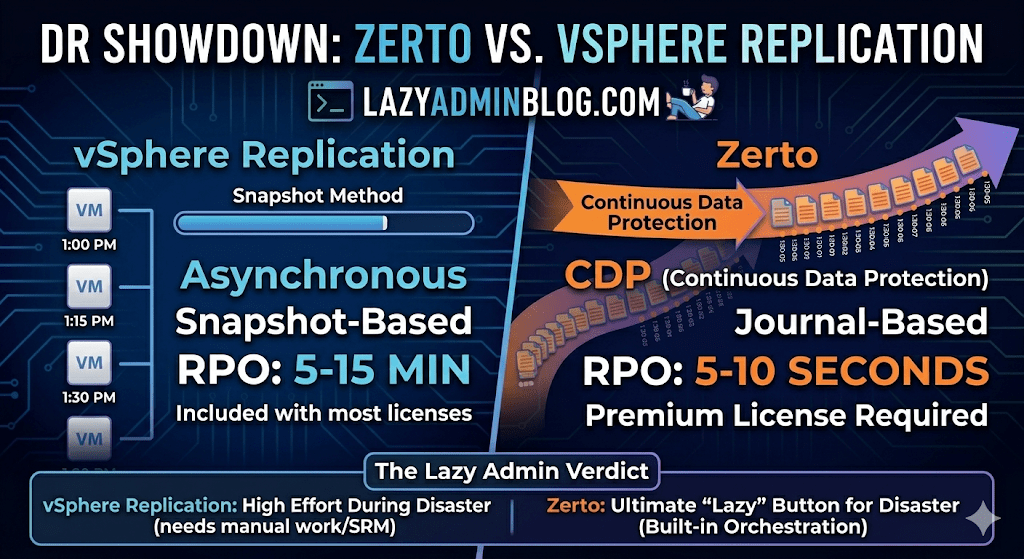
When it comes to Disaster Recovery (DR) in a VMware environment, there are two names that always come up: vSphere Replication (VR) and Zerto.
One is often “free” (included in most licenses), while the other is a premium enterprise powerhouse. But in 2026, with the shifts in Broadcom’s licensing and the rise of ransomware, the choice isn’t just about price—it’s about how much data you can afford to lose.
The Contenders
1. vSphere Replication (The Built-in Basic)
vSphere Replication is a hypervisor-based, asynchronous replication engine. It’s integrated directly into vCenter and captures changed blocks to send to a target site.
- Best For: Small to medium businesses with “relaxed” recovery goals.
- Cost: Included with vSphere Standard and vSphere Foundation subscriptions.
2. Zerto (The Gold Standard for CDP)
Zerto uses Continuous Data Protection (CDP). Instead of taking snapshots, it uses a lightweight agent on each host to intercept every write in real-time and stream it to the DR site.
- Best For: Mission-critical apps where losing 15 minutes of data is a catastrophe.
- Cost: Licensed per VM (Premium pricing).
Key Comparison: RPO and RTO
In the world of “Lazy Adminning,” we care most about RPO (Recovery Point Objective – how much data we lose) and RTO (Recovery Time Objective – how fast we get back up).
| Feature | vSphere Replication | Zerto (HPE) |
| Replication Method | Snapshot-based (Asynchronous) | Journal-based (CDP) |
| Best RPO | 5 to 15 Minutes | 5 to 10 Seconds |
| Point-in-Time Recovery | Limited (up to 24 instances) | Granular (Any second within 30 days) |
| Orchestration | Requires VMware Site Recovery Manager (SRM) | Built-in (One-click failover) |
| Snapshots | Uses VM Snapshots (can impact performance) | No Snapshots (Zero impact on IOPS) |
Why Choose vSphere Replication?
If you have a limited budget and your management is okay with losing 30 minutes of data, VR is the way to go.
- Pros: It’s already there. No extra software to install besides the appliance. It works well for low-change workloads.
- Cons: It relies on snapshots, which can cause “stun” on high-load SQL servers. Without adding SRM (Site Recovery Manager), failover is a manual, painful process of registering VMs and fixing IPs.
Why Choose Zerto?
If you are running a 24/7 shop or protecting against Ransomware, Zerto is king.
- Pros: The Journal is a time machine. If ransomware hits at 10:05:30 AM, you can failover to 10:05:25 AM. It also handles IP re-addressing and boot ordering natively.
- Cons: It’s an expensive add-on. It also requires a “Virtual Replication Appliance” (VRA) on every host in your cluster, which uses a bit of RAM and CPU.
The Verdict: Which one is “Lazy”?
- vSphere Replication is lazy at the start (easy to turn on), but high-effort during an actual disaster (lots of manual work).
- Zerto is a bit more work to set up but is the ultimate “Lazy Admin” tool during a disaster—you literally click one button, walk away, and grab a coffee while the entire data center boots itself at the DR site.
Lost Your VM? How to Find Its ESXi Host from the Guest OS | Lazy Admin Blog
It’s a classic “Ghost in the Machine” scenario: You can RDP or SSH into a virtual machine, but you can’t find it in vCenter. Maybe it’s a massive environment with thousands of VMs, maybe the naming convention doesn’t match, or maybe you’re dealing with a rogue host that isn’t even in your main cluster.
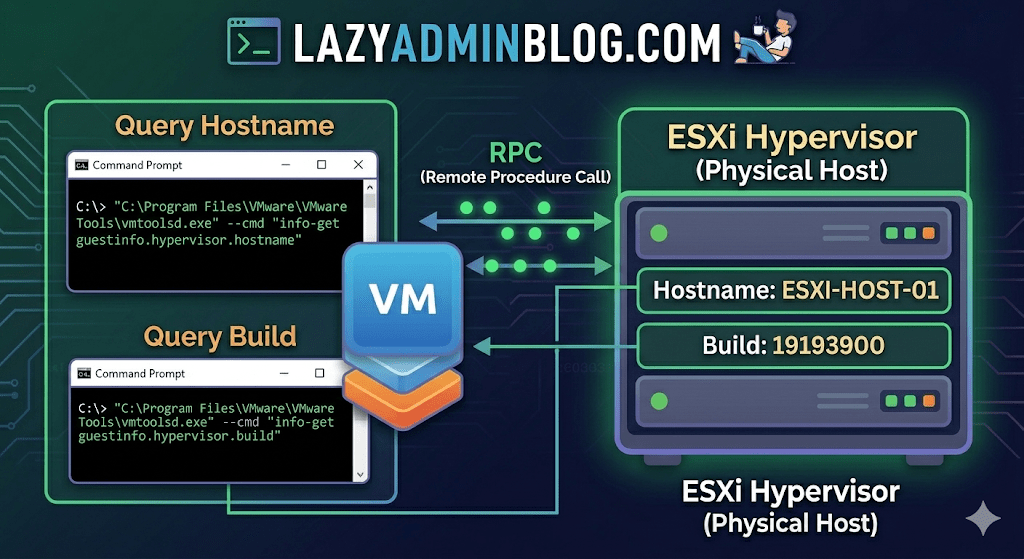
If VMware Tools is installed and running, the VM actually knows exactly where it lives. You just have to ask it nicely through the Command Prompt.
The Magic Tool: vmtoolsd.exe
On Windows VMs, the VMware Tools service includes a CLI utility called vmtoolsd.exe. This tool can query the hypervisor for specific environment variables that are passed down to the guest.
1. Find the ESXi Hostname
If you need to know which physical server is currently crunching the cycles for your VM, run this command:
"C:\Program Files\VMware\VMware Tools\vmtoolsd.exe" --cmd "info-get guestinfo.hypervisor.hostname"
2. Get the ESXi Build Details
Need to know if the underlying host is patched or running an ancient version of ESXi? Query the build number:
"C:\Program Files\VMware\VMware Tools\vmtoolsd.exe" --cmd "info-get guestinfo.hypervisor.build"
Why is this useful?
- vCenter Search is failing: Sometimes the inventory search index gets corrupted, and “Name contains” returns nothing.
- Nested Environments: If you are running VMs inside VMs, this helps you verify which layer of the onion you are currently on.
- Troubleshooting Performance: If a VM is lagging, you can quickly identify the host to check for hardware alerts or CPU contention without leaving the OS.
What if I’m on Linux?
The same logic applies! Most modern Linux distributions use open-vm-tools. You can run the same query via the terminal:
vmtoolsd --cmd "info-get guestinfo.hypervisor.hostname"
Important Requirement: Guest RPC
For these commands to work, the VM must have VMware Tools installed and the guestinfo variables must be accessible. In some hardened environments, admins might disable these RPC (Remote Procedure Call) queries in the .vmx file for security reasons, but in 95% of standard builds, this will work out of the box.
How to Force Cancel a Hung Task in vCenter or ESXi | Lazy Admin Blog
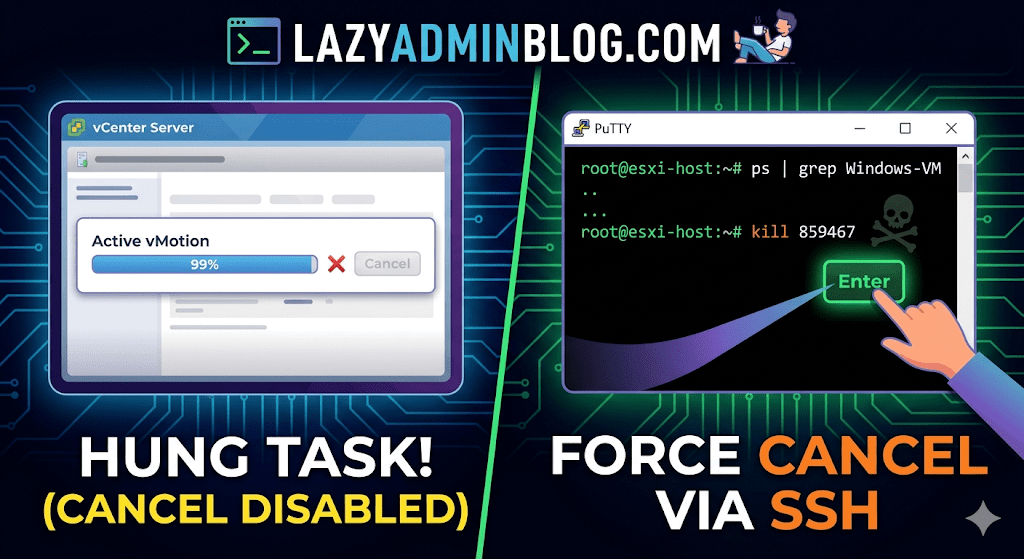
We’ve all been there: a vMotion hits 99% and just… stays there. Or a backup job finishes on the proxy side, but vCenter still thinks the VM is “busy.” Usually, the Cancel button is grayed out, leaving you stuck in management limbo.
When the GUI fails you, it’s time to hop into the CLI. Here is how to manually kill a hung task by targeting the VM’s parent process.
Step 1: Verify the Task
Before pulling the trigger, confirm the task is actually stuck and not just slow. Check the Monitor > Tasks and Events tab for the specific VM. If the progress bar hasn’t budged in an hour and the “Cancel” option is disabled, proceed to the host.
Step 2: Enable and Connect via SSH
To kill a process, you need to be on the specific ESXi host where the VM is currently registered.
- Enable SSH: Go to the ESXi host in vSphere > Configure > System > Services > Start SSH.
- Connect: Open your terminal (Putty, CMD, or Terminal) and log in as
root.
Step 3: Locate the Parent Process ID (PID)
We need to find the specific process tied to your VM. Use the ps command combined with grep to filter for your VM’s name.
Run the following command:
ps -v | grep "Your_VM_Name"
(Note: Using the -v flag in ESXi provides a more detailed view of the world ID and parent processes.)
Look for the line representing the VM’s main process. You are looking for the Leader ID or the first ID listed in the row.
Step 4: Kill the Process
Once you have identified the ID (e.g., 859467), send the kill signal. Start with a standard terminate signal, which allows the process to clean up after itself.
Run the command:
kill 859467
Lazy Admin Tip: If the process is extremely stubborn and won’t die, you can use
kill -9 859467to force an immediate termination. Use this as a last resort!
Step 5: Verify in vSphere
Give vCenter a minute to catch up. The hung task should now disappear or show as “Canceled” in the Tasks and Events console. Your VM should return to an “Idle” state, allowing you to power it on, move it, or restart your backup.
vSphere IDs: The Ultimate Quick Reference Guide | Lazy Admin Blog

Ever feel like you’re drowning in a sea of GUIDs and MoRefs? When you’re scripting or troubleshooting, using the wrong ID is the fastest way to break a backup job or target the wrong server.
Here is the “Lazy Admin” breakdown of the most common vSphere identifiers and how to grab them with PowerCLI.
1. vCenter Instance UUID (serverGuid)
This is the “SSN” of your vCenter server. It’s generated at install time and stays durable for that instance.
- Why it matters: In Linked Mode or cross-vCenter environments, this identifies which vCenter owns an object.
- PowerCLI:PowerShell
$vcenter = Connect-viserver vcsa-01a.corp.local $vcenter.InstanceUuid
2. ESXi Host UUID
Unlike other IDs, this isn’t generated by VMware. It’s pulled from the hardware’s SMBIOS.
- Why it matters: It’s unique to the physical motherboard/vendor.
- PowerCLI:PowerShell
(Get-VMHost | Select -First 1).ExtensionData.hardware.systeminfo.uuid
3. VC-VM Instance UUID (The “Management” ID)
Found in the .vmx file as vc.uuid. This is what vCenter uses to track VMs.
- The “Magic”: vCenter actively scans for duplicates of this ID and will “patch” (change) it automatically if it finds a conflict within its own inventory.
- PowerCLI:PowerShell
(Get-VM | Select -First 1).extensiondata.config.InstanceUUID
4. VM SMBIOS UUID (The “Guest” ID)
Found as uuid.bios in the .vmx. This is what the Guest OS (Windows/Linux) sees as the hardware serial number.
- The “Magic”: vCenter tries not to change this because many applications use it for licensing. If you move/copy a VM, vCenter will ask you what to do to prevent duplicates.
- PowerCLI:PowerShell
(Get-VM | Select -First 1).extensiondata.Config.UUID
5. VM Location ID
Stored as uuid.location. This is a hash of the VM’s configuration file path and the ESXi host UUID.
- The “I Moved It” Prompt: When this hash doesn’t match the current environment, vSphere triggers that famous “Did you move it or copy it?” popup.
- PowerCLI:PowerShell
(Get-VM | Select -First 1).extensiondata.config.LocationId
6. VM MoRef (Managed Object Reference)
The MoRef is the “Short ID” (like vm-43) used by the API and the vCenter database.
- Why it matters: This is the most important ID for database associations (stats, events, tasks). It is not unique across different vCenters.
- PowerCLI:PowerShell
(Get-VM | Select -First 1).ExtensionData.Moref.Value
Quick ID Reference Table
| ID Name | Scope | Persistence | Best Use Case |
| MoRef | Single vCenter | Changes if re-inventoried | API calls & DB tracking |
| Instance UUID | Single vCenter | High (Patched by VC) | Unique VM tracking |
| SMBIOS UUID | Global/Guest OS | Very High | Guest Software Licensing |
| Host UUID | Physical Hardware | Permanent | Hardware Asset Tracking |
Dealing with ESXi: “Lost connectivity to the device backing the boot filesystem” | Lazy Admin Blog

Meta Description: Seeing the “naa.60xxx backing the boot filesystem” error in ESXi? Learn why your VMs are safe and how to clear this persistent alert without a full reboot.
The Scenario
You open your vCenter console to find a critical alert screaming at you:
Lost connectivity to the device naa.60xxxxxxxxxxxxxxxxxxxxxxxxxxxxxxx backing the boot filesystem /vmfs/devices/disks/naa.60xxxxxxxxxxxxxxxxxxxxxxxxxxxxxxx. As a result, host configuration changes will not be saved to persistent storage.
For any SysAdmin, “Lost Connectivity” and “Boot Filesystem” in the same sentence is usually a reason to start reaching for the coffee and the backup tapes. But before you initiate an emergency failover, let’s look at what is actually happening.
Why did this happen?
If you are booting from a SAN (specifically using iSCSI boot), your ESXi host relies on a connection to a Boot LUN. Unlike your data datastores, iSCSI boot does not support Multipathing.
If a switch reboots, a cable is bumped, or the Storage Processor (SP) on your array (like a VNXe) fails over, the single path to that boot device is severed. Even if the hardware recovers a second later, the ESXi “heartbeat” to the boot device has been interrupted.
The “Lazy” Good News: No Outage
Here is the secret: ESXi is a resident-in-memory OS. Once the host has finished booting, the entire kernel is loaded into RAM. Because the VMs are running on different datastores (which should have multipathing), they will continue to hum along without a hiccup.
The Risk: The only thing you can’t do while this error is active is save configuration changes. If you change a vSwitch setting or a license key, it won’t be written to the “disk” (the LUN), and it will be lost if the host reboots.
The Fix: Clear the Ghost Alert
Often, once connectivity is restored, ESXi doesn’t realize the path is back. You have two ways to fix this:
1. The “Smart” Fix (No Downtime)
Instead of a full reboot, you can simply restart the Management Agents. This force-refreshes the host’s connection to its management services and the underlying boot filesystem.
Via DCUI:
- Connect to the console of your ESXi host.
- Press F2 to customize the system.
- Select Troubleshooting Options.
- Select Restart Management Agents.
Via SSH: Run the following command: services.sh restart
2. The “Maintenance” Fix
If the agents don’t clear the alert, you’ll need a clean slate:
- vMotion your VMs to another host.
- Put the host into Maintenance Mode.
- Reboot the host.
Summary for the Modern SysAdmin
- Is there an outage? No.
- Can I save changes? Not until fixed.
- Why? iSCSI boot has no multipathing.
- Quick Fix: Restart Management Agents.
Fixing Corrupt Image Profiles on ESXi | Lazy Admin Blog

We’ve all been there—a patch remediation task in vSphere Update Manager (VUM) or vSphere Lifecycle Manager (vLCM) gets interrupted (shoutout to that one colleague!), and suddenly your ESXi host is in a “zombie” state.
If you see the dreaded “Unknown – no profile defined” error, your host has lost its identity. It no longer knows which VIBs (VMware Installation Bundles) should be installed. This is usually caused by a corrupt imgdb.tgz file.
We’ve all been there—a patch remediation task in vSphere Update Manager (VUM) or vSphere Lifecycle Manager (vLCM) gets interrupted (shoutout to that one colleague!), and suddenly your ESXi host is in a “zombie” state.
If you see the dreaded “Unknown – no profile defined” error, your host has lost its identity. It no longer knows which VIBs (VMware Installation Bundles) should be installed. This is usually caused by a corrupt imgdb.tgz file.

The Symptom: Missing Image Profile
When an image profile is empty or corrupt, you cannot install patches, remove drivers, or perform upgrades. ESXi relies on the image database to maintain consistency.
How to Diagnose a Corrupt imgdb.tgz
Before you resort to a full host rebuild, verify the file size of the database. A healthy imgdb.tgz is typically around 26 KB. If yours is only a few bytes, it’s corrupted.
SSH into the host.
Locate the files:
cd /vmfs/volumesfind * | grep imgdb.tgz
Note: You will usually see two results (one for each bootbank).
Check the size:
ls -l <path_to_result>/imgdb.tgzIf the size is tiny (e.g., 0-100 bytes), the database is toast.
The Fix: Borrowing a “Known Good” Profile
Instead of a time-consuming reinstall, you can manually restore the database from a healthy host running the exact same version and patch level.
Step 1: Export from a Healthy Host
On a working ESXi host, copy the healthy database to a shared datastore:
cp /bootbank/imgdb.tgz /vmfs/volumes//
Step 2: Restore on the Corrupt Host
On the host with the issue, move the good file to /tmp and extract it to access the internal VIB and Profile metadata:
cp /vmfs/volumes//imgdb.tgz /tmpcd /tmptar -xzf imgdb.tgz
Step 3: Rebuild the Database Directories
Now, manually place the healthy metadata into the system directories:
Copy Profiles:
cp /tmp/var/db/esximg/profiles/* /var/db/esximg/profiles/Copy VIBs:
cp /tmp/var/db/esximg/vibs/* /var/db/esximg/vibs/Replace Bootbank File:
rm /bootbank/imgdb.tgzcp /tmp/imgdb.tgz /bootbank/
Step 4: Finalize and Persist
To ensure these changes survive a reboot, run the backup script:
/sbin/auto-backup.sh
Summary Table: Resolution Options
| Option | Effort | Risk | When to use |
| Rebuild Host | High | Low | If you don’t have a matching “known good” host. |
| Manual File Copy | Low | Medium | When you need a fast fix and have a twin host available. |
Forgot Your ESXi Root Password? Reset It Without Reinstalling (vCenter Hack) | Lazy Admin Blog

We’ve all been there. You go to log into the DCUI or SSH into a host only to find the root password doesn’t work, and nobody documented the change.
According to VMware’s official stance, the only “supported” way to recover is a complete wipe and reinstall. But if your host is still managed by vCenter and you have Enterprise Plus licensing, there is a “lazy” (and highly effective) way out using Host Profiles.
How it works
When a host is added to vCenter, a special user called vpxa is created with full root privileges. We can use this existing “backdoor” to push a new configuration to the host, effectively overwriting the lost root password.
Step-by-Step Recovery
1. Extract the Profile
Right-click the “locked” host in the vSphere Web Client. Navigate to All vCenter Actions > Host Profiles > Extract Host Profile. Follow the wizard to create a template of that specific host’s configuration.
2. Edit the Security Settings
Go to Home > Host Profiles (under Management). Right-click your new profile and select Edit.
- Expand Security and Services.
- Expand Security Settings.
- Click on Security Configuration.
- In the dropdown, select: “Configure a fixed administrator password”.
- Enter and confirm your new root password.
3. Attach and Remediate
- Go back to Hosts and Clusters, right-click the host, and select Host Profiles > Attach Host Profile. Select the one you just edited.
- Maintenance Mode: You must put the host into Maintenance Mode.
- Remediate: Right-click the host again, select Host Profiles > Remediate. If you skip Maintenance Mode, vSphere will block the operation.
4. Finish
Once the remediation task completes, the host will reboot. Your new root password is now active!
Important Limitations
- Licensing: This requires Enterprise Plus. Standard or Essentials kits do not include Host Profiles.
- Connectivity: The host must be currently “Connected” in vCenter. If the management agent has crashed or the host is “Not Responding,” this method will not work.
The “Lazy Admin” Verdict
Reinstalling an ESXi host means reconfiguring networking, storage, and scratch partitions. Using a Host Profile takes about 10 minutes and keeps your uptime (and sanity) intact.