
PowerCLI
Automation: Bulk Create and Delete VM Snapshots Across Linked vCenters | Lazy Admin Blog

In a large environment, taking snapshots before a major patch or application update is a standard safety net. But if you have servers spread across multiple vCenters in Linked Mode (e.g., Datacenter1 and Datacenter2), clicking through the vSphere Client is a waste of time.
Today, I’m sharing a “Lazy Admin” script that allows you to bulk create, check, and remove snapshots using a simple CSV list.
Prerequisites
- VMware PowerCLI: Ensure the PowerCLI module is installed on the machine running the script.
- CSV Setup: Create a file named
snapshot_servers.csvinC:\Temp\VMSnapshots\.
The CSV should look like this: | Host | Location | | :— | :— | | Server01 | Datacenter1 | | Server02 | Datacenter2 |
Part 1: Creating Snapshots
- Open PowerShell ISE with vCenter Administrator credentials.
- Load the functions by running the full script (provided below).
- Run the following command:
Create-VMSnapshots -SS_CSV "C:\Temp\VMSnapshots\snapshot_servers.csv" -SS_Name "Pre-Patching" -SS_Description "Requested by App Team"
The script will iterate through your CSV and create snapshots sequentially. You can monitor the progress in the vSphere Tasks console.
Part 2: Deleting Snapshots
Once your changes are verified, don’t let those snapshots linger and bloat your datastores! To remove them:
- Use the same
snapshot_servers.csvlist. - Run the following command:
Remove-VMSnapshots -SS_CSV "C:\Temp\VMSnapshots\snapshot_servers.csv"
Note: This is a sequential script; it will wait for one snapshot removal to finish before moving to the next to avoid pinning your storage I/O.
The Script: VMSnapshots.ps1
Save this code to C:\Temp\VMSnapshots\VMSnapshots.ps1.
function Create-VMSnapshots { param ( [string]$SS_CSV = $(Read-Host "Enter path to CSV"), [string]$SS_Name = $(Read-Host "Enter name for snapshots"), [string]$SS_Description = $(Read-Host "Enter description for snapshots") ) # Import VMware PowerCLI Module If ( !(Get-Module -Name VMware.VimAutomation.Core -ErrorAction SilentlyContinue) ) { import-module VMware.VimAutomation.Core } $Servers = Import-CSV $SS_CSV $WLM_vCenter = Connect-VIServer vCenter1 -WarningAction SilentlyContinue $EDN_vCenter = Connect-VIServer vCenter2 -WarningAction SilentlyContinue ForEach($Server in $Servers){ If($Server.Location -eq 'Datacenter1'){ New-Snapshot -VM $Server.Host -Name $SS_Name -Description $SS_Description -Quiesce -Server $WLM_vCenter -WarningAction SilentlyContinue } ElseIf($Server.Location -eq 'Datacenter2'){ New-Snapshot -VM $Server.Host -Name $SS_Name -Description $SS_Description -Quiesce -Server $EDN_vCenter -WarningAction SilentlyContinue } } }function Check-VMSnapshots { param ( [string]$SS_CSV = $(Read-Host "Enter path to CSV"), [string]$SS_Name = $(Read-Host "Enter snapshot name") ) # Import VMware PowerCLI Module If ( !(Get-Module -Name VMware.VimAutomation.Core -ErrorAction SilentlyContinue) ) { import-module VMware.VimAutomation.Core } $Servers = Import-CSV $SS_CSV $WLM_vCenter = Connect-VIServer vCenter1 -WarningAction SilentlyContinue $EDN_vCenter = Connect-VIServer vCenter2 -WarningAction SilentlyContinue ForEach($Server in $Servers){ If($Server.Location -eq 'Datacenter1'){ Get-Snapshot -VM $Server.Host -Name $SS_Name -Server $WLM_vCenter | Select VM, Name, @{ n="SpaceUsedGB"; e={[math]::round( $_.SizeGB )}} -WarningAction SilentlyContinue } ElseIf($Server.Location -eq 'Datacenter2'){ Get-Snapshot -VM $Server.Host -Name $SS_Name -Server $EDN_vCenter | Select VM, Name, @{ n="SpaceUsedGB"; e={[math]::round( $_.SizeGB )}} -WarningAction SilentlyContinue } } } function Remove-VMSnapshots { param ( [string]$SS_CSV = $(Read-Host "Enter path to CSV") ) # Import VMware PowerCLI Module If ( !(Get-Module -Name VMware.VimAutomation.Core -ErrorAction SilentlyContinue) ) { import-module VMware.VimAutomation.Core } $Servers = Import-CSV $SS_CSV $WLM_vCenter = Connect-VIServer vCenter1 -WarningAction SilentlyContinue $EDN_vCenter = Connect-VIServer vCenter2 -WarningAction SilentlyContinue ForEach($Server in $Servers){ If($Server.Location -eq 'Datacenter1'){ Get-Snapshot $Server.Host -Server $WLM_vCenter | Remove-Snapshot -Confirm:$false -WarningAction SilentlyContinue } ElseIf($Server.Location -eq 'Datacenter2'){ Get-Snapshot $Server.Host -Server $EDN_vCenter | Remove-Snapshot -Confirm:$false -WarningAction SilentlyContinue } } }
Build Your Own VM Snapshot GUI with PowerShell | Lazy Admin Blog

The ultimate “I’m too busy for CLI” tool for VMware Admins.
Today, I am sharing a complete PowerShell tool that creates a custom Windows Form to manage bulk snapshots across multiple vCenters, complete with a progress bar and an automated HTML email report.
🚀 What this tool does:
- Multi-vCenter Support: Toggle between environments with simple radio buttons.
- Bulk Processing: Paste a list of hostnames directly into the text box.
- Smart Memory Handling: Choose whether to include VM memory in the snapshot.
- Progress Tracking: A real-time progress bar so you know exactly when it’s safe to go grab another coffee.
- Automated Reporting: Generates a CSV on your desktop and sends a formatted HTML email to your team.
The Script: VM-Snapshot-GUI.ps1
Lazy Admin Note: Before running, make sure you have the VMware PowerCLI module installed. Change the
"SMTP Server"and"From@domain.com"strings in the script to match your environment.
<!-- wp:syntaxhighlighter/code -->
<pre class="wp-block-syntaxhighlighter-code">Function Snapshot()
{
Add-Type -AssemblyName System.Drawing
Add-Type -AssemblyName System.Windows.Forms
# Create the Main form.
$form = New-Object System.Windows.Forms.Form
$form.Text = "VM Snapshot"
$form.Size = New-Object System.Drawing.Size(650,320)
$form.FormBorderStyle = 'FixedSingle'
$form.StartPosition = "CenterScreen"
$form.AutoSizeMode = 'GrowAndShrink'
$form.Topmost = $True
$form.ShowInTaskbar = $true
# Create the Email form.
$Emailform = New-Object System.Windows.Forms.Form
$Emailform.Text = "Email Report"
$Emailform.Size = New-Object System.Drawing.Size(420,200)
$Emailform.FormBorderStyle = 'FixedSingle'
$form.StartPosition = "CenterScreen"
$Emailform.AutoSizeMode = 'GrowAndShrink'
$Emailform.Topmost = $True
$Emailform.ShowInTaskbar = $true
#Select vCenter
$groupBox = New-Object System.Windows.Forms.GroupBox
$groupBox.Location = New-Object System.Drawing.Size(10,20)
$groupBox.size = New-Object System.Drawing.Size(180,80)
$groupBox.text = "Select the vCenter:"
$Form.Controls.Add($groupBox)
$RadioButton1 = New-Object System.Windows.Forms.RadioButton
$RadioButton1.Location = new-object System.Drawing.Point(15,15)
$RadioButton1.size = New-Object System.Drawing.Size(160,25)
$RadioButton1.Checked = $true
$RadioButton1.Text = "vCenter 1"
$groupBox.Controls.Add($RadioButton1)
$RadioButton2 = New-Object System.Windows.Forms.RadioButton
$RadioButton2.Location = new-object System.Drawing.Point(15,40)
$RadioButton2.size = New-Object System.Drawing.Size(160,25)
$RadioButton2.Text = "vCenter 2"
$groupBox.Controls.Add($RadioButton2)
#Select Snapshot memory
$groupBox1 = New-Object System.Windows.Forms.GroupBox
$groupBox1.Location = New-Object System.Drawing.Size(200,20)
$groupBox1.size = New-Object System.Drawing.Size(180,80)
$groupBox1.text = "Snapshot Memory:"
$Form.Controls.Add($groupBox1)
$RadioButton3 = New-Object System.Windows.Forms.RadioButton
$RadioButton3.Location = new-object System.Drawing.Point(15,15)
$RadioButton3.size = New-Object System.Drawing.Size(160,25)
$RadioButton3.Checked = $true
$RadioButton3.Text = "Snapshot Without Memory"
$groupBox1.Controls.Add($RadioButton3)
$RadioButton4 = New-Object System.Windows.Forms.RadioButton
$RadioButton4.Location = new-object System.Drawing.Point(15,40)
$RadioButton4.size = New-Object System.Drawing.Size(160,25)
$RadioButton4.Text = "Snapshot With Memory"
$groupBox1.Controls.Add($RadioButton4)
$label = New-Object System.Windows.Forms.Label
$label.Location = New-Object System.Drawing.Size(390,20)
$label.Size = New-Object System.Drawing.Size(280,20)
$label.AutoSize = $true
$label.Text = "Enter Hostname Here..."
# Create the TextBox used to capture the user's text.
$textBox = New-Object System.Windows.Forms.TextBox
$textBox.Location = New-Object System.Drawing.Size(390,40)
$textBox.Size = New-Object System.Drawing.Size(130,230)
$textBox.AcceptsReturn = $true
$textBox.AcceptsTab = $false
$textBox.Multiline = $true
$textBox.ScrollBars = 'Both'
$textbox.CharacterCasing='Upper'
# Getting Input for Snapshot SR#, Snapshot Name, Snapshot Description.
$SR_label = New-Object System.Windows.Forms.Label
$SR_label.Location = New-Object System.Drawing.Size(15,130)
$SR_label.Size = New-Object System.Drawing.Size(280,20)
$SR_label.AutoSize = $true
$SR_label.Text = "*SR#"
$SR_textBox = New-Object System.Windows.Forms.TextBox
$SR_textBox.Location = New-Object System.Drawing.Size(150,130)
$SR_textBox.Size = New-Object System.Drawing.Size(130,20)
$SR_textBox.AcceptsReturn = $true
$SR_textBox.AcceptsTab = $false
$SR_textbox.CharacterCasing='Upper'
$SN_label = New-Object System.Windows.Forms.Label
$SN_label.Location = New-Object System.Drawing.Size(15,160)
$SN_label.Size = New-Object System.Drawing.Size(280,20)
$SN_label.AutoSize = $true
$SN_label.Text = "*Snapshot Name"
$SN_textBox = New-Object System.Windows.Forms.TextBox
$SN_textBox.Location = New-Object System.Drawing.Size(150,160)
$SN_textBox.Size = New-Object System.Drawing.Size(200,20)
$SN_textBox.AcceptsReturn = $true
$SN_textBox.AcceptsTab = $false
#$SN_textbox.CharacterCasing='Upper'
$SD_label = New-Object System.Windows.Forms.Label
$SD_label.Location = New-Object System.Drawing.Size(15,190)
$SD_label.Size = New-Object System.Drawing.Size(280,20)
$SD_label.AutoSize = $true
$SD_label.Text = "Snapshot Description"
$SD_textBox = New-Object System.Windows.Forms.TextBox
$SD_textBox.Location = New-Object System.Drawing.Size(150,190)
$SD_textBox.Size = New-Object System.Drawing.Size(200,50)
$SD_textBox.AcceptsReturn = $true
$SD_textBox.AcceptsTab = $false
$SD_textBox.Multiline = $true
$SD_textBox.ScrollBars = 'Both'
#$SD_textbox.CharacterCasing='Upper'
#Create the Hardening Button.
$HButton = New-Object System.Windows.Forms.Button
$HButton.Location = New-Object System.Drawing.Size(540,40)
$HButton.Size = New-Object System.Drawing.Size(100,40)
$HButton.Text = "Take Snapshot"
#Create the Report Button.
$RButton = New-Object System.Windows.Forms.Button
$RButton.Location = New-Object System.Drawing.Size(540,90)
$RButton.Size = New-Object System.Drawing.Size(100,40)
$RButton.Text = "Generate Report"
#Create the Report Button.
$EmailButton = New-Object System.Windows.Forms.Button
$EmailButton.Location = New-Object System.Drawing.Size(540,140)
$EmailButton.Size = New-Object System.Drawing.Size(100,40)
$EmailButton.Text = "Send Email"
#Create the Progress-Bar.
$label1 = New-Object System.Windows.Forms.Label
$label1.Location = New-Object System.Drawing.Size(20,230)
$label1.Size = New-Object System.Drawing.Size(280,20)
$label1.AutoSize = $true
$label1.Text = "Progress..."
$PB = New-Object System.Windows.Forms.ProgressBar
$PB.Name = "PowerShellProgressBar"
$PB.Value = 0
$PB.Style="Continuous"
$System_Drawing_Size = New-Object System.Drawing.Size
$System_Drawing_Size.Width = 200 - 40
$System_Drawing_Size.Height = 20
$PB.Size = $System_Drawing_Size
$PB.Left = 20
$PB.Top = 250
#Initiate Snapshot
$HButton.Add_Click(
{
$report= @()
$counter = 0
If ($SR_textBox.TextLength -ne 0 -and $SN_textBox.TextLength -ne 0)
{
$S_Name= $SR_textBox.text+ " - " +$SN_textBox.text
}
Else{
[System.Windows.Forms.MessageBox]::Show("SR# or Snapshot Name cannot be blank", "Info")
return
}
If ($textbox.TextLength -eq 0)
{
[System.Windows.Forms.MessageBox]::Show("Server List is empty", "Info")
return
}
[System.Windows.Forms.MessageBox]::Show("Sit back and relax while Snapshot is taken !!!", "VM Snapshot")
$ServerList=$textbox.Text.Split("`n")|%{$_.trim()}
Foreach ($vm in $ServerList)
{
if($vm -eq "")
{
$counter++
[Int]$Percentage = ($Counter/$ServerList.Count)*100
$PB.Value = $Percentage
continue
}
if ($RadioButton1.Checked -eq $True)
{
Add-PSSnapin VMware.VimAutomation.Core
Connect-VIServer -Server vCenter1
}
if ($RadioButton2.Checked -eq $True)
{
Add-PSSnapin VMware.VimAutomation.Core
Connect-VIServer -Server vCenter2
}
$Exists = get-vm -name $vm -ErrorAction SilentlyContinue
If ($Exists)
{
If ($RadioButton3.Checked -eq $True)
{
Get-VM $vm |New-snapshot -Name $S_Name -Description $SD_textBox.Text
$rep = Get-VM $vm | Get-Snapshot | Select-Object @{Name='VM';Expression={$_.vm}},@{Name='Snapshot_Name';Expression={$_.name}},@{Name='Description';Expression={$_.Description}},@{Name='Created';Expression={$_.Created}},@{Name='Remarks';Expression={""}}
$report = $report + $rep
}
If ($RadioButton4.Checked -eq $True)
{
Get-VM $vm |New-snapshot -Name $S_Name -Description $SD_textBox.Text -Memory
$rep = Get-VM $vm | Get-Snapshot | Select-Object @{Name='VM';Expression={$_.vm}},@{Name='Snapshot_Name';Expression={$_.name}},@{Name='Description';Expression={$_.Description}},@{Name='Created';Expression={$_.Created}},@{Name='Remarks';Expression={""}}
$report = $report + $rep
}
}
If (!$Exists)
{
$row= New-Object PSObject -Property @{VM = $vm;Snapshot_Name = "";Description = "";Created = "";Remarks="Server not Found"}
$report += $row
}
$counter++
[Int]$Percentage = ($Counter/$ServerList.Count)*100
$PB.Value = $Percentage
}
[System.Windows.Forms.MessageBox]::Show("Snapshot taken successfully" , "Report Generation")
$report |Select-object @{Name="HOSTNAME"; Expression={$_.VM}},@{Name="Snapshot_Name"; Expression={$_.Snapshot_Name}},@{Name="Description"; Expression={$_.Description}},@{Name="Created: Date & Time"; Expression={$_.Created}},@{Name='Remarks';Expression={$_.Remarks}}| Export-Csv $file -NoTypeInformation
})
#Report Generation
$RButton.Add_Click(
{
ii $path
})
#Send Email
$EmailButton.Add_Click(
{
#Create Label
$ToLabel = New-Object System.Windows.Forms.Label
$ToLabel.Location = New-Object System.Drawing.Size(20,20)
$ToLabel.Size = New-Object System.Drawing.Size(100,20)
$ToLabel.AutoSize = $true
$ToLabelFont = New-Object Drawing.Font("Times New Roman",12,[System.Drawing.FontStyle]::Bold)
$ToLabel.Font = $ToLabelFont
$ToLabel.Text = "*To:"
$CcLabel = New-Object System.Windows.Forms.Label
$CcLabel.Location = New-Object System.Drawing.Size(20,50)
$CcLabel.Size = New-Object System.Drawing.Size(100,20)
$CcLabel.AutoSize = $true
$CcLabelFont = New-Object Drawing.Font("Times New Roman",12,[System.Drawing.FontStyle]::Bold)
$CcLabel.Font = $CcLabelFont
$CcLabel.Text = "Cc: (Optional)"
#Create the TextBox Email Address.
$ToBox = New-Object System.Windows.Forms.TextBox
$ToBox.Location = New-Object System.Drawing.Size(140,20)
$ToBox.Size = New-Object System.Drawing.Size(250,20)
$ToBoxFont = New-Object Drawing.Font("Times New Roman",8)
$ToBox.Font=$ToBoxFont
$ToBox.AcceptsReturn = $true
$ToBox.AcceptsTab = $false
#$ToBox.text=""
$ToBox.CharacterCasing='lower'
$CcBox = New-Object System.Windows.Forms.TextBox
$CcBox.Location = New-Object System.Drawing.Size(140,50)
$CcBox.Size = New-Object System.Drawing.Size(250,20)
$CcBoxFont = New-Object Drawing.Font("Times New Roman",8)
$CcBox.Font=$CcBoxFont
$CcBox.AcceptsReturn = $true
$CcBox.AcceptsTab = $false
$CcBox.text=""
$CcBox.CharacterCasing='lower'
#Create Email Send Button
$SendButton = New-Object System.Windows.Forms.Button
$SendButton.Location = New-Object System.Drawing.Size(20,100)
$SendButton.Size = New-Object System.Drawing.Size(100,40)
$ButtonFont = New-Object Drawing.Font("Times New Roman",8,[System.Drawing.FontStyle]::Bold)
$SendButton.Font=$ButtonFont
$SendButton.Text = "Send Email"
$CancelButton = New-Object System.Windows.Forms.Button
$CancelButton.Location = New-Object System.Drawing.Size(150,100)
$CancelButton.Size = New-Object System.Drawing.Size(100,40)
$CancelButton.Font=$ButtonFont
$CancelButton.Text = "Cancel"
$Emailform.Controls.Add($ToLabel)
$Emailform.Controls.Add($CcLabel)
$Emailform.Controls.Add($ToBox)
$Emailform.Controls.Add($CCBox)
$Emailform.Controls.Add($SendButton)
$Emailform.Controls.Add($CancelButton)
$SendButton.Add_Click(
{
If ($ToBox.Text.Length -eq 0)
{
[System.Windows.Forms.MessageBox]::Show("Email address cannot be empty" , "Email Info")
return
}
#---------------------------------------------------------------------
# Generate the HTML report and output to file
#---------------------------------------------------------------------
$head = "<style>"
$head = $head + "BODY{background-color:white;}"
$head = $head + "TABLE{border-width: 1px;border-style: solid;border-color: black;border-collapse: collapse;}"
$head = $head + "TH{border-width: 1px;padding: 0px;border-style: solid;border-color: black;background-color:#778899}"
$head = $head + "TD{border-width: 1px;padding: 0px;border-style: solid;border-color: black}"
$head = $head + "</style>"
# SMTP info
$Toemail=$ToBox.Text
$strTo=$Toemail
$strCc=$CCBox.Text
$strSubject = "Snapshot Taken : $S_Name"
$StrMsg="Hi All, <br>Snapshot has been taken successfully for below list of servers <br><br>"
$strBody = "Attached is the list of Snapshots"
$strMail = $strmsg
# Write the output to an HTML file
$strOutFile = $Path+"email.html"
$ComputerName=(Get-WmiObject -Class Win32_ComputerSystem -Property Name).Name
Get-Content -Path $File |ConvertFrom-CSV | ConvertTo-HTML -Head $head -Body $StrMsg | Out-File $StrOutFile
# Mail the output file
$msg = new-object Net.Mail.MailMessage
$att = new-object Net.Mail.Attachment($File)
$smtp = new-object Net.Mail.SmtpClient("SMTP Server")
$msg.From ="From@domain.com"
$msg.To.Add($strTo)
If ($strCc.Length -ne 0)
{
$msg.cc.Add($strcc)
}
$msg.Subject = $strSubject
$msg.IsBodyHtml = 1
$msg.Body = Get-Content $strOutFile
$msg.Attachments.Add($att)
$smtp.Send($msg)
[System.Windows.Forms.MessageBox]::Show("Email Send !!!","Info")
$Emailform.close()
})
$CancelButton.Add_Click(
{
$Emailform.close()
})
$Emailform.Add_Shown({$Emailform.Activate()})
$Emailform.ShowDialog() > $null
})
# Add all of the controls to the form.
$form.Controls.Add($label)
$form.Controls.Add($textBox)
$form.Controls.Add($groupBox)
$form.Controls.Add($groupBox1)
$form.Controls.Add($RButton)
$form.Controls.Add($HButton)
$form.Controls.Add($label1)
$form.Controls.Add($SR_label)
$form.Controls.Add($SR_textBox)
$form.Controls.Add($SN_label)
$form.Controls.Add($SN_textBox)
$form.Controls.Add($SD_label)
$form.Controls.Add($SD_textBox)
$form.Controls.Add($PB)
$form.Controls.Add($EmailButton)
# Initialize and show the form.
$form.Add_Shown({$form.Activate()})
$form.ShowDialog() > $null
}
Set-ExecutionPolicy unrestricted -Force
$date=get-Date -format "ddMMyy_HHmm"
$ComputerName=(Get-WmiObject -Class Win32_ComputerSystem -Property Name).Name
$Path=[System.Environment]::GetFolderPath([System.Environment+SpecialFolder]::Desktop)+"\Report\"
If ((Test-Path $Path) -eq $false)
{
New-Item $Path -type directory
}
New-Item -ErrorAction Ignore -ItemType directory -Path Report
$File=$Path + "SnapshotReport_$date.csv"
Snapshot</pre>
<!-- /wp:syntaxhighlighter/code -->
🛠️ How to use the GUI:
- Select your vCenter: Choose which environment the VMs live in.
- Snapshot Specs: Enter the SR# (Service Request) and a Name. These are mandatory to keep your environment organized.
- Input Servers: Paste your list of servers (one per line) into the right-hand text box.
- Hit ‘Take Snapshot’: The tool will cycle through the list. If a server isn’t found, it won’t crash; it just marks it as “Server not Found” in your final report.
- Send Email: Once finished, click ‘Send Email’ to notify your team that the work is done.
Why this belongs in your toolkit:
The “Lazy Admin” way is about standardization. By using this GUI, every snapshot taken by your team will follow the same naming convention: SR# - Snapshot Name. No more guessing what “Snap1” or “Update_v2” means six months from now.
🛠️ The Refactor: Adding the “Cleanup” Tab
In the code below, I’ve introduced the TabControl and TabPage classes. The new Cleanup Tab includes a feature every admin needs: Age-Based Filtering. It can scan for snapshots older than 2 or 3 days and wipe them in bulk.
<!-- wp:syntaxhighlighter/code -->
<pre class="wp-block-syntaxhighlighter-code">Function Snapshot()
{
Add-Type -AssemblyName System.Drawing
Add-Type -AssemblyName System.Windows.Forms
# Create the Main form.
$form = New-Object System.Windows.Forms.Form
$form.Text = "VM Snapshot"
$form.Size = New-Object System.Drawing.Size(650,320)
$form.FormBorderStyle = 'FixedSingle'
$form.StartPosition = "CenterScreen"
$form.AutoSizeMode = 'GrowAndShrink'
$form.Topmost = $True
$form.ShowInTaskbar = $true
# Create the Email form.
$Emailform = New-Object System.Windows.Forms.Form
$Emailform.Text = "Email Report"
$Emailform.Size = New-Object System.Drawing.Size(420,200)
$Emailform.FormBorderStyle = 'FixedSingle'
$form.StartPosition = "CenterScreen"
$Emailform.AutoSizeMode = 'GrowAndShrink'
$Emailform.Topmost = $True
$Emailform.ShowInTaskbar = $true
#Select vCenter
$groupBox = New-Object System.Windows.Forms.GroupBox
$groupBox.Location = New-Object System.Drawing.Size(10,20)
$groupBox.size = New-Object System.Drawing.Size(180,80)
$groupBox.text = "Select the vCenter:"
$Form.Controls.Add($groupBox)
$RadioButton1 = New-Object System.Windows.Forms.RadioButton
$RadioButton1.Location = new-object System.Drawing.Point(15,15)
$RadioButton1.size = New-Object System.Drawing.Size(160,25)
$RadioButton1.Checked = $true
$RadioButton1.Text = "vCenter 1"
$groupBox.Controls.Add($RadioButton1)
$RadioButton2 = New-Object System.Windows.Forms.RadioButton
$RadioButton2.Location = new-object System.Drawing.Point(15,40)
$RadioButton2.size = New-Object System.Drawing.Size(160,25)
$RadioButton2.Text = "vCenter 2"
$groupBox.Controls.Add($RadioButton2)
#Select Snapshot memory
$groupBox1 = New-Object System.Windows.Forms.GroupBox
$groupBox1.Location = New-Object System.Drawing.Size(200,20)
$groupBox1.size = New-Object System.Drawing.Size(180,80)
$groupBox1.text = "Snapshot Memory:"
$Form.Controls.Add($groupBox1)
$RadioButton3 = New-Object System.Windows.Forms.RadioButton
$RadioButton3.Location = new-object System.Drawing.Point(15,15)
$RadioButton3.size = New-Object System.Drawing.Size(160,25)
$RadioButton3.Checked = $true
$RadioButton3.Text = "Snapshot Without Memory"
$groupBox1.Controls.Add($RadioButton3)
$RadioButton4 = New-Object System.Windows.Forms.RadioButton
$RadioButton4.Location = new-object System.Drawing.Point(15,40)
$RadioButton4.size = New-Object System.Drawing.Size(160,25)
$RadioButton4.Text = "Snapshot With Memory"
$groupBox1.Controls.Add($RadioButton4)
$label = New-Object System.Windows.Forms.Label
$label.Location = New-Object System.Drawing.Size(390,20)
$label.Size = New-Object System.Drawing.Size(280,20)
$label.AutoSize = $true
$label.Text = "Enter Hostname Here..."
# Create the TextBox used to capture the user's text.
$textBox = New-Object System.Windows.Forms.TextBox
$textBox.Location = New-Object System.Drawing.Size(390,40)
$textBox.Size = New-Object System.Drawing.Size(130,230)
$textBox.AcceptsReturn = $true
$textBox.AcceptsTab = $false
$textBox.Multiline = $true
$textBox.ScrollBars = 'Both'
$textbox.CharacterCasing='Upper'
# Getting Input for Snapshot SR#, Snapshot Name, Snapshot Description.
$SR_label = New-Object System.Windows.Forms.Label
$SR_label.Location = New-Object System.Drawing.Size(15,130)
$SR_label.Size = New-Object System.Drawing.Size(280,20)
$SR_label.AutoSize = $true
$SR_label.Text = "*SR#"
$SR_textBox = New-Object System.Windows.Forms.TextBox
$SR_textBox.Location = New-Object System.Drawing.Size(150,130)
$SR_textBox.Size = New-Object System.Drawing.Size(130,20)
$SR_textBox.AcceptsReturn = $true
$SR_textBox.AcceptsTab = $false
$SR_textbox.CharacterCasing='Upper'
$SN_label = New-Object System.Windows.Forms.Label
$SN_label.Location = New-Object System.Drawing.Size(15,160)
$SN_label.Size = New-Object System.Drawing.Size(280,20)
$SN_label.AutoSize = $true
$SN_label.Text = "*Snapshot Name"
$SN_textBox = New-Object System.Windows.Forms.TextBox
$SN_textBox.Location = New-Object System.Drawing.Size(150,160)
$SN_textBox.Size = New-Object System.Drawing.Size(200,20)
$SN_textBox.AcceptsReturn = $true
$SN_textBox.AcceptsTab = $false
#$SN_textbox.CharacterCasing='Upper'
$SD_label = New-Object System.Windows.Forms.Label
$SD_label.Location = New-Object System.Drawing.Size(15,190)
$SD_label.Size = New-Object System.Drawing.Size(280,20)
$SD_label.AutoSize = $true
$SD_label.Text = "Snapshot Description"
$SD_textBox = New-Object System.Windows.Forms.TextBox
$SD_textBox.Location = New-Object System.Drawing.Size(150,190)
$SD_textBox.Size = New-Object System.Drawing.Size(200,50)
$SD_textBox.AcceptsReturn = $true
$SD_textBox.AcceptsTab = $false
$SD_textBox.Multiline = $true
$SD_textBox.ScrollBars = 'Both'
#$SD_textbox.CharacterCasing='Upper'
#Create the Hardening Button.
$HButton = New-Object System.Windows.Forms.Button
$HButton.Location = New-Object System.Drawing.Size(540,40)
$HButton.Size = New-Object System.Drawing.Size(100,40)
$HButton.Text = "Take Snapshot"
#Create the Report Button.
$RButton = New-Object System.Windows.Forms.Button
$RButton.Location = New-Object System.Drawing.Size(540,90)
$RButton.Size = New-Object System.Drawing.Size(100,40)
$RButton.Text = "Generate Report"
#Create the Report Button.
$EmailButton = New-Object System.Windows.Forms.Button
$EmailButton.Location = New-Object System.Drawing.Size(540,140)
$EmailButton.Size = New-Object System.Drawing.Size(100,40)
$EmailButton.Text = "Send Email"
#Create the Progress-Bar.
$label1 = New-Object System.Windows.Forms.Label
$label1.Location = New-Object System.Drawing.Size(20,230)
$label1.Size = New-Object System.Drawing.Size(280,20)
$label1.AutoSize = $true
$label1.Text = "Progress..."
$PB = New-Object System.Windows.Forms.ProgressBar
$PB.Name = "PowerShellProgressBar"
$PB.Value = 0
$PB.Style="Continuous"
$System_Drawing_Size = New-Object System.Drawing.Size
$System_Drawing_Size.Width = 200 - 40
$System_Drawing_Size.Height = 20
$PB.Size = $System_Drawing_Size
$PB.Left = 20
$PB.Top = 250
#Initiate Snapshot
$HButton.Add_Click(
{
$report= @()
$counter = 0
If ($SR_textBox.TextLength -ne 0 -and $SN_textBox.TextLength -ne 0)
{
$S_Name= $SR_textBox.text+ " - " +$SN_textBox.text
}
Else{
[System.Windows.Forms.MessageBox]::Show("SR# or Snapshot Name cannot be blank", "Info")
return
}
If ($textbox.TextLength -eq 0)
{
[System.Windows.Forms.MessageBox]::Show("Server List is empty", "Info")
return
}
[System.Windows.Forms.MessageBox]::Show("Sit back and relax while Snapshot is taken !!!", "VM Snapshot")
$ServerList=$textbox.Text.Split("`n")|%{$_.trim()}
Foreach ($vm in $ServerList)
{
if($vm -eq "")
{
$counter++
[Int]$Percentage = ($Counter/$ServerList.Count)*100
$PB.Value = $Percentage
continue
}
if ($RadioButton1.Checked -eq $True)
{
Add-PSSnapin VMware.VimAutomation.Core
Connect-VIServer -Server vCenter1
}
if ($RadioButton2.Checked -eq $True)
{
Add-PSSnapin VMware.VimAutomation.Core
Connect-VIServer -Server vCenter2
}
$Exists = get-vm -name $vm -ErrorAction SilentlyContinue
If ($Exists)
{
If ($RadioButton3.Checked -eq $True)
{
Get-VM $vm |New-snapshot -Name $S_Name -Description $SD_textBox.Text
$rep = Get-VM $vm | Get-Snapshot | Select-Object @{Name='VM';Expression={$_.vm}},@{Name='Snapshot_Name';Expression={$_.name}},@{Name='Description';Expression={$_.Description}},@{Name='Created';Expression={$_.Created}},@{Name='Remarks';Expression={""}}
$report = $report + $rep
}
If ($RadioButton4.Checked -eq $True)
{
Get-VM $vm |New-snapshot -Name $S_Name -Description $SD_textBox.Text -Memory
$rep = Get-VM $vm | Get-Snapshot | Select-Object @{Name='VM';Expression={$_.vm}},@{Name='Snapshot_Name';Expression={$_.name}},@{Name='Description';Expression={$_.Description}},@{Name='Created';Expression={$_.Created}},@{Name='Remarks';Expression={""}}
$report = $report + $rep
}
}
If (!$Exists)
{
$row= New-Object PSObject -Property @{VM = $vm;Snapshot_Name = "";Description = "";Created = "";Remarks="Server not Found"}
$report += $row
}
$counter++
[Int]$Percentage = ($Counter/$ServerList.Count)*100
$PB.Value = $Percentage
}
[System.Windows.Forms.MessageBox]::Show("Snapshot taken successfully" , "Report Generation")
$report |Select-object @{Name="HOSTNAME"; Expression={$_.VM}},@{Name="Snapshot_Name"; Expression={$_.Snapshot_Name}},@{Name="Description"; Expression={$_.Description}},@{Name="Created: Date & Time"; Expression={$_.Created}},@{Name='Remarks';Expression={$_.Remarks}}| Export-Csv $file -NoTypeInformation
})
#Report Generation
$RButton.Add_Click(
{
ii $path
})
#Send Email
$EmailButton.Add_Click(
{
#Create Label
$ToLabel = New-Object System.Windows.Forms.Label
$ToLabel.Location = New-Object System.Drawing.Size(20,20)
$ToLabel.Size = New-Object System.Drawing.Size(100,20)
$ToLabel.AutoSize = $true
$ToLabelFont = New-Object Drawing.Font("Times New Roman",12,[System.Drawing.FontStyle]::Bold)
$ToLabel.Font = $ToLabelFont
$ToLabel.Text = "*To:"
$CcLabel = New-Object System.Windows.Forms.Label
$CcLabel.Location = New-Object System.Drawing.Size(20,50)
$CcLabel.Size = New-Object System.Drawing.Size(100,20)
$CcLabel.AutoSize = $true
$CcLabelFont = New-Object Drawing.Font("Times New Roman",12,[System.Drawing.FontStyle]::Bold)
$CcLabel.Font = $CcLabelFont
$CcLabel.Text = "Cc: (Optional)"
#Create the TextBox Email Address.
$ToBox = New-Object System.Windows.Forms.TextBox
$ToBox.Location = New-Object System.Drawing.Size(140,20)
$ToBox.Size = New-Object System.Drawing.Size(250,20)
$ToBoxFont = New-Object Drawing.Font("Times New Roman",8)
$ToBox.Font=$ToBoxFont
$ToBox.AcceptsReturn = $true
$ToBox.AcceptsTab = $false
#$ToBox.text=""
$ToBox.CharacterCasing='lower'
$CcBox = New-Object System.Windows.Forms.TextBox
$CcBox.Location = New-Object System.Drawing.Size(140,50)
$CcBox.Size = New-Object System.Drawing.Size(250,20)
$CcBoxFont = New-Object Drawing.Font("Times New Roman",8)
$CcBox.Font=$CcBoxFont
$CcBox.AcceptsReturn = $true
$CcBox.AcceptsTab = $false
$CcBox.text=""
$CcBox.CharacterCasing='lower'
#Create Email Send Button
$SendButton = New-Object System.Windows.Forms.Button
$SendButton.Location = New-Object System.Drawing.Size(20,100)
$SendButton.Size = New-Object System.Drawing.Size(100,40)
$ButtonFont = New-Object Drawing.Font("Times New Roman",8,[System.Drawing.FontStyle]::Bold)
$SendButton.Font=$ButtonFont
$SendButton.Text = "Send Email"
$CancelButton = New-Object System.Windows.Forms.Button
$CancelButton.Location = New-Object System.Drawing.Size(150,100)
$CancelButton.Size = New-Object System.Drawing.Size(100,40)
$CancelButton.Font=$ButtonFont
$CancelButton.Text = "Cancel"
$Emailform.Controls.Add($ToLabel)
$Emailform.Controls.Add($CcLabel)
$Emailform.Controls.Add($ToBox)
$Emailform.Controls.Add($CCBox)
$Emailform.Controls.Add($SendButton)
$Emailform.Controls.Add($CancelButton)
$SendButton.Add_Click(
{
If ($ToBox.Text.Length -eq 0)
{
[System.Windows.Forms.MessageBox]::Show("Email address cannot be empty" , "Email Info")
return
}
#---------------------------------------------------------------------
# Generate the HTML report and output to file
#---------------------------------------------------------------------
$head = "<style>"
$head = $head + "BODY{background-color:white;}"
$head = $head + "TABLE{border-width: 1px;border-style: solid;border-color: black;border-collapse: collapse;}"
$head = $head + "TH{border-width: 1px;padding: 0px;border-style: solid;border-color: black;background-color:#778899}"
$head = $head + "TD{border-width: 1px;padding: 0px;border-style: solid;border-color: black}"
$head = $head + "</style>"
# SMTP info
$Toemail=$ToBox.Text
$strTo=$Toemail
$strCc=$CCBox.Text
$strSubject = "Snapshot Taken : $S_Name"
$StrMsg="Hi All, <br>Snapshot has been taken successfully for below list of servers <br><br>"
$strBody = "Attached is the list of Snapshots"
$strMail = $strmsg
# Write the output to an HTML file
$strOutFile = $Path+"email.html"
$ComputerName=(Get-WmiObject -Class Win32_ComputerSystem -Property Name).Name
Get-Content -Path $File |ConvertFrom-CSV | ConvertTo-HTML -Head $head -Body $StrMsg | Out-File $StrOutFile
# Mail the output file
$msg = new-object Net.Mail.MailMessage
$att = new-object Net.Mail.Attachment($File)
$smtp = new-object Net.Mail.SmtpClient("SMTP Server")
$msg.From ="From@domain.com"
$msg.To.Add($strTo)
If ($strCc.Length -ne 0)
{
$msg.cc.Add($strcc)
}
$msg.Subject = $strSubject
$msg.IsBodyHtml = 1
$msg.Body = Get-Content $strOutFile
$msg.Attachments.Add($att)
$smtp.Send($msg)
[System.Windows.Forms.MessageBox]::Show("Email Send !!!","Info")
$Emailform.close()
})
$CancelButton.Add_Click(
{
$Emailform.close()
})
$Emailform.Add_Shown({$Emailform.Activate()})
$Emailform.ShowDialog() > $null
})
# Add all of the controls to the form.
$form.Controls.Add($label)
$form.Controls.Add($textBox)
$form.Controls.Add($groupBox)
$form.Controls.Add($groupBox1)
$form.Controls.Add($RButton)
$form.Controls.Add($HButton)
$form.Controls.Add($label1)
$form.Controls.Add($SR_label)
$form.Controls.Add($SR_textBox)
$form.Controls.Add($SN_label)
$form.Controls.Add($SN_textBox)
$form.Controls.Add($SD_label)
$form.Controls.Add($SD_textBox)
$form.Controls.Add($PB)
$form.Controls.Add($EmailButton)
# Initialize and show the form.
$form.Add_Shown({$form.Activate()})
$form.ShowDialog() > $null
}
Set-ExecutionPolicy unrestricted -Force
$date=get-Date -format "ddMMyy_HHmm"
$ComputerName=(Get-WmiObject -Class Win32_ComputerSystem -Property Name).Name
$Path=[System.Environment]::GetFolderPath([System.Environment+SpecialFolder]::Desktop)+"\Report\"
If ((Test-Path $Path) -eq $false)
{
New-Item $Path -type directory
}
New-Item -ErrorAction Ignore -ItemType directory -Path Report
$File=$Path + "SnapshotReport_$date.csv"
Snapshot</pre>
<!-- /wp:syntaxhighlighter/code -->
💡 Why this is a “Lazy” Win:
- Tab Isolation: You won’t accidentally delete snapshots while trying to create them.
- RunAsync Switch: I added
-RunAsyncto the deletion. This means the GUI won’t “freeze” while vCenter is doing the heavy lifting of disk consolidation. - Standardized Cleanup: By hardcoding
$Days = 2, you ensure that your team follows a consistent 48-hour retention policy.
vSphere IDs: The Ultimate Quick Reference Guide | Lazy Admin Blog

Ever feel like you’re drowning in a sea of GUIDs and MoRefs? When you’re scripting or troubleshooting, using the wrong ID is the fastest way to break a backup job or target the wrong server.
Here is the “Lazy Admin” breakdown of the most common vSphere identifiers and how to grab them with PowerCLI.
1. vCenter Instance UUID (serverGuid)
This is the “SSN” of your vCenter server. It’s generated at install time and stays durable for that instance.
- Why it matters: In Linked Mode or cross-vCenter environments, this identifies which vCenter owns an object.
- PowerCLI:PowerShell
$vcenter = Connect-viserver vcsa-01a.corp.local $vcenter.InstanceUuid
2. ESXi Host UUID
Unlike other IDs, this isn’t generated by VMware. It’s pulled from the hardware’s SMBIOS.
- Why it matters: It’s unique to the physical motherboard/vendor.
- PowerCLI:PowerShell
(Get-VMHost | Select -First 1).ExtensionData.hardware.systeminfo.uuid
3. VC-VM Instance UUID (The “Management” ID)
Found in the .vmx file as vc.uuid. This is what vCenter uses to track VMs.
- The “Magic”: vCenter actively scans for duplicates of this ID and will “patch” (change) it automatically if it finds a conflict within its own inventory.
- PowerCLI:PowerShell
(Get-VM | Select -First 1).extensiondata.config.InstanceUUID
4. VM SMBIOS UUID (The “Guest” ID)
Found as uuid.bios in the .vmx. This is what the Guest OS (Windows/Linux) sees as the hardware serial number.
- The “Magic”: vCenter tries not to change this because many applications use it for licensing. If you move/copy a VM, vCenter will ask you what to do to prevent duplicates.
- PowerCLI:PowerShell
(Get-VM | Select -First 1).extensiondata.Config.UUID
5. VM Location ID
Stored as uuid.location. This is a hash of the VM’s configuration file path and the ESXi host UUID.
- The “I Moved It” Prompt: When this hash doesn’t match the current environment, vSphere triggers that famous “Did you move it or copy it?” popup.
- PowerCLI:PowerShell
(Get-VM | Select -First 1).extensiondata.config.LocationId
6. VM MoRef (Managed Object Reference)
The MoRef is the “Short ID” (like vm-43) used by the API and the vCenter database.
- Why it matters: This is the most important ID for database associations (stats, events, tasks). It is not unique across different vCenters.
- PowerCLI:PowerShell
(Get-VM | Select -First 1).ExtensionData.Moref.Value
Quick ID Reference Table
| ID Name | Scope | Persistence | Best Use Case |
| MoRef | Single vCenter | Changes if re-inventoried | API calls & DB tracking |
| Instance UUID | Single vCenter | High (Patched by VC) | Unique VM tracking |
| SMBIOS UUID | Global/Guest OS | Very High | Guest Software Licensing |
| Host UUID | Physical Hardware | Permanent | Hardware Asset Tracking |
Finding RDM LUN UUIDs in a vSphere Cluster | Lazy Admin Blog
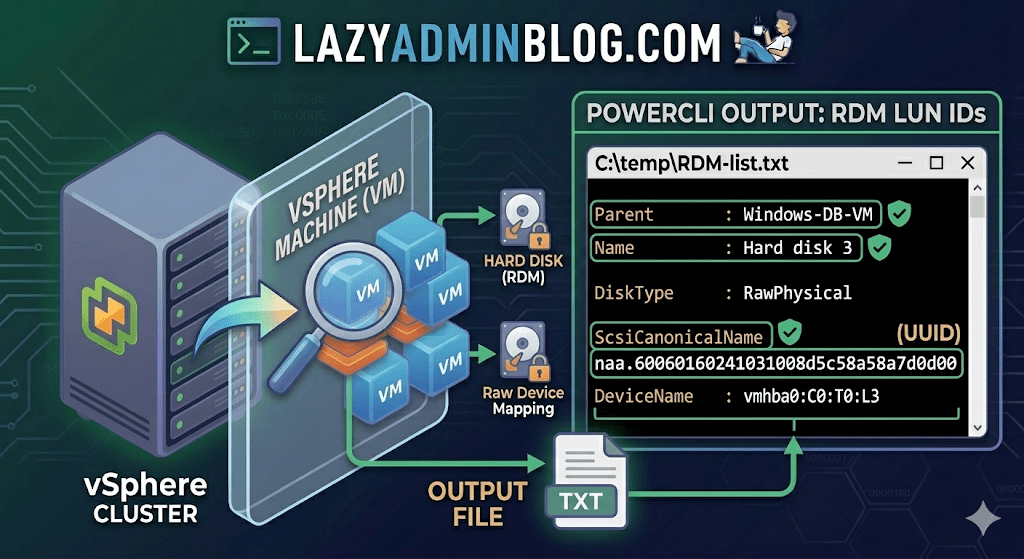
If you’re managing a large virtual environment, keeping track of Raw Device Mappings (RDMs) can be a nightmare. Unlike standard virtual disks (VMDKs) that live neatly inside a datastore, RDMs are directly mapped to a LUN on your SAN.
When your storage team asks, “Which VM is using LUN ID 55?”, you don’t want to check every VM manually. This PowerCLI script will scan your entire cluster and export a list of all RDMs along with their Canonical Name (NAA ID) and Device Name.
The PowerCLI One-Liner
This command connects to your cluster, filters for disks that are either RawPhysical (Pass-through) or RawVirtual, and spits out the details to a text file for easy searching.
Run this in your PowerCLI window:
PowerShell
Get-Cluster 'YourClusterName' | Get-VM | Get-HardDisk -DiskType "RawPhysical","RawVirtual" | Select-Object @{N="VM";E={$_.Parent.Name}},Name,DiskType,ScsiCanonicalName,DeviceName | Format-List | Out-File –FilePath C:\temp\RDM-list.txt
Breaking Down the Output
Once you open C:\temp\RDM-list.txt, here is what you are looking at:
- Parent: The name of the Virtual Machine.
- Name: The label of the hard disk (e.g., “Hard disk 2”).
- DiskType: Confirms if it’s Physical (direct SCSI commands) or Virtual mode.
- ScsiCanonicalName: The NAA ID (e.g.,
naa.600601...). This is the “Universal ID” your storage array uses. - DeviceName: The internal vSphere path to the device.
Why do you need this?
- Storage Migrations: If you are decommissioning a storage array, you must identify every RDM to ensure you don’t leave a “Ghost LUN” behind.
- Troubleshooting Performance: If a specific LUN is showing high latency on the SAN side, this script tells you exactly which VM is the “noisy neighbor.”
- Audit & Compliance: Great for keeping a monthly record of physical hardware mappings.
Lazy Admin Note: This script specifically uses VMware PowerCLI cmdlets (
Get-HardDisk). If you are looking for similar info on a Hyper-V host, you would typically useGet-VMHardDiskDriveand look for theDiskNumberproperty to correlate with physical disks inDisk Management.
The Clean Exit: How to Safely Remove Storage Devices from ESXi | Lazy Admin Blog

In the world of storage, “unpresenting” a LUN is more than just a right-click. If you don’t follow the proper decommissioning workflow, ESXi will keep trying to talk to a ghost device, leading to host instability and long boot times.
Follow this definitive checklist and procedure to ensure your environment stays clean and APD-free.
The “Safe-to-Remove” Checklist
Before you even touch the unmount button, verify these 7 critical points:
- Evacuate Data: Move or unregister all VMs, snapshots, templates, and ISO images from the datastore.
- HA Heartbeats: Ensure the datastore is NOT being used for vSphere HA heartbeats.
- No Clusters: Remove the datastore from any Datastore Clusters or Storage DRS management.
- Coredump: Confirm the LUN isn’t configured as a diagnostic coredump partition.
- SIOC: Disable Storage I/O Control (SIOC) for the datastore.
- RDMs: If the LUN is an Raw Device Mapping, remove the RDM from the VM settings (select “Delete from disk” to kill the mapping file).
- Scratch Location: Ensure the host isn’t using this LUN for its persistent scratch partition.
Pro Tip: Check Scratch Location via PowerCLI
Use this script to verify your scratch config across a cluster:
$cluster = "YourClusterName"foreach ($esx in Get-Cluster $cluster | Get-VMHost) { Get-VMHostAdvancedConfiguration -VMHost $esx -Name "ScratchConfig.ConfiguredScratchLocation"}
Step 1: Identify your NAA ID
You need the unique Network Address Authority (NAA) ID to ensure you are pulling the right plug.
- Via GUI: Check the Properties window of the datastore.
- Via CLI: Run
esxcli storage vmfs extent list
Step 2: The Unmount & Detach Workflow
1. Unmount the File System
In the Configuration tab > Storage, right-click the datastore and select Unmount. If you are doing this for multiple hosts, use the Datastores view (Ctrl+Shift+D) to unmount from the entire cluster at once.
2. Detach the Device (The Most Important Step)
Unmounting removes the “logical” access, but Detaching tells the kernel to stop looking for the “physical” device.
- Switch to the Devices view.
- Right-click the NAA ID and select Detach.
- The state should now show as Unmounted.
Note: Detaching is a per-host operation. You must perform this on every host that has visibility to the LUN to avoid APD states.
Step 3: Cleanup the SAN & Host
Once the state is “Unmounted” across all hosts, you can safely unmap/unpresent the LUN from your SAN array.
Permanent Decommissioning
To prevent “ghost” entries from appearing in your detached list, run these commands on the host:
- List detached devices:
esxcli storage core device detached list - Remove the configuration permanently:
esxcli storage core device detached remove -d <NAA_ID>