
SSH
How to Force Cancel a Hung Task in vCenter or ESXi | Lazy Admin Blog
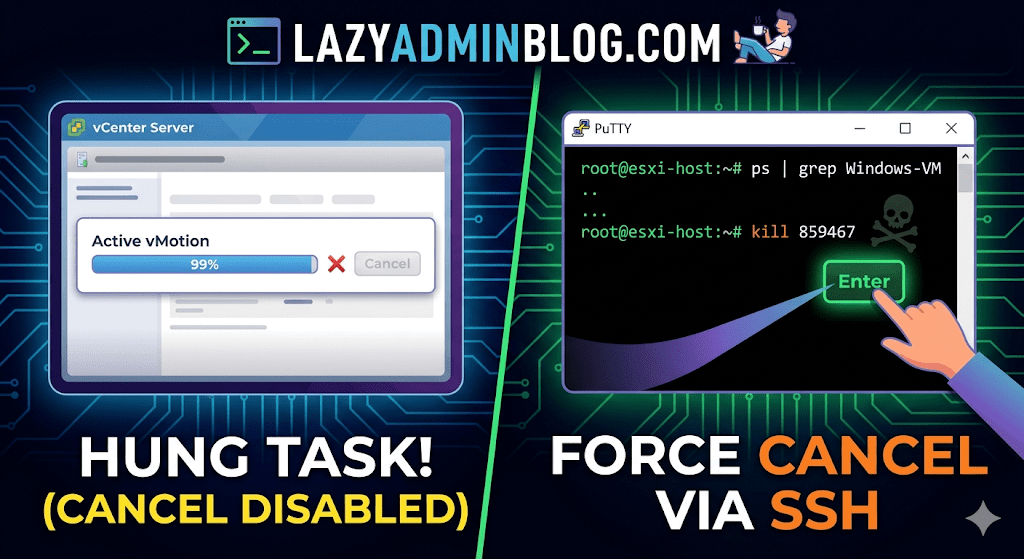
We’ve all been there: a vMotion hits 99% and just… stays there. Or a backup job finishes on the proxy side, but vCenter still thinks the VM is “busy.” Usually, the Cancel button is grayed out, leaving you stuck in management limbo.
When the GUI fails you, it’s time to hop into the CLI. Here is how to manually kill a hung task by targeting the VM’s parent process.
Step 1: Verify the Task
Before pulling the trigger, confirm the task is actually stuck and not just slow. Check the Monitor > Tasks and Events tab for the specific VM. If the progress bar hasn’t budged in an hour and the “Cancel” option is disabled, proceed to the host.
Step 2: Enable and Connect via SSH
To kill a process, you need to be on the specific ESXi host where the VM is currently registered.
- Enable SSH: Go to the ESXi host in vSphere > Configure > System > Services > Start SSH.
- Connect: Open your terminal (Putty, CMD, or Terminal) and log in as
root.
Step 3: Locate the Parent Process ID (PID)
We need to find the specific process tied to your VM. Use the ps command combined with grep to filter for your VM’s name.
Run the following command:
ps -v | grep "Your_VM_Name"
(Note: Using the -v flag in ESXi provides a more detailed view of the world ID and parent processes.)
Look for the line representing the VM’s main process. You are looking for the Leader ID or the first ID listed in the row.
Step 4: Kill the Process
Once you have identified the ID (e.g., 859467), send the kill signal. Start with a standard terminate signal, which allows the process to clean up after itself.
Run the command:
kill 859467
Lazy Admin Tip: If the process is extremely stubborn and won’t die, you can use
kill -9 859467to force an immediate termination. Use this as a last resort!
Step 5: Verify in vSphere
Give vCenter a minute to catch up. The hung task should now disappear or show as “Canceled” in the Tasks and Events console. Your VM should return to an “Idle” state, allowing you to power it on, move it, or restart your backup.
Nuclear Option: How to Force Power Off a Hung VM via SSH | Lazy Admin Blog

We’ve all been there: a Windows Update goes sideways or a database lock freezes a guest OS, and suddenly the “Shut Down Guest” command is greyed out or simply times out. When the GUI fails you, the ESXi Command Line (esxcli) is your best friend.
Step 1: Identify the “World ID”
In ESXi terminology, every running process is assigned a World ID. To kill a VM, you first need to find this unique identifier.
- SSH into your ESXi host using Putty.
- Run the following command to see all active VM processes:Bash
esxcli vm process list - Locate your hung VM in the list. Look for the World ID (a long string of numbers). You will also see the Display Name and the path to the
.vmxfile to confirm you have the right one.
Step 2: Execute the Kill Command
ESXi offers three levels of “force” to stop a process. It is best practice to try them in order:
- Soft: The most graceful. It attempts to give the guest OS a chance to shut down cleanly.
- Hard: Equivalent to pulling the power cable. Immediate cessation of the VMX process.
- Force: The “last resort.” Use this only if ‘Hard’ fails to clear the process from the kernel.
The Syntax:
Bash
esxcli vm process kill --type=[soft,hard,force] --world-id=WorldNumber
Example (Hard Kill): esxcli vm process kill -t hard -w 5241852
Step 3: Verify the Result
After running the kill command, it may take a few seconds for the host to clean up the memory registration. Run the list command again to ensure it’s gone:
Bash
esxcli vm process list | grep "Your_VM_Name"
If the command returns nothing, the VM is officially offline, and you can attempt to power it back on via the vSphere Client.
Lazy Admin Tip 💡
If esxcli still won’t kill the VM, the process might be stuck in an “I/O Wait” state (usually due to a failed storage path). In that rare case, you might actually need to restart the Management Agents (services.sh restart) or, in extreme cases, reboot the entire host.
#VMware #vSphere #ESXi #SysAdmin #Troubleshooting #Virtualization #ITOps #LazyAdmin #ServerManagement #DataCenter
How to Restart Management Agents on an ESXi Host?

When an ESXi host appears as “Not Responding” in vCenter, or the Web Client becomes sluggish, you don’t always need to reboot the entire server. Often, simply restarting the Management Agents (hostd and vpxa) will restore connectivity without interrupting your running Virtual Machines.
Method 1: Using the Direct Console User Interface (DCUI)
If you have physical access to the server or a remote management console (like iDRAC, ILO, or IPMI), this is the safest method.
- Connect to your ESXi host console and press F2 to customize the system.
- Log in as root.
- Navigate to Troubleshooting Options using the arrow keys.
- Select Restart Management Agents.
- Press Enter, then press F11 to confirm the restart.
- Once finished, press Esc to log out.
Method 2: Using SSH or Local Shell
If SSH is enabled, you can restart the specific agents individually. This is the preferred “Lazy Admin” method as it provides granular control.
For ESXi 5.x, 6.x, and 7.x/8.x: Run these two commands to restart the host agent and the vCenter agent:
Bash
/etc/init.d/hostd restart/etc/init.d/vpxa restart
For legacy ESXi 4.x:
Bash
/etc/init.d/hostd restartservice vmware-vpxa restart
Method 3: The “Nuclear” Option (services.sh)
If the individual agent restarts don’t work, you can restart all management services on the host.
Command:
Bash
services.sh restart
⚠️ CRITICAL CAUTION
If LACP is enabled on your Distributed Virtual Switch (DVS), do not use
services.sh restart. Doing so can disrupt network connectivity. Instead, restart independent services or schedule a maintenance window.
Method 4: Resetting the Management Network
Sometimes the issue isn’t the agent, but the VMkernel interface itself. You can bounce the management interface (usually vmk0) with this one-liner:
Bash
esxcli network ip interface set -e false -i vmk0; esxcli network ip interface set -e true -i vmk0
The semicolon ensures the interface comes back up immediately after being disabled.
#VMware #ESXi #vSphere #SysAdmin #ITPro #Virtualization #Troubleshooting #LazyAdmin #DataCenter #TechTips #CloudAdmin
How to get Serial number and System information of ESXi host remotely using putty

🛠️ Method 1: Using esxcfg-info
The esxcfg-info command is a comprehensive tool that dumps a massive amount of data regarding the host’s configuration. Filtering this with grep is the quickest way to find your serial number.
Command:
Bash
esxcfg-info | grep "Serial Number"
- What it does: Searches the entire configuration dump for the specific “Serial Number” string.
- LazyAdmin Tip: If you get too many results, try
esxcfg-info -w | grep "Serial Number"to focus specifically on hardware information.
🛠️ Method 2: Using dmidecode (DMI Table Decoder)
If you need more than just the serial number—such as the Manufacturer, Product Name (Model), and UUID—dmidecode is the standard tool. It retrieves data directly from the system’s Desktop Management Interface (DMI) table.
Command:
Bash
/usr/sbin/dmidecode | grep -A4 "System Information"
- What it does: The
-A4flag tells grep to show the 4 lines after the match. - The Result: You will typically see:
- Manufacturer (e.g., Dell Inc., HP, Cisco)
- Product Name (e.g., PowerEdge R740)
- Version
- Serial Number
- UUID
🛠️ Method 3: The Modern ESXCLI Way
If you are on ESXi 6.x or 7.x/8.x, VMware has standardized most commands under the esxcli framework. This is often faster and cleaner than the legacy scripts.
Command:
Bash
esxcli hardware platform get
- Why use this? It provides a clean, organized output of the Vendor Name, Product Name, and Serial Number without needing to
grep.
⚠️ Troubleshooting Access
- SSH is Disabled: By default, SSH is turned off for security. You must enable it via the DCUI (the yellow and grey monitor screen) under “Troubleshooting Options” or via the Host Client web interface.
- Permission Denied: Ensure you are logging in as
root. Standard users generally do not have permission to query the hardware DMI tables. - Shell Lockdown: If the host is in “Lockdown Mode,” you will be unable to SSH in even with the correct credentials. You’ll need to disable Lockdown Mode via vCenter first.
#VMware #ESXi #SysAdmin #ITPro #CommandLine #ServerHardware #TechTips #LazyAdmin #DataCenter #RemoteManagement #vSphere