
Windows
PowerShell: Mapping GPOs to their Linked Organizational Units

As an Active Directory environment grows, keeping track of where specific Group Policy Objects (GPOs) are linked becomes a significant challenge. The “Group Policy Management Console” (GPMC) is great for looking at one GPO at a time, but if you need a bird’s-eye view of your entire inheritance structure, you need automation.
This PowerShell script sweeps through all Organizational Units (OUs), identifies the unique GUIDs of linked policies, resolves those GUIDs into human-readable GPO names, and exports the mapping to a CSV file.
The PowerShell Script
Before running, create a folder at C:\temp\GroupPolicyandLinkedOU\. This script requires the Active Directory and Group Policy modules (included with RSAT).
# Initialize the output file with headers$Header = "GPO_Name;OU_Name;OU_DistinguishedName"$Path = "C:\temp\GroupPolicyandLinkedOU\out.csv"if (!(Test-Path "C:\temp\GroupPolicyandLinkedOU\")) { New-Item -ItemType Directory -Path "C:\temp\GroupPolicyandLinkedOU\" }$Header | Out-File $Path# Get all OUs with their linked GPO attributes$policies = Get-ADOrganizationalUnit -Filter * -Properties LinkedGroupPolicyObjects$policies | ForEach-Object { $OUName = $_.Name $OUDN = $_.DistinguishedName $LinkedGPOs = $_.LinkedGroupPolicyObjects foreach($LinkedGPO in $LinkedGPOs) { # Extract the GUID from the DistinguishedName string # String format is usually: cn={GUID},cn=policies,cn=system,DC=domain... $GUID = $LinkedGPO.Split(",")[0].Replace("cn={","").Replace("}","").Replace("CN={","") try { # Resolve the GUID to a friendly Display Name $GPO = Get-GPO -Guid $GUID $msg = "$($GPO.DisplayName);$OUName;$OUDN" # Output to console and file Write-Host "Mapped: $($GPO.DisplayName) -> $OUName" -ForegroundColor Cyan $msg | Out-File $Path -Append } catch { Write-Warning "Could not resolve GPO GUID: $GUID linked at $OUName" } }}
How it Works
- LinkedGroupPolicyObjects Property: The script looks at the raw attribute on the OU object. In Active Directory, links aren’t stored as names; they are stored as the DistinguishedName of the GPO container, which includes the GUID.
- String Manipulation: The script uses
.Splitand.Replaceto strip away the LDAP syntax, leaving only the raw GUID string. - Get-GPO -Guid: This cmdlet takes that raw ID and queries the domain for the actual GPO metadata, allowing us to retrieve the DisplayName.
- Semicolon Delimited: The output uses
;as a delimiter. When opening the file in Excel, you can easily use “Text to Columns” to separate the data into clean fields.
Why Use This Script?
- Inheritance Audits: Quickly see if a legacy GPO is linked to an OU it shouldn’t be.
- Troubleshooting: If a user is getting a strange setting, you can search the CSV for their OU and see every policy applied.
- Clean-up: Identify “ghost” links—SIDs/GUIDs that remain linked to an OU even though the GPO itself has been deleted.
#PowerShell #ActiveDirectory #GroupPolicy #SysAdmin #WindowsServer #ITAutomation #LazyAdmin #TechTips #ITPro #Infrastructure
PowerShell: Resolve Bulk IP Addresses to Hostnames

When you’re dealing with a large list of IP addresses from a firewall log or a network scan, manually running nslookup is not an option. You need a fast, automated way to perform a reverse DNS lookup to identify the devices on your network.
This script leverages the .NET [System.Net.Dns] class to perform high-speed lookups, converting a simple text file of IPs into a comma-separated list of hostnames.
The PowerShell Script
Save the code below as ResolveIPs.ps1. Create a file named hosts.txt in the same folder and paste your IP addresses (one per line).
PowerShell
# Get list from file, initialize empty array$ListOfIPs = Get-Content ".\hosts.txt"$ResultList = @()# Roll through the list, resolving with the .NET DNS resolverforeach ($IP in $ListOfIPs) { # Suppress errors for IPs that don't resolve $ErrorActionPreference = "silentlycontinue" $Result = $null # Status update for the user Write-Host "Resolving $IP..." -ForegroundColor Cyan # Pass the current IP to .NET for name resolution $Result = [System.Net.Dns]::GetHostEntry($IP) # Add results to the list if ($Result) { $ResultList += "$IP," + [string]$Result.HostName } else { $ResultList += "$IP,unresolved" }}# Export to file and notify completion$ResultList | Out-File .\resolved.txtWrite-Host "Name resolution complete! Check .\resolved.txt" -ForegroundColor Green
How it Works
[System.Net.Dns]::GetHostEntry($IP): This is the heart of the script. It queries your configured DNS servers for a Pointer (PTR) record associated with the IP address.- Error Action Silencing: Since it’s common for some IPs (like guest devices or unmanaged switches) to lack DNS records, we use
silentlycontinueto prevent the red error text from cluttering your console. - Array Building: The script creates a simple “IP,Hostname” format, which can easily be renamed to
.csvand opened in Excel for further analysis.
💡 Lazy Admin Tips
- DNS Suffixes: Ensure your machine has the correct DNS search suffixes configured. If the script only returns short names and you need FQDNs (Fully Qualified Domain Names), check your network adapter settings.
- Speed: The
.NETmethod used here is generally faster than the standardResolve-DnsNamecmdlet when dealing with large batches of legacy records. - Check Your PTRs: If the script returns “unresolved” for IPs you know are active, it’s a sign that your Reverse Lookup Zones in AD DNS might be missing records or need scavenging.
#PowerShell #Networking #DNS #SysAdmin #WindowsServer #Automation #ITPro #LazyAdmin #NetworkSecurity #TechTips
PowerShell: Audit Local Administrators on Remote Servers

One of the most common security risks in a Windows environment is “Privilege Creep”—where users or service accounts are added to the Local Administrators group and never removed. Manually checking every server is impossible, and Group Policy Preferences don’t always show you the “extra” accounts that might have been added manually.
This PowerShell script allows you to sweep your network, query any local group (Administrators, Remote Desktop Users, etc.), and categorize the members into Local vs. Domain accounts in a clean CSV report.
The PowerShell Script
Save this code as Get-LocalGroupMembers.ps1. It uses the [ADSI] (Active Directory Service Interfaces) provider to connect to the local SAM database of remote computers, which is highly compatible across different Windows versions.
[CmdletBinding()]Param( [Parameter(ValueFromPipeline=$true, ValueFromPipelineByPropertyName=$true)] [string[]]$ComputerName = $env:ComputerName, [Parameter()] [string]$LocalGroupName = "Administrators", [Parameter()] [string]$OutputDir = "C:\temp\localadmin\")Begin { # Ensure directory exists and initialize CSV if (!(Test-Path $OutputDir)) { New-Item -ItemType Directory -Path $OutputDir } $OutputFile = Join-Path $OutputDir "LocalGroupMembers.csv" Add-Content -Path $OutPutFile -Value "ComputerName, LocalGroupName, Status, MemberType, MemberDomain, MemberName"}Process { ForEach($Computer in $ComputerName) { Write-Host "Working on $Computer..." -ForegroundColor Cyan If(!(Test-Connection -ComputerName $Computer -Count 1 -Quiet)) { Add-Content -Path $OutputFile -Value "$Computer,$LocalGroupName,Offline" Continue } else { try { $group = [ADSI]"WinNT://$Computer/$LocalGroupName" $members = @($group.Invoke("Members")) if(!$members) { Add-Content -Path $OutputFile -Value "$Computer,$LocalGroupName,NoMembersFound" continue } } catch { Add-Content -Path $OutputFile -Value "$Computer,,FailedToQuery" Continue } foreach($member in $members) { try { $MemberName = $member.GetType().Invokemember("Name","GetProperty",$null,$member,$null) $MemberType = $member.GetType().Invokemember("Class","GetProperty",$null,$member,$null) $MemberPath = $member.GetType().Invokemember("ADSPath","GetProperty",$null,$member,$null) # Determine if member is Local or Domain if($MemberPath -match "^Winnt\:\/\/(?<domainName>\S+)\/(?<CompName>\S+)\/") { $MemberType = if($MemberType -eq "User") { "LocalUser" } else { "LocalGroup" } $MemberDomain = $matches["CompName"] } elseif($MemberPath -match "^WinNT\:\/\/(?<domainname>\S+)/") { $MemberType = if($MemberType -eq "User") { "DomainUser" } else { "DomainGroup" } $MemberDomain = $matches["domainname"] } else { $MemberType = "Unknown"; $MemberDomain = "Unknown" } Add-Content -Path $OutPutFile -Value "$Computer, $LocalGroupName, SUCCESS, $MemberType, $MemberDomain, $MemberName" } catch { Add-Content -Path $OutputFile -Value "$Computer,,FailedQueryMember" } } } }}
How to Use This Script
Audit All Servers from a List
Create a servers.txt file with your hostnames and run:
.\Get-LocalGroupMembers.ps1 -ComputerName (Get-Content C:\temp\servers.txt) -OutputDir C:\temp\Reports\
Query a Specific Group (e.g., Remote Desktop Users)
.\Get-LocalGroupMembers.ps1 -ComputerName "SRV-PROD-01" -LocalGroupName "Remote Desktop Users"
Key Benefits
- Member Classification: The script identifies if an account is a LocalUser or a DomainUser, which is vital for identifying accounts that shouldn’t be there.
- Offline Handling: It pings the computer first to prevent the script from hanging on a dead connection.
- ADSI Speed: Using
[ADSI](WinNT provider) is often faster than using WMI for specific group queries and doesn’t require WinRM to be enabled likeInvoke-Command.
VBScript: Batch Audit Service Status Across Multiple Windows Servers

Keeping track of critical services—like SQL, IIS, or Print Spooler—across a large server farm is a common headache for admins. While PowerShell is the modern go-to, many legacy environments and specific automation workflows still rely on the reliability of VBScript and WMI (Windows Management Instrumentation).
This script allows you to pull a full inventory of every service on a list of servers, including their start mode (Automatic/Manual), current state (Running/Stopped), and the Service Account being used.
Prerequisites & Setup
- Create the workspace: Create a folder named
C:\Temp\ServiceDetails. - The Server List: Create a file named
Servers.txtin that folder. List your server names or IP addresses, one per line. - Permissions: You must run this script from an account that has Local Administrator rights on all target servers to query WMI.
The VBScript Solution
Save the code below as ServiceDetails.vbs in your C:\Temp\ServiceDetails folder.
' --- START OF SCRIPT ---ServerList = "C:\Temp\ServiceDetails\Servers.txt"arrServices = Array("") ' Leave empty to get all servicesDim objFSO : Set objFSO = CreateObject("Scripting.FileSystemObject")Dim objOut : Set objOut = objFSO.CreateTextFile("C:\Temp\ServiceDetails\ServiceQuery.csv")arrComputers = Split(objFSO.OpenTextFile(ServerList).ReadAll, vbNewLine) ' Write CSV HeadersObjOut.WriteLine "SERVER, SERVICE DISPLAY NAME, SERVICE STARTMODE, SERVICE STATUS, SERVICE ACCOUNT"For Each strComputer In arrComputers If Trim(strComputer) <> "" Then strAlive = IsAlive(strComputer) objFound = 0 If strAlive = "Alive" Then On Error Resume Next Set objWMIService = GetObject("winmgmts:\\" & strComputer & "\root\CIMV2") If Err.Number <> 0 Then ObjOut.WriteLine strComputer & ", WMI ERROR, N/A, N/A, N/A" Err.Clear Else Set colItems = objWMIService.ExecQuery("SELECT * FROM Win32_Service") For Each objItem In colItems ObjOut.WriteLine strComputer & "," & objItem.DisplayName & "," & objItem.StartMode & "," & objItem.State & "," & objItem.StartName objFound = 1 Next End If Else ObjOut.WriteLine strComputer & "- UnResolved, N/A, N/A, N/A, N/A" End If End IfNextobjOut.CloseMsgBox "Service Export Complete!", 64, "LazyAdmin Notification"' Function to Ping the server before attempting WMI connectionFunction IsAlive(strComputer) Set WshShell = WScript.CreateObject("WScript.Shell") Set objExecObject = WshShell.Exec("%comspec% /c ping -n 1 -w 500 " & strComputer) strText = objExecObject.StdOut.ReadAll() If Instr(strText, "Reply from") > 0 Then IsAlive = "Alive" Else IsAlive = "Dead" End If End Function
How it Works
- WMI (Win32_Service): The script connects to the
root\CIMV2namespace on the remote machine to query theWin32_Serviceclass. This is the same data you see inservices.msc. - The Ping Check: Before trying to connect (which can be slow if a server is down), the
IsAlivefunction pings the host. This significantly speeds up the script if you have offline servers in your list. - CSV Output: All data is appended to a
.csvfile, making it ready for a pivot table in Excel to find services running under old service accounts or identifying disabled critical services.
#SysAdmin #WindowsServer #VBScript #WMI #ITAutomation #ServerManagement #TechTips #LazyAdmin #Infrastructure #ITAudit
PowerShell Script: Quickly Convert SIDs to Usernames

Have you ever looked at a security log or a orphaned folder permission and seen a string like S-1-5-21-3623811015-3361044348-30300820-1013? Those are SIDs (Security Identifiers). While they are great for the Windows OS, they are nearly impossible for humans to read.
If you have a list of these SIDs from an audit or a log file, you don’t have to look them up one by one. This PowerShell script will take a bulk list of SIDs and “translate” them into readable Usernames (UIDs).
The PowerShell Script
Save this script as SIDtoUID.ps1. It uses the .NET SecurityIdentifier class to perform the translation locally or against your Active Directory domain.
# Create or clear the output fileOut-File UID.txt# Loop through each SID in the source text fileforeach ($SID in (Get-Content SID.txt)){ # Create a SID object $objSID = New-Object System.Security.Principal.SecurityIdentifier ($SID) Try { # Attempt to translate the SID to an NT Account name $objUser = $objSID.Translate( [System.Security.Principal.NTAccount]) # Append the Username to the output file $objUser.Value >> UID.txt Write-Host "Translated: $SID -> $($objUser.Value)" -ForegroundColor Green } Catch { # If translation fails (e.g., deleted account), keep the original SID $SID >> UID.txt Write-Warning "Failed to translate: $SID" }}
How to Use It
- Create your input: Create a file named
SID.txtin the same folder as the script. Paste your SIDs there, one per line. - Run the script: Open PowerShell and execute
.\SIDtoUID.ps1. - Check your results: A new file named
UID.txtwill appear, containing the translated usernames in the same order as your original list.
Why do SIDs sometimes fail to translate?
In the Catch block of the script, we tell PowerShell to just output the original SID if it can’t find a match. This usually happens for two reasons:
- Deleted Accounts: The user or group no longer exists in Active Directory, leaving behind an “orphaned” SID.
- Connectivity: Your machine cannot reach the Domain Controller to perform the lookup.
#PowerShell #ActiveDirectory #SysAdmin #ITPro #CyberSecurity #WindowsServer #Automation #LazyAdmin #TechTips #ITAudit
PowerShell Script: Export User Group Memberships to CSV

Auditing which users belong to which groups is one of the most frequent requests for a System Administrator. Whether it’s for a security audit, a helpdesk ticket, or a “copy permissions” request, digging through the Member Of tab in Active Directory is slow and prone to error.
This PowerShell script simplifies the process by generating a clean, object-based list of memberships that you can easily export to CSV, HTML, or plain text.
The PowerShell Script
Save the following code as Get-UserGroupMembership.ps1. It is designed to handle single users, lists from text files, or entire Organizational Units (OUs) via the pipeline.
Param ( [Parameter(Mandatory=$true,ValueFromPipeLine=$true)] [Alias("ID","Users","Name")] [string[]]$User)Begin { Try { Import-Module ActiveDirectory -ErrorAction Stop } Catch { Write-Host "Unable to load Active Directory module. Is RSAT installed?"; Break }}Process { ForEach ($U in $User) { Try { $UN = Get-ADUser $U -Properties MemberOf $Groups = ForEach ($Group in ($UN.MemberOf)) { (Get-ADGroup $Group).Name } # Sort groups alphabetically for a cleaner report $Groups = $Groups | Sort ForEach ($Group in $Groups) { New-Object PSObject -Property @[ordered]@{ User = $UN.Name Group = $Group } } } Catch { Write-Warning "Could not find user: $U" } }}
How to Use the Script
1. Single User Lookup
To quickly see the groups for one specific user:
PowerShell
.\Get-UserGroupMembership.ps1 -User "John.Doe"
2. Bulk Export from a Text File
If you have a list of usernames in users.txt, use this command to generate a full CSV report:
PowerShell
Get-Content C:\Temp\users.txt | .\Get-UserGroupMembership.ps1 | Export-CSV C:\Temp\UserMemberships.csv -NoTypeInformation
3. Audit an Entire OU
To see the memberships for every user within a specific department or location:
PowerShell
Get-ADUser -Filter * -SearchBase "OU=Users,DC=yourdomain,DC=local" | .\Get-UserGroupMembership.ps1 | Export-CSV C:\audit_output.csv -NoTypeInformation
Why This Method Beats the GUI
- Alphabetical Sorting: Groups are presented A-Z, making it much easier to read than the random order in ADUC.
- Pipeline Support: Because it outputs a PSObject, you can pipe it directly into
ConvertTo-HTMLfor a report orOut-GridViewfor an interactive window. - Automation Ready: You can schedule this script to run weekly to maintain a “snapshot” of your environment’s security posture.
#PowerShell #ActiveDirectory #SysAdmin #WindowsServer #ITAdmin #CyberSecurity #Automation #LazyAdmin #TechTips #ITAudit
Batch Script: Query Disk Space Across Multiple Servers using PsInfo

Managing disk space across a sprawling server environment is a constant challenge. While modern monitoring tools exist, sometimes you just need a quick, lightweight way to pull drive statistics from a specific list of servers without setting up complex infrastructure.
This “Lazy Admin” solution uses the classic PsInfo utility from the Microsoft Sysinternals suite to sweep your network and compile disk data into a single CSV.
Prerequisites
Before running the script, ensure you have the following in a single folder:
- PsInfo.exe: Download this as part of the PSTools suite from Microsoft.
- Servers.txt: A simple text file containing the names or IP addresses of your target servers (one per line).
- Admin Rights: You must execute the script with a domain account that has local administrative privileges on the remote servers.
The DiskSpace.cmd Script
Copy the code below and save it as DiskSpace.cmd in your PSTools folder.
@Echo OffSetLocal EnableDelayedExpansion:: Delete existing report if it existsIF EXIST Free_Disk_Space_Servers.csv DEL Free_Disk_Space_Servers.csv:: Loop through the Servers.txt fileFOR /F "Tokens=*" %%L IN (Servers.txt) DO ( SET ServerName=%%L Echo Processing !ServerName!... :: Run PsInfo against the remote server and append output to CSV :: The -d switch pulls disk volume information Psinfo -d /accepteula \\!ServerName! >> Free_Disk_Space_Servers.csv)Echo Export Complete: Free_Disk_Space_Servers.csvPause
How it Works
Psinfo -d: The-dflag tells the utility to display volume information, including drive letters, total size, and free space.SetLocal EnableDelayedExpansion: This allows the script to update theServerNamevariable dynamically as it loops through your text file.>> Free_Disk_Space_Servers.csv: This appends the output of every server query into one continuous file./accepteula: Added to the command to ensure the script doesn’t hang waiting for you to click “Accept” on the Sysinternals license agreement for every server.
💡 Lazy Admin Tip
The output from PsInfo is a bit “chatty” for a standard CSV. Once you open it in Excel, use the Data > Text to Columns feature or simple Find/Replace to clean up the headers. If you need a more modern, native approach, consider using a PowerShell one-liner like: Get-WmiObject Win32_LogicalDisk -ComputerName (Get-Content Servers.txt) | Select-Object SystemName, DeviceID, FreeSpace
#SysAdmin #WindowsServer #Sysinternals #PSTools #BatchScript #ITPro #DiskManagement #LazyAdmin #ServerAudit #TechTips
Automating Active Directory: Export All AD Groups and Members to CSV

Auditing Active Directory groups is a fundamental part of identity management. Whether you are performing a quarterly security review or preparing for a domain migration, knowing exactly who is in which group—and what the scope of those groups is—is essential.
This PowerShell script does more than just list group names; it iterates through every group in your domain, identifies the members (skipping disabled users to keep your data clean), and exports everything into a dated CSV file.
The PowerShell Script
Save this script as ADGroupsExport.ps1 in C:\Temp\ExportADgroups. Ensure you are running this from a machine with the RSAT (Remote Server Administration Tools) installed and logged in with a domain account that has read permissions.
# Get year and month for the filename$DateTime = Get-Date -f "yyyy-MM"# Set CSV file destination$CSVFile = "C:\Temp\ExportADgroups\AD_Groups_"+$DateTime+".csv"if (!(Test-Path "C:\Temp\ExportADgroups")) { New-Item -ItemType Directory -Path "C:\Temp\ExportADgroups" }$CSVOutput = @()# Fetch all AD groups$ADGroups = Get-ADGroup -Filter *$i = 0$tot = $ADGroups.countforeach ($ADGroup in $ADGroups) { $i++ $status = "{0:N0}" -f ($i / $tot * 100) Write-Progress -Activity "Exporting AD Groups" -status "Processing Group $i of $tot : $status% Completed" -PercentComplete ($i / $tot * 100) $Members = "" # Fetch members and filter for enabled objects $MembersArr = Get-ADGroup $ADGroup.DistinguishedName -Properties Member | Select-Object -ExpandProperty Member if ($MembersArr) { foreach ($Member in $MembersArr) { $ADObj = Get-ADObject -Filter "DistinguishedName -eq '$Member'" -Properties Enabled # Skip disabled users to keep the report relevant if ($ADObj.ObjectClass -eq "user" -and $ADObj.Enabled -eq $false) { continue } $Members = $Members + "," + $ADObj.Name } if ($Members) { $Members = $Members.Substring(1) } } # Create ordered hash table for clean CSV columns $HashTab = [ordered]@{ "Name" = $ADGroup.Name "Category" = $ADGroup.GroupCategory "Scope" = $ADGroup.GroupScope "Members" = $Members } $CSVOutput += New-Object PSObject -Property $HashTab}# Sort by name and export$CSVOutput | Sort-Object Name | Export-Csv $CSVFile -NoTypeInformationWrite-Host "Export Complete: $CSVFile" -ForegroundColor Green
Key Features of this Script
- Progress Bar: Since large domains can take a long time to process, the
Write-Progressbar gives you a real-time percentage of the completion. - Clean Membership Lists: The script concatenates all members into a single “Members” column, separated by commas, making it easy to read in Excel.
- Disabled User Filtering: It intelligently checks the
Enabledstatus of user objects. If a user is disabled, they are omitted from the report to focus on active security risks. - Scope & Category: Clearly identifies if a group is Security vs. Distribution and Global vs. Universal.
#ActiveDirectory #PowerShell #SysAdmin #ITAutomation #WindowsServer #IdentityManagement #LazyAdmin #TechTips #Reporting #CyberSecurity
How to Export Folder and Share Permissions to CSV via PowerShell

Auditing file share permissions is a critical task for security and compliance. While the Windows GUI allows you to view permissions one folder at a time, it is impossible to get a “big picture” view without automation.
By using the Get-Acl (Access Control List) cmdlet in PowerShell, you can recursively scan a directory and export every user and group permission to a clean CSV file for review in Excel.
The PowerShell Script
Save the following code as ExportFolderPermissions.ps1. Before running it, ensure you update the $FolderPath and the output path for the CSV file.
# Define the source path (Local folder or UNC Share)$FolderPath = dir -Directory -Path "\\ServerName\SharePath" -Recurse -Force$Report = @()Foreach ($Folder in $FolderPath) { # Fetch the Access Control List for the current folder $Acl = Get-Acl -Path $Folder.FullName foreach ($Access in $acl.Access) { # Create an ordered object for each permission entry $Properties = [ordered]@{ 'FolderName' = $Folder.FullName 'AD Group or User' = $Access.IdentityReference 'Permissions' = $Access.FileSystemRights 'Inherited' = $Access.IsInherited } $Report += New-Object -TypeName PSObject -Property $Properties }}# Export the final report to CSV$Report | Export-Csv -Path "C:\Temp\FolderPermissions.csv" -NoTypeInformation
How the Script Works
dir -Recurse: This command crawls through every subfolder within your target directory. The-Directoryswitch ensures we only look at folders, not individual files (which would make the report massive).Get-Acl: This retrieves the security descriptor for the folder, including who has access and what specific rights they have (Read, Write, Full Control, etc.).PSObject: We bundle the folder name, user identity, and rights into a custom object so thatExport-Csvcan easily format them into columns.IdentityReference: This shows you the exact AD Group or User name assigned to that folder.
💡 Lazy Admin Tips
- Run as Admin: You must run PowerShell as an Administrator and have “Read Permissions” rights on the target folders, or the script will return “Access Denied” errors.
- Performance: Scanning thousands of subfolders over a slow network link can take time. If you have a massive file server, run the script locally on the server itself rather than over a mapped drive.
- Filter Results: Once you open the CSV in Excel, use Filters to quickly find “Everyone” or “Anonymous” permissions, or to see which folders have inheritance disabled.
#PowerShell #SysAdmin #ActiveDirectory #SecurityAudit #WindowsServer #ITPro #Coding #LazyAdmin #CyberSecurity #TechTips
Finding RDM LUN UUIDs in a vSphere Cluster | Lazy Admin Blog
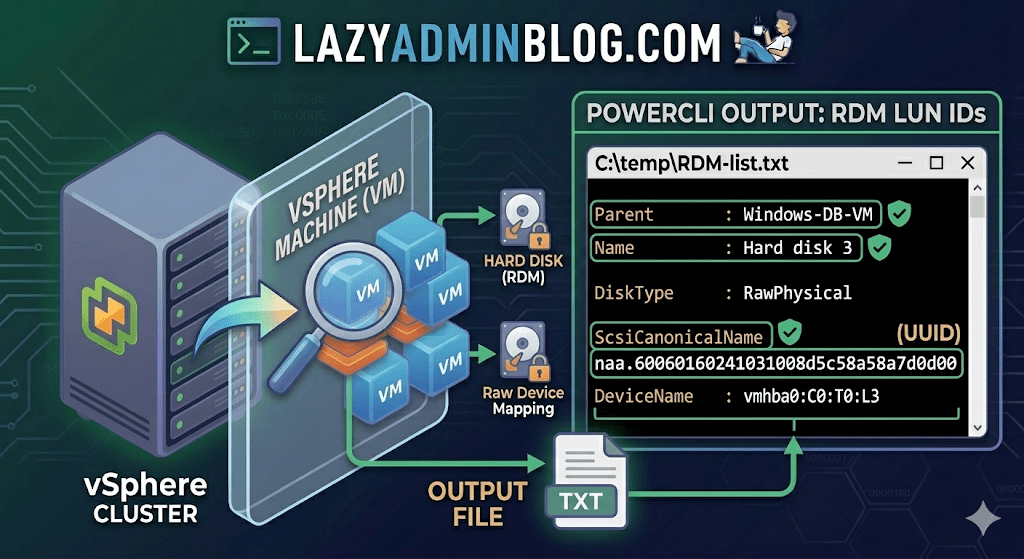
If you’re managing a large virtual environment, keeping track of Raw Device Mappings (RDMs) can be a nightmare. Unlike standard virtual disks (VMDKs) that live neatly inside a datastore, RDMs are directly mapped to a LUN on your SAN.
When your storage team asks, “Which VM is using LUN ID 55?”, you don’t want to check every VM manually. This PowerCLI script will scan your entire cluster and export a list of all RDMs along with their Canonical Name (NAA ID) and Device Name.
The PowerCLI One-Liner
This command connects to your cluster, filters for disks that are either RawPhysical (Pass-through) or RawVirtual, and spits out the details to a text file for easy searching.
Run this in your PowerCLI window:
PowerShell
Get-Cluster 'YourClusterName' | Get-VM | Get-HardDisk -DiskType "RawPhysical","RawVirtual" | Select-Object @{N="VM";E={$_.Parent.Name}},Name,DiskType,ScsiCanonicalName,DeviceName | Format-List | Out-File –FilePath C:\temp\RDM-list.txt
Breaking Down the Output
Once you open C:\temp\RDM-list.txt, here is what you are looking at:
- Parent: The name of the Virtual Machine.
- Name: The label of the hard disk (e.g., “Hard disk 2”).
- DiskType: Confirms if it’s Physical (direct SCSI commands) or Virtual mode.
- ScsiCanonicalName: The NAA ID (e.g.,
naa.600601...). This is the “Universal ID” your storage array uses. - DeviceName: The internal vSphere path to the device.
Why do you need this?
- Storage Migrations: If you are decommissioning a storage array, you must identify every RDM to ensure you don’t leave a “Ghost LUN” behind.
- Troubleshooting Performance: If a specific LUN is showing high latency on the SAN side, this script tells you exactly which VM is the “noisy neighbor.”
- Audit & Compliance: Great for keeping a monthly record of physical hardware mappings.
Lazy Admin Note: This script specifically uses VMware PowerCLI cmdlets (
Get-HardDisk). If you are looking for similar info on a Hyper-V host, you would typically useGet-VMHardDiskDriveand look for theDiskNumberproperty to correlate with physical disks inDisk Management.