
Storage
Finding RDM LUN UUIDs in a vSphere Cluster | Lazy Admin Blog
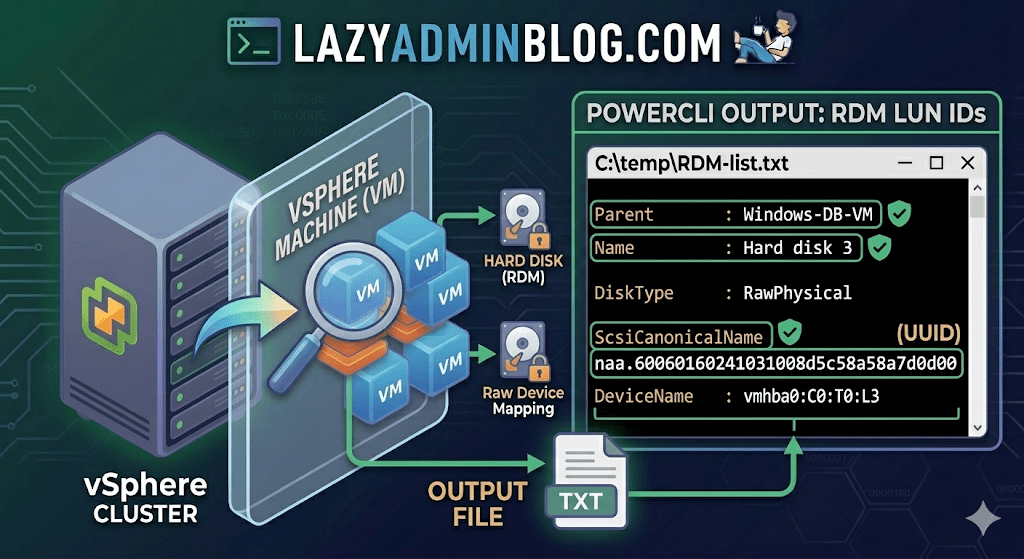
If you’re managing a large virtual environment, keeping track of Raw Device Mappings (RDMs) can be a nightmare. Unlike standard virtual disks (VMDKs) that live neatly inside a datastore, RDMs are directly mapped to a LUN on your SAN.
When your storage team asks, “Which VM is using LUN ID 55?”, you don’t want to check every VM manually. This PowerCLI script will scan your entire cluster and export a list of all RDMs along with their Canonical Name (NAA ID) and Device Name.
The PowerCLI One-Liner
This command connects to your cluster, filters for disks that are either RawPhysical (Pass-through) or RawVirtual, and spits out the details to a text file for easy searching.
Run this in your PowerCLI window:
PowerShell
Get-Cluster 'YourClusterName' | Get-VM | Get-HardDisk -DiskType "RawPhysical","RawVirtual" | Select-Object @{N="VM";E={$_.Parent.Name}},Name,DiskType,ScsiCanonicalName,DeviceName | Format-List | Out-File –FilePath C:\temp\RDM-list.txt
Breaking Down the Output
Once you open C:\temp\RDM-list.txt, here is what you are looking at:
- Parent: The name of the Virtual Machine.
- Name: The label of the hard disk (e.g., “Hard disk 2”).
- DiskType: Confirms if it’s Physical (direct SCSI commands) or Virtual mode.
- ScsiCanonicalName: The NAA ID (e.g.,
naa.600601...). This is the “Universal ID” your storage array uses. - DeviceName: The internal vSphere path to the device.
Why do you need this?
- Storage Migrations: If you are decommissioning a storage array, you must identify every RDM to ensure you don’t leave a “Ghost LUN” behind.
- Troubleshooting Performance: If a specific LUN is showing high latency on the SAN side, this script tells you exactly which VM is the “noisy neighbor.”
- Audit & Compliance: Great for keeping a monthly record of physical hardware mappings.
Lazy Admin Note: This script specifically uses VMware PowerCLI cmdlets (
Get-HardDisk). If you are looking for similar info on a Hyper-V host, you would typically useGet-VMHardDiskDriveand look for theDiskNumberproperty to correlate with physical disks inDisk Management.
The Clean Exit: How to Safely Remove Storage Devices from ESXi | Lazy Admin Blog

In the world of storage, “unpresenting” a LUN is more than just a right-click. If you don’t follow the proper decommissioning workflow, ESXi will keep trying to talk to a ghost device, leading to host instability and long boot times.
Follow this definitive checklist and procedure to ensure your environment stays clean and APD-free.
The “Safe-to-Remove” Checklist
Before you even touch the unmount button, verify these 7 critical points:
- Evacuate Data: Move or unregister all VMs, snapshots, templates, and ISO images from the datastore.
- HA Heartbeats: Ensure the datastore is NOT being used for vSphere HA heartbeats.
- No Clusters: Remove the datastore from any Datastore Clusters or Storage DRS management.
- Coredump: Confirm the LUN isn’t configured as a diagnostic coredump partition.
- SIOC: Disable Storage I/O Control (SIOC) for the datastore.
- RDMs: If the LUN is an Raw Device Mapping, remove the RDM from the VM settings (select “Delete from disk” to kill the mapping file).
- Scratch Location: Ensure the host isn’t using this LUN for its persistent scratch partition.
Pro Tip: Check Scratch Location via PowerCLI
Use this script to verify your scratch config across a cluster:
$cluster = "YourClusterName"foreach ($esx in Get-Cluster $cluster | Get-VMHost) { Get-VMHostAdvancedConfiguration -VMHost $esx -Name "ScratchConfig.ConfiguredScratchLocation"}
Step 1: Identify your NAA ID
You need the unique Network Address Authority (NAA) ID to ensure you are pulling the right plug.
- Via GUI: Check the Properties window of the datastore.
- Via CLI: Run
esxcli storage vmfs extent list
Step 2: The Unmount & Detach Workflow
1. Unmount the File System
In the Configuration tab > Storage, right-click the datastore and select Unmount. If you are doing this for multiple hosts, use the Datastores view (Ctrl+Shift+D) to unmount from the entire cluster at once.
2. Detach the Device (The Most Important Step)
Unmounting removes the “logical” access, but Detaching tells the kernel to stop looking for the “physical” device.
- Switch to the Devices view.
- Right-click the NAA ID and select Detach.
- The state should now show as Unmounted.
Note: Detaching is a per-host operation. You must perform this on every host that has visibility to the LUN to avoid APD states.
Step 3: Cleanup the SAN & Host
Once the state is “Unmounted” across all hosts, you can safely unmap/unpresent the LUN from your SAN array.
Permanent Decommissioning
To prevent “ghost” entries from appearing in your detached list, run these commands on the host:
- List detached devices:
esxcli storage core device detached list - Remove the configuration permanently:
esxcli storage core device detached remove -d <NAA_ID>
The Ultimate Robocopy Command for Large-Scale Migrations | Lazy Admin Blog

If you need to move huge files while keeping a close eye on progress, this is the syntax you want. It includes logging, multi-threading for speed, and the ability to resume if the network drops.
The “Power User” Command
DOS
robocopy "D:\Source_Data" "E:\Destination_Data" /s /e /z /mt:32 /tee /log+:"C:\Logs\MigrationLog.txt"
Switch Breakdown: Why We Use Them
| Switch | What it does |
| /s /e | Copies all subdirectories, including empty ones. |
| /z | Restart Mode: If the connection drops mid-file, Robocopy can resume from where it left off instead of starting the file over. Essential for 100GB+ files! |
| /mt:32 | Multi-Threading: Uses 32 threads to copy multiple files simultaneously. (Default is 8). Adjust based on your CPU/Disk speed. |
| /tee | Writes the status to the console window and the log file at the same time. |
| /log+: | Creates a log file. Using the + appends to an existing log rather than overwriting it—perfect for multi-day migrations. |
How to Monitor Progress in Real-Time
Because we used the /tee and /log+ switches, you have two ways to monitor the status:
- The Console: You’ll see a rolling percentage for each file directly in your Command Prompt.
- Tail the Log: Since the log is being updated live, you can “tail” it from another window (or even remotely) to see the progress without touching the active copy session.
Lazy Admin Tip (PowerShell):
Open a PowerShell window and run this command to watch your Robocopy log update in real-time as files move:
Get-Content "C:\Logs\MigrationLog.txt" -Wait
Important Notes for Huge Files
- Disk Quotas: Robocopy doesn’t check destination space before starting. Use
dirordf(if using Linux targets) to ensure you have enough room. - Permissions: If you need to copy NTFS permissions (ACLs), add the /copyall switch.
- Bandwidth: Running
/mt:128(the max) can saturate a 1Gbps link. If you’re copying over a live production network, stick to/mt:8or/mt:16.
#WindowsServer #Robocopy #DataMigration #SysAdmin #ITInfrastructure #StorageAdmin #TechTips #LazyAdmin #CloudMigration
Top VMware ESXi & vSphere Interview Questions

Preparing for a Virtualization role? This guide covers everything from legacy ESX vs. ESXi differences to advanced HA and DRS logic.
🔄 The Evolution: ESX vs. ESXi
- Service Console: ESX had a Service Console (based on RHEL); ESXi is “thin” and has no console, leading to a smaller footprint and faster boots.
- Hardware: ESXi can be purchased as an embedded hypervisor directly on hardware.
- Health Checks: ESXi features built-in server health status monitoring.
🛡️ High Availability (HA) 5.0 Deep Dive
In vSphere 5.0, the HA architecture moved from a Primary/Secondary model to a Master/Slave concept using the FDM (Fault Domain Manager) agent.
| Role | Responsibilities |
| Master | Monitors host/VM availability, manages restarts, communicates with vCenter. |
| Slave | Monitors local VMs, sends status to Master, participates in elections if Master fails. |
Heartbeat Mechanisms:
- Network Heartbeat: Sent between Master and Slaves every second.
- Datastore Heartbeat: Used if the network heartbeat is lost to determine if a host is isolated or has actually failed.
🚀 vMotion & DRS (Distributed Resource Scheduler)
vMotion Prerequisites:
- Shared storage (required prior to 5.1).
- GigaBit Ethernet dedicated vMotion network (VMkernel port).
- Processor compatibility (EVC – Enhanced vMotion Compatibility).
- No active CD-ROM/ISO mounts or CPU affinity.
DRS Automation Levels:
- Manual: vCenter suggests migrations; admin executes.
- Partially Automated: vCenter handles initial VM placement; suggestions for migrations.
- Fully Automated: vCenter moves VMs automatically based on load.
💾 Storage & Networking Quick Hits
- vSAN: Aggregates local storage from ESXi hosts into a single shared datastore.
- iSCSI Port Binding: Used when multiple VMkernel ports are in the same subnet to allow multiple paths to an array.
- Path Selection Policies (PSP): Fixed, MRU (Most Recently Used), and Round Robin.
- Key Command Line Tools:
esxtop: Live performance data.vmkfstools: Virtual disk management.vmware-cmd: VM management and info.
📊 Hardware Version Comparison
| Feature | HW Version 4 (ESX 3.x) | HW Version 7 (vSphere 4.x) | HW Version 8 (vSphere 5.0) |
| Max vRAM | 64 GB | 256 GB | 1 TB |
| Max vCPU | 4 | 8 | 32 |
| USB Support | No | Yes | Yes (incl. 3.0) |
| NICs per VM | 4 | 10 | 10 |
🚀 Key Differences in Modern vSphere (7.0 & 8.0)
1. The Architecture Shift: Project Monterey & DPUs
Modern vSphere now supports DPUs (Data Processing Units). Instead of the CPU handling networking and security, these tasks are offloaded to the SmartNIC.
2. Tanzu (Kubernetes Integration)
The biggest change in vSphere 7/8 is that Kubernetes is built directly into the hypervisor. You no longer just manage VMs; you manage “Namespaces” and containers natively on ESXi.
3. vMotion Enhancements (vSphere 7+)
In version 5.0, vMotion would “stun” a VM briefly. Modern vMotion uses a “Claim” mechanism that makes migrating massive VMs (Monster VMs) almost instantaneous with zero performance impact.
4. Scalability Comparison (vSphere 5.0 vs. 8.0)
| Feature | vSphere 5.0 (Legacy) | vSphere 8.0 (Modern) |
| vCPUs per VM | 32 | 768 |
| RAM per VM | 1 TB | 24 TB |
| Hosts per Cluster | 32 | 96 |
| VMs per Cluster | 3,000 | 10,000 |
🆕 2026 Interview Questions: Modern Edition
Q: What is the “vSphere Distributed Services Engine”?
A: It is the feature that allows vSphere to use DPUs (SmartNICs) to offload infrastructure services like NSX and vSAN, freeing up the host’s CPU for application workloads.
Q: What is a “Lifecycle Manager” (vLCM)?
A: In vSphere 7+, vLCM replaced the old Update Manager (VUM). It uses a declarative model (Desired State) where you define an image for a cluster, and the hosts automatically maintain that version/driver level.
Q: What is “vSAN Express Storage Architecture” (ESA)?
A: Introduced in vSphere 8, ESA is a new way of processing data optimized for high-performance NVMe drives, removing the old “Disk Group” (Cache/Capacity) requirement.
Q: How does vSphere 8 handle AI/ML workloads?
A: Through vGPU and Device Groups, allowing VMs to span multiple physical GPUs and utilizing High-Bandwidth Memory (HBM) for massive AI model training.
#VMware #vSphere #ESXi #Virtualization #SysAdmin #TechInterview #vMotion #CloudComputing #LazyAdmin #DataCenter
ESXi Multipathing Decoded: MRU, Fixed, and Round Robin

When you present a LUN to an ESXi host, the Native Multipathing (NMP) engine automatically assigns a policy based on the type of storage array detected. However, as an admin, you need to understand why a policy was chosen—and when you should manually intervene.
1. Most Recently Used (MRU)
Best For: Active/Passive Arrays. MRU selects the first working path it finds at boot. If that path fails, it switches to a standby path.
- Key Behavior: It does not fail back. Even if the original path becomes healthy again, the host stays on the current path. This prevents “path thrashing” on Active/Passive arrays where switching controllers is an expensive operation.
2. Fixed
Best For: Active/Active Arrays. The Fixed policy uses a specific “Preferred Path.” If the preferred path fails, it moves to an alternative.
- Key Behavior: It does fail back. As soon as that designated preferred path is back online, the host immediately switches back to it.
3. Round Robin (RR)
Best For: Load Balancing (Active/Active or ALUA). Round Robin rotates through all available paths to distribute the I/O load.
- Active/Active: Uses every available path.
- Active/Passive: Only uses all paths leading to the active controller.
Note: For Microsoft Failover Clusters (MSCS), Round Robin is only supported on ESXi 5.5 and later.
4. Fixed with Array Preference (FIXED_AP)
Introduced in ESXi 4.1 for ALUA-capable arrays, this policy lets the storage array tell the host which path is the “optimal” one.
- Note: This was removed in ESXi 5.0 in favor of letting the NMP automatically select MRU or Fixed based on the array’s ALUA response.
⚠️ Critical Warnings for Admins
- Don’t Fight the NMP: VMware generally warns against manually changing a LUN from Fixed to MRU. The host chooses the policy based on the hardware it detects; forcing a change can lead to instability.
- Verify Vendor Support: Round Robin is powerful but not supported by every array. Always check the VMware Compatibility Guide before making it your default.
- MSCS Limitations: If you are virtualizing SQL clusters or other failover clusters, double-check your ESXi version before toggling Round Robin, or you risk losing disk heartbeat connectivity.
#VMware #ESXi #StorageAdmin #vSphere #Multipathing #SysAdmin #ITPro #Virtualization #LazyAdmin #DataCenter #StorageTips