
SRM
Zerto vs. vSphere Replication: Which DR Strategy is for You? | LazyAdminBlog.com
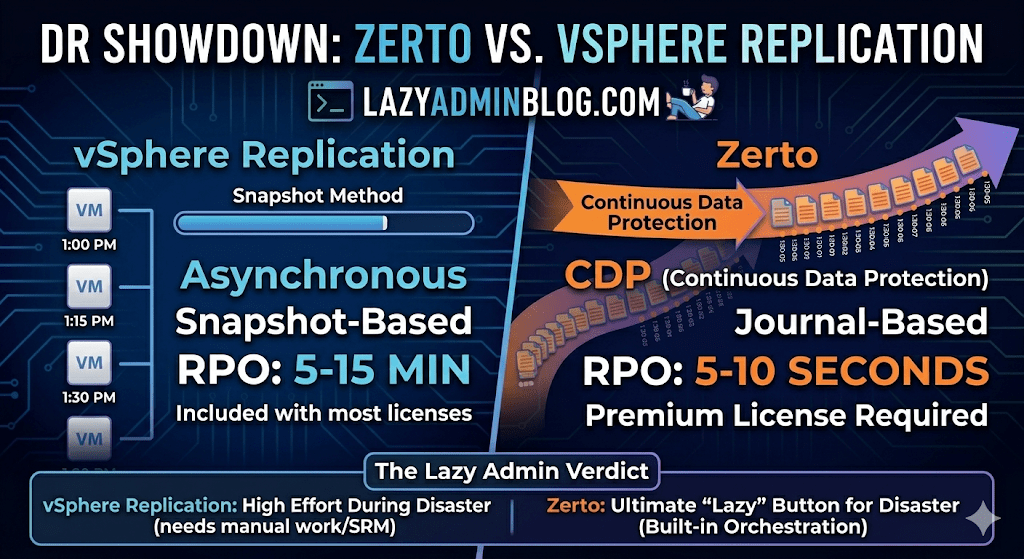
When it comes to Disaster Recovery (DR) in a VMware environment, there are two names that always come up: vSphere Replication (VR) and Zerto.
One is often “free” (included in most licenses), while the other is a premium enterprise powerhouse. But in 2026, with the shifts in Broadcom’s licensing and the rise of ransomware, the choice isn’t just about price—it’s about how much data you can afford to lose.
The Contenders
1. vSphere Replication (The Built-in Basic)
vSphere Replication is a hypervisor-based, asynchronous replication engine. It’s integrated directly into vCenter and captures changed blocks to send to a target site.
- Best For: Small to medium businesses with “relaxed” recovery goals.
- Cost: Included with vSphere Standard and vSphere Foundation subscriptions.
2. Zerto (The Gold Standard for CDP)
Zerto uses Continuous Data Protection (CDP). Instead of taking snapshots, it uses a lightweight agent on each host to intercept every write in real-time and stream it to the DR site.
- Best For: Mission-critical apps where losing 15 minutes of data is a catastrophe.
- Cost: Licensed per VM (Premium pricing).
Key Comparison: RPO and RTO
In the world of “Lazy Adminning,” we care most about RPO (Recovery Point Objective – how much data we lose) and RTO (Recovery Time Objective – how fast we get back up).
| Feature | vSphere Replication | Zerto (HPE) |
| Replication Method | Snapshot-based (Asynchronous) | Journal-based (CDP) |
| Best RPO | 5 to 15 Minutes | 5 to 10 Seconds |
| Point-in-Time Recovery | Limited (up to 24 instances) | Granular (Any second within 30 days) |
| Orchestration | Requires VMware Site Recovery Manager (SRM) | Built-in (One-click failover) |
| Snapshots | Uses VM Snapshots (can impact performance) | No Snapshots (Zero impact on IOPS) |
Why Choose vSphere Replication?
If you have a limited budget and your management is okay with losing 30 minutes of data, VR is the way to go.
- Pros: It’s already there. No extra software to install besides the appliance. It works well for low-change workloads.
- Cons: It relies on snapshots, which can cause “stun” on high-load SQL servers. Without adding SRM (Site Recovery Manager), failover is a manual, painful process of registering VMs and fixing IPs.
Why Choose Zerto?
If you are running a 24/7 shop or protecting against Ransomware, Zerto is king.
- Pros: The Journal is a time machine. If ransomware hits at 10:05:30 AM, you can failover to 10:05:25 AM. It also handles IP re-addressing and boot ordering natively.
- Cons: It’s an expensive add-on. It also requires a “Virtual Replication Appliance” (VRA) on every host in your cluster, which uses a bit of RAM and CPU.
The Verdict: Which one is “Lazy”?
- vSphere Replication is lazy at the start (easy to turn on), but high-effort during an actual disaster (lots of manual work).
- Zerto is a bit more work to set up but is the ultimate “Lazy Admin” tool during a disaster—you literally click one button, walk away, and grab a coffee while the entire data center boots itself at the DR site.
How to generate diagnostic logs for SRM if you cannot login to the SRM via vSphere Client
Browse to the below path on the server where SRM() is intalled:
- In 32bit Windows –
C:\Program Files (32 bit)\VMware\VMware vCenter Site Recovery Manager\bin\ - In 64bit Windows –
C:\Program Files\VMware\VMware vCenter Site Recovery Manager\bin\
SRM 1.0 – C:\Program Files\VMware\VMware Site Recovery Manager\bin\
Double Click the file srm-support.wsf, in a few seconds a compressed log bundle named srm-plugin-support- MM-DD-YYYY-hh-mm.zip will be placed on the Desktop of the current user. You can share this log with VMware support for analysis.
Depending on the issue, VMware support may need Site Recovery Manager logs from the protected site, the recovery site, or both.
Site Recovery Manager log bundles do not specify the role of the site where they were collected, as a single site may have both protected and recovery roles at the same time. To help VMware support quickly distinguish between logs, VMware recommends that you prepend the wordsprotected or recovery to each log bundle name before uploading. For example:
protected-srm-support-MM-DD-YYYY-hh-mm.ziprecovery-srm-support-MM-DD-YYYY-hh-mm.zip
To upload to VMware, please check How to generate VMware ESXi logs and how to Upload via the FTP portal using a third party FTP client for a VMware Support Case
Storage Replication Adapters (SRAs) write logs in locations specific to the SRA type and vendor. Contact the SRA vendor’s documentation for more information. Common locations include:
C:\Program Files\VMware\VMware vCenter Site Recovery Manager\scripts\SAN\<SRA Vendor Name>\log\C:\Program Files\<SRA Vendor Name>\
Note: The logs can also be gathered from the GUI of the vSphere Client if connection to the SRM plug-in is still available. The Gather Logslink from the SRM Site window imports the logs from the preceding location(s).
-
\config\extention.xml -
\config\vmware-dr.xml