
How to Force Cancel a Hung Task in vCenter or ESXi | Lazy Admin Blog
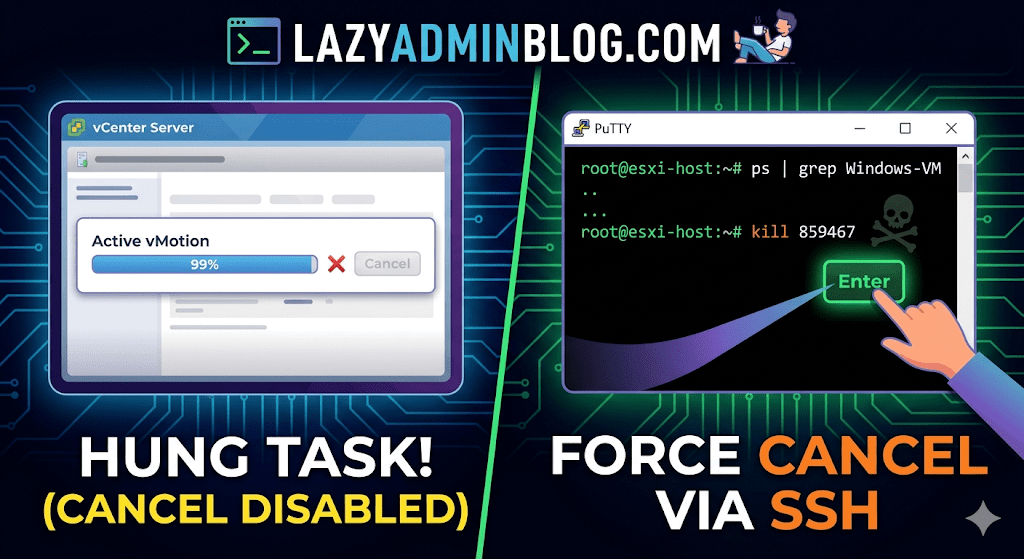
We’ve all been there: a vMotion hits 99% and just… stays there. Or a backup job finishes on the proxy side, but vCenter still thinks the VM is “busy.” Usually, the Cancel button is grayed out, leaving you stuck in management limbo.
When the GUI fails you, it’s time to hop into the CLI. Here is how to manually kill a hung task by targeting the VM’s parent process.
Step 1: Verify the Task
Before pulling the trigger, confirm the task is actually stuck and not just slow. Check the Monitor > Tasks and Events tab for the specific VM. If the progress bar hasn’t budged in an hour and the “Cancel” option is disabled, proceed to the host.
Step 2: Enable and Connect via SSH
To kill a process, you need to be on the specific ESXi host where the VM is currently registered.
- Enable SSH: Go to the ESXi host in vSphere > Configure > System > Services > Start SSH.
- Connect: Open your terminal (Putty, CMD, or Terminal) and log in as
root.
Step 3: Locate the Parent Process ID (PID)
We need to find the specific process tied to your VM. Use the ps command combined with grep to filter for your VM’s name.
Run the following command:
ps -v | grep "Your_VM_Name"
(Note: Using the -v flag in ESXi provides a more detailed view of the world ID and parent processes.)
Look for the line representing the VM’s main process. You are looking for the Leader ID or the first ID listed in the row.
Step 4: Kill the Process
Once you have identified the ID (e.g., 859467), send the kill signal. Start with a standard terminate signal, which allows the process to clean up after itself.
Run the command:
kill 859467
Lazy Admin Tip: If the process is extremely stubborn and won’t die, you can use
kill -9 859467to force an immediate termination. Use this as a last resort!
Step 5: Verify in vSphere
Give vCenter a minute to catch up. The hung task should now disappear or show as “Canceled” in the Tasks and Events console. Your VM should return to an “Idle” state, allowing you to power it on, move it, or restart your backup.
January 25, 2017 at 10:22 PM
Do not do this, this is a horrible suggestion without at least caveating what it does. The above command in step 3 will kill the VM — stop it cold. This will likely corrupt most systems and should only be done if you either are: 1) planning to restore from backup or 2) want to get rid of the vm anyways.
May 1, 2017 at 5:05 PM
it is better to proceed via powercli:
connect to vcenter or host by:
connect-VIServer [vcenter_ip]
find it by :
get-task -Status running | select ID, StartTime, IsCancelable| fl
kill it by:
Get-Task | where {$_.id -eq “Task-task-33529” } | stop-task -confirm:$false
August 11, 2017 at 8:46 PM
@Mehrantgs this will only “kill” or factually cancel a task if the task itself is cancelable. It will not end a task such as a Remidiation task within the Update Manager.
October 30, 2018 at 6:55 PM
There is no explanation here as to what the parent ID is…
July 8, 2024 at 4:07 PM
If the IsCancelable is defined as false, any idea to stop this process correctly (EATON power plugin task inmy case)