
Data Center
Locked Out of Cisco UCS? How to Recover the Master Admin Password | Lazy Admin Blog

It’s the nightmare scenario: you need to make a critical service profile change, but the only admin password is lost or forgotten. Because Cisco UCS Manager doesn’t store passwords in a reversible format, you can’t “view” the old one. Instead, you must perform a password reset by power-cycling the Fabric Interconnects (FIs) and interrupting the boot sequence.
⚠️ Warning: This procedure requires a physical power cycle of the Fabric Interconnects. In a production environment, this will cause a temporary disruption in management connectivity and potentially data traffic if not handled correctly in a cluster.
Phase 1: The Pre-Flight Check
Before you pull the power cables, you need two pieces of information. If you still have read-only access or a lower-privilege account, gather these now:
- Identify the Roles: In a cluster, you must know which FI is Primary and which is Subordinate.
- Path: Equipment > Fabric Interconnects > [FI Name] > General > High Availability Details.
- Verify Firmware Versions: You must know the exact Kernel and System firmware versions currently running.
- Path: Equipment > Firmware Management > Installed Firmware.
Phase 2: Password Recovery (The Process)
Scenario A: Standalone Configuration
If you only have one Fabric Interconnect, the process is straightforward but requires downtime.
- Connect: Attach a console cable physically to the FI console port.
- Power Cycle: Turn the FI off and then back on.
- Interrupt Boot: As it boots, repeatedly press Ctrl+L or Ctrl+Shift+R until you see the
loader >prompt. - Boot Kernel: Load the kickstart/kernel image:
loader > boot /installables/switch/ucs-6100-k9-kickstart.x.x.x.gbin - Enter Config:
Fabric(boot)# config terminal - Reset Password:
Fabric(boot)(config)# admin-password YourNewPassword123 - Load System: Exit config mode and boot the system image:
Fabric(boot)# load /installables/switch/ucs-6100-k9-system.x.x.x.bin
Scenario B: Cluster Configuration (High Availability)
In a cluster, the order of operations is vital to ensure the database remains synchronized.
- Subordinate First: Power cycle the Subordinate FI and interrupt its boot to the
loader >prompt. Leave it there. - Primary Second: Power cycle the Primary FI and interrupt its boot to the
loader >prompt. - Reset on Primary: Follow the “Standalone” steps (4 through 7) on the Primary FI console.
- Bring up Subordinate: Once the Primary is back up and you can log into UCS Manager, go to the Subordinate console and boot its kernel and system images normally from the loader prompt.
Important Notes
- Clear Text: When you type the
admin-passwordcommand in the boot loader, the password displays in clear text on the screen. Ensure no one is shoulder-surfing! - Strong Passwords: UCS Manager requires at least one capital letter and one number.
- Console Access: This cannot be done via SSH. You must have physical or terminal server access to the console port.
#CiscoUCS #DataCenter #CiscoProphet #SysAdmin #Networking #ITTech #Cisco #UCSManager #LazyAdmin #Infrastructure
The Master List: VMware ESXi Release and Build Number History (Updated 2026) | Lazy Admin Blog

Is your host up to date? Checking the “About” section in your vSphere Client is step one, but cross-referencing that number against this list is how you confirm if you’re on a General Availability (GA) release, an Update, or an Express Patch.
vSphere ESXi 9.0 (Latest)
The new generation of the hypervisor, optimized for AI workloads and DPUs.
| Name | Version | Release Date | Build Number |
| VMware ESXi 9.0.2 | 9.0.2 | 2026-01-20 | 25148080 |
| VMware ESXi 9.0.1 | 9.0.1 | 2025-09-29 | 24957450 |
| VMware ESXi 9.0 GA | 9.0 GA | 2025-06-17 | 24755225 |
vSphere ESXi 8.0
The enterprise workhorse for 2024-2026.
| Name | Version | Release Date | Build Number |
| VMware ESXi 8.0 Update 3 | 8.0 U3 | 2024-06-25 | 24022510 |
| VMware ESXi 8.0 Update 2 | 8.0 U2 | 2023-09-21 | 22380479 |
| VMware ESXi 8.0 Update 1 | 8.0 U1 | 2023-04-18 | 21495797 |
| VMware ESXi 8.0 GA | 8.0 GA | 2022-10-11 | 20513097 |
vSphere ESXi 7.0
Note: This version introduced the new Lifecycle Manager (vLCM).
| Name | Version | Release Date | Build Number |
| VMware ESXi 7.0 Update 3w | 7.0 U3w | 2025-09-29 | 24927030 |
| VMware ESXi 7.0 Update 3 | 7.0 U3 | 2021-10-05 | 18644231 |
| VMware ESXi 7.0 GA | 7.0 GA | 2020-04-02 | 15843807 |
vSphere ESXi 6.x Legacy (Archive)
| Name | Version | Release Date | Build Number |
| VMware ESXi 6.7 Update 3 | 6.7 U3 | 2019-08-20 | 14320388 |
| VMware ESXi 6.5 Update 3 | 6.5 U3 | 2019-07-02 | 13932383 |
| VMware ESXi 6.0 Update 1a | 6.0 U1a | 2015-10-06 | 3073146 |
| VMware ESXi 6.0 GA | 6.0 GA | 2015-03-12 | 2494585 |
How to Verify Your Build Number
If you aren’t at your desk and only have SSH access to the host, you can find your build number instantly with this command:
vmware -v
Example Output:
VMware ESXi 8.0.0 build-20513097
Lazy Admin Tip 💡
Always remember the vCenter Interoperability Rule: Your vCenter Server must always be at a build version equal to or higher than your ESXi hosts. If you patch your hosts to vSphere 9.0 while vCenter is still on 8.0, your hosts will show as “Not Responding” or “Disconnected.”
#VMware #vSphere9 #ESXi #SysAdmin #Virtualization #PatchManagement #DataCenter #LazyAdmin #BuildNumbers #ITOperations
Emergency Log Collection: Generating and Uploading ESXi Support Bundles | Lazy Admin Blog
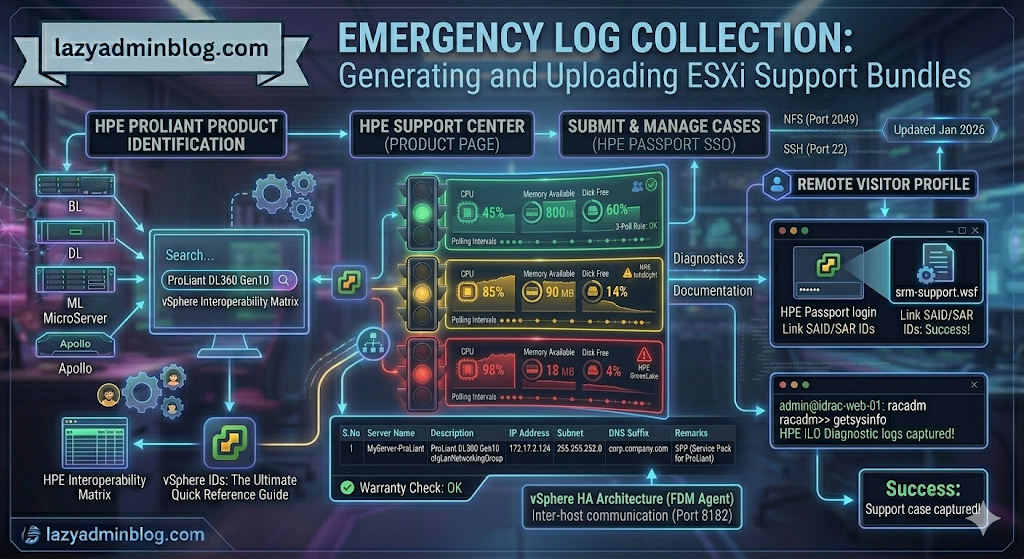
If you can’t generate a support bundle through vCenter, your best bet is the ESXi Shell. By running vm-support directly on the host, you bypass the management overhead and get your diagnostics faster.
Step 1: Generate Logs via SSH (CLI)
Before running the command, identify a datastore with at least 5-10GB of free space to store the compressed bundle.
- SSH into your ESXi host using Putty.
- Navigate to your chosen datastore:
cd /vmfs/volumes/YOUR_DATASTORE_NAME/ - Run the support command and redirect the output to a specific file name:Bash
vm-support -s > vm-support-HostName-$(date +%Y%m%d).tgz-sstands for “stream,” directing the output to the file you specified.- Tip: Using
$(date +%Y%m%d)automatically adds the current date to the filename.
- Once finished, use the vSphere Datastore Browser to download the
.tgzfile to your local workstation.
Step 2: Uploading to VMware via FileZilla
VMware provides a public FTP/SFTP landing zone for Support Requests (SR). While many admins use the browser, a dedicated client like FileZilla is much more reliable for large multi-gigabyte bundles.
Configure FileZilla for VMware
- Set Transfer Mode: Go to Transfer > Transfer type > Binary. This prevents file corruption during the upload.
- Open Site Manager: (File > Site Manager) and create a new site:
- Host:
ftpsite.vmware.com - Protocol: FTP (or SFTP if requested by support)
- Logon Type: Normal
- User:
inbound - Password:
inbound
- Host:
Navigating the Remote Site
- Connect to the server.
- Create your SR Folder: In the “Remote Site” pane, right-click and select Create Directory. Name it exactly after your 10-digit Support Request number (e.g.,
2612345678). - Upload: Locate your
.tgzbundle in the left pane (Local Site), right-click it, and select Upload.
Important Note: For security, the VMware FTP is “blind.” You will not see your files or folders once they are created/uploaded. Don’t panic if the directory looks empty after the transfer completes; as long as the transfer queue shows 100%, VMware has it.
#VMware #ESXi #Troubleshooting #SysAdmin #DataCenter #Virtualization #ITOps #FileZilla #LazyAdmin #TechTips
Nuclear Option: How to Force Power Off a Hung VM via SSH | Lazy Admin Blog

We’ve all been there: a Windows Update goes sideways or a database lock freezes a guest OS, and suddenly the “Shut Down Guest” command is greyed out or simply times out. When the GUI fails you, the ESXi Command Line (esxcli) is your best friend.
Step 1: Identify the “World ID”
In ESXi terminology, every running process is assigned a World ID. To kill a VM, you first need to find this unique identifier.
- SSH into your ESXi host using Putty.
- Run the following command to see all active VM processes:Bash
esxcli vm process list - Locate your hung VM in the list. Look for the World ID (a long string of numbers). You will also see the Display Name and the path to the
.vmxfile to confirm you have the right one.
Step 2: Execute the Kill Command
ESXi offers three levels of “force” to stop a process. It is best practice to try them in order:
- Soft: The most graceful. It attempts to give the guest OS a chance to shut down cleanly.
- Hard: Equivalent to pulling the power cable. Immediate cessation of the VMX process.
- Force: The “last resort.” Use this only if ‘Hard’ fails to clear the process from the kernel.
The Syntax:
Bash
esxcli vm process kill --type=[soft,hard,force] --world-id=WorldNumber
Example (Hard Kill): esxcli vm process kill -t hard -w 5241852
Step 3: Verify the Result
After running the kill command, it may take a few seconds for the host to clean up the memory registration. Run the list command again to ensure it’s gone:
Bash
esxcli vm process list | grep "Your_VM_Name"
If the command returns nothing, the VM is officially offline, and you can attempt to power it back on via the vSphere Client.
Lazy Admin Tip 💡
If esxcli still won’t kill the VM, the process might be stuck in an “I/O Wait” state (usually due to a failed storage path). In that rare case, you might actually need to restart the Management Agents (services.sh restart) or, in extreme cases, reboot the entire host.
#VMware #vSphere #ESXi #SysAdmin #Troubleshooting #Virtualization #ITOps #LazyAdmin #ServerManagement #DataCenter
The Ultimate Robocopy Command for Large-Scale Migrations | Lazy Admin Blog

If you need to move huge files while keeping a close eye on progress, this is the syntax you want. It includes logging, multi-threading for speed, and the ability to resume if the network drops.
The “Power User” Command
DOS
robocopy "D:\Source_Data" "E:\Destination_Data" /s /e /z /mt:32 /tee /log+:"C:\Logs\MigrationLog.txt"
Switch Breakdown: Why We Use Them
| Switch | What it does |
| /s /e | Copies all subdirectories, including empty ones. |
| /z | Restart Mode: If the connection drops mid-file, Robocopy can resume from where it left off instead of starting the file over. Essential for 100GB+ files! |
| /mt:32 | Multi-Threading: Uses 32 threads to copy multiple files simultaneously. (Default is 8). Adjust based on your CPU/Disk speed. |
| /tee | Writes the status to the console window and the log file at the same time. |
| /log+: | Creates a log file. Using the + appends to an existing log rather than overwriting it—perfect for multi-day migrations. |
How to Monitor Progress in Real-Time
Because we used the /tee and /log+ switches, you have two ways to monitor the status:
- The Console: You’ll see a rolling percentage for each file directly in your Command Prompt.
- Tail the Log: Since the log is being updated live, you can “tail” it from another window (or even remotely) to see the progress without touching the active copy session.
Lazy Admin Tip (PowerShell):
Open a PowerShell window and run this command to watch your Robocopy log update in real-time as files move:
Get-Content "C:\Logs\MigrationLog.txt" -Wait
Important Notes for Huge Files
- Disk Quotas: Robocopy doesn’t check destination space before starting. Use
dirordf(if using Linux targets) to ensure you have enough room. - Permissions: If you need to copy NTFS permissions (ACLs), add the /copyall switch.
- Bandwidth: Running
/mt:128(the max) can saturate a 1Gbps link. If you’re copying over a live production network, stick to/mt:8or/mt:16.
#WindowsServer #Robocopy #DataMigration #SysAdmin #ITInfrastructure #StorageAdmin #TechTips #LazyAdmin #CloudMigration
Mastering Memory: A Guide to the Cisco UCS B200 M3 Blade Server | Lazy Admin Blog

Optimizing a Cisco UCS B200 M3 blade server begins with proper memory configuration. In the enterprise world, an incorrectly seated DIMM or a mismatched channel doesn’t just lower performance—it can trigger a cascade of system errors and costly downtime.
🛠️ The Installation Procedure
Before you begin, ensure you are wearing an ESD (Electrostatic Discharge) wrist strap and that the blade is placed on an antistatic mat.
Step 1: Prepare the Slot
Locate the target DIMM slot and push the two white connector latches outward to the open position.
Step 2: Seat the DIMM
Align the notch on the bottom edge of the DIMM with the key in the slot.
- Precision is key: Press down evenly on both ends of the DIMM until the latches snap up and click into place.
- Warning: DIMMs are keyed. If it doesn’t seat with gentle pressure, check the alignment. Forcing a misaligned DIMM can permanently damage the motherboard or the module.
Step 3: Final Lock
Manually press the connector latches inward slightly to ensure they are fully seated and the DIMM is securely locked.
📐 Understanding Memory Architecture
The B200 M3 is a powerhouse, supporting up to 24 DIMM slots (12 per CPU). To maximize throughput, you must understand how these slots are mapped.
Channels and Slots
Each CPU manages four channels, with three DIMM slots per channel. Cisco uses a color-coding system to indicate the population order:
| Slot Number | Color | Order |
| Slot 0 | Blue | Populate First |
| Slot 1 | Black | Populate Second |
| Slot 2 | White/Beige | Populate Last |
Physical Mapping
- CPU 1 (Left): Manages Channels A, B, C, and D.
- CPU 2 (Right): Manages Channels E, F, G, and H.
[!IMPORTANT]
Single CPU Configurations: If only one CPU is installed, only the 12 slots associated with CPU 1 (left side) are functional. Memory installed in CPU 2 slots will not be recognized.
⚠️ Support and Compliance
- Third-Party Warning: Cisco does not support third-party memory. Using non-Cisco DIMMs can lead to “Inoperable” status in UCS Manager, hardware damage, or the denial of RMA requests.
- Verification: Always check the official Cisco Data Sheets for the latest supported DIMM capacities and speeds.
- Validation: After installation, boot into Cisco UCS Manager to verify that all DIMMs are discovered and show a “Healthy” status.
Courtesy: Cisco


Essential Storage & SAN Security Interview Questions

Storage Fundamentals & Access Control
What is LUN masking? LUN (Logical Unit Number) Masking is an authorization process that makes a LUN available to specific hosts while hiding it from others.
- Implementation: Primarily at the HBA (Host Bus Adapter) level, though some storage controllers also support it.
- Risk: Masking at the HBA level is vulnerable if the HBA is compromised.
- Importance: Crucial for Windows environments; Windows servers often try to write volume labels to every available LUN, which can corrupt data on LUNs intended for other operating systems.
What is SAN zoning? SAN zoning is the method of arranging Fibre Channel devices into logical groups within the physical fabric. It is used to compartmentalize data for security and performance. A single device can belong to multiple zones.
What are the differences between Hard and Soft Zoning?
- Hard Zoning: Implemented in hardware. It physically blocks access to a zone from any device outside of it.
- Soft Zoning: Implemented in software via name servers. It prevents ports from being “seen” by unauthorized devices. However, it is less secure because ports may still be accessible if an attacker correctly guesses the Fibre Channel address.
Port Zoning vs. WWN Zoning
- Port Zoning: Uses physical switch ports to define zones. It is secure but rigid; moving a cable requires a configuration update.
- WWN Zoning: Uses World Wide Names (64-bit unique addresses). It is flexible (you can recable without reconfiguring), but it is susceptible to WWN spoofing.
SAN Security & Attack Vectors
Common Attack Classes against SANs:
- Snooping: Unauthorized reading of private data.
- Spoofing: Impersonating a legitimate node to gain access or destroy data.
- Denial of Service (DoS): Flooding the fabric to reduce availability.
Fibre Channel Security Protocols:
- FC-SP (Fibre Channel Security Protocol): A framework for authentication and cryptographically secure communication. It protects data in transit, not data at rest.
- DH-CHAP: A secure key-exchange protocol (Diffie Hellman – Challenge Handshake Authentication Protocol) for switch-to-switch and host-to-switch authentication.
- FCAP & FCPAP: Optional authentication mechanisms using certificates (FCAP) or passwords (FCPAP).
How are iSCSI and FCIP secured over IP? Per RFC 3723, block storage protocols transported over IP are secured using standard IPsec and IKE (Internet Key Exchange) protocols to provide authentication and data confidentiality.
I’ve organized these Q&A into logical categories: General Concepts, Hardware, Networking, Software-Defined/Cloud, and Backup/DR.
🏗️ Part 1: General Storage Concepts & RAID
- What is RAID? Redundant Array of Independent Disks; a way to combine multiple physical disks into a single logical unit for redundancy or performance.
- What is the difference between Hot and Cold Storage? Hot storage is for frequently accessed data (high performance, high cost); Cold is for archival data (low performance, low cost).
- What is RAID 0? Striping. It provides high performance but zero redundancy. If one disk fails, all data is lost.
- What is RAID 1? Mirroring. Data is written identically to two disks. High redundancy, but you lose 50% of your total capacity.
- What is RAID 5? Striping with distributed parity. Requires at least 3 disks. It can survive a single disk failure.
- What is RAID 6? Striping with double parity. Requires at least 4 disks. It can survive two simultaneous disk failures.
- What is RAID 10? A stripe of mirrors (1+0). Combines the speed of RAID 0 with the redundancy of RAID 1.
- What is a Hot Spare? An idle drive in an array that automatically replaces a failed drive to begin an immediate rebuild.
- What is IOPS? Input/Output Operations Per Second; a key performance metric for storage.
- What is Throughput? The amount of data transferred over time, usually measured in MB/s or GB/s.
- What is Latency? The time delay between a data request and the start of the data transfer.
- What is Throttling? Intentionally slowing down I/O to prevent a single application from consuming all resources.
- What is Striping? Breaking data into blocks and spreading them across multiple disks to increase speed.
- What is Mirroring? Creating an exact copy of data on another disk.
- What is Parity? A mathematical calculation used in RAID (like RAID 5/6) to reconstruct data if a drive fails.
- What is the “Write Hole” in RAID? A corruption scenario where a power failure occurs mid-write, leaving data and parity out of sync.
- What is JBOD? “Just a Bunch Of Disks”; disks are used individually or spanned without RAID protection.
- What is Thin Provisioning? Allocating storage on-demand rather than reserving the full capacity upfront.
- What is Thick Provisioning? Reserving the entire amount of storage space on the physical disk at the time of creation.
- What is a LUN? A Logical Unit Number used to identify a slice of storage presented to a host.
🔌 Part 2: Connectivity & Networking (SAN/NAS)
- What is the difference between SAN and NAS? SAN is block-level (Fibre Channel/iSCSI); NAS is file-level (NFS/SMB).
- What is iSCSI? Internet Small Computer System Interface; carries SCSI commands over IP networks.
- What is an IQN? iSCSI Qualified Name; a unique identifier for iSCSI initiators and targets.
- What is a Target? The storage resource (the “server” side of a storage connection).
- What is an Initiator? The host/server that consumes the storage (the “client” side).
- What is Fibre Channel (FC)? A high-speed network technology used primarily for SANs.
- What is FCoE? Fibre Channel over Ethernet; encapsulates FC frames into Ethernet packets.
- What is Multi-pathing? Using multiple physical paths between a server and storage to provide redundancy and load balancing.
- What is an HBA? Host Bus Adapter; a circuit board/adapter that connects a host to a storage network.
- What is a Fabric? A network of switches, hubs, and devices connected via Fibre Channel.
- What is an N_Port? A Node Port used to connect a host or storage device to the fabric.
- What is an F_Port? A Fabric Port on a switch that connects to an N_Port.
- What is an E_Port? An Expansion Port used to connect two switches (Inter-Switch Link).
- What is ISL? Inter-Switch Link; a connection between two SAN switches.
- What is Oversubscription? Assigning more logical storage to hosts than is physically available (common in thin provisioning).
- What is SMB/CIFS? Server Message Block; a file-sharing protocol primarily used by Windows.
- What is NFS? Network File System; a file-sharing protocol primarily used by Linux/Unix.
- What is an Alias in SAN zoning? A user-friendly name given to a WWN to make management easier.
- What is a Zone Set? A collection of zones that are activated together on a fabric.
- What is Jumbo Frames? Ethernet frames with more than 1500 bytes of payload (usually 9000), used to improve iSCSI performance.
💾 Part 3: Hardware (SSD, HDD, NVMe)
- What is an SSD? Solid State Drive; uses flash memory with no moving parts.
- What is an HDD? Hard Disk Drive; uses rotating magnetic platters.
- What is NVMe? Non-Volatile Memory Express; a high-performance protocol designed specifically for SSDs.
- What is NVMe-oF? NVMe over Fabrics; extending NVMe performance across a network (FC or TCP).
- What is SLC? Single-Level Cell flash; 1 bit per cell. Fastest and most durable.
- What is MLC? Multi-Level Cell flash; 2 bits per cell.
- What is TLC? Triple-Level Cell flash; 3 bits per cell. Common in enterprise storage.
- What is QLC? Quad-Level Cell flash; 4 bits per cell. High density, lower endurance.
- What is Wear Leveling? A technique to ensure data is written evenly across all flash cells to extend SSD life.
- What is Over-provisioning in SSDs? Reserving extra flash capacity to improve controller performance and endurance.
- What is a SAS drive? Serial Attached SCSI; enterprise-grade drives known for reliability.
- What is a SATA drive? Serial ATA; consumer-grade drives used for bulk high-capacity storage.
- What is an M.2 drive? A small form factor for SSDs, commonly used for boot drives.
- What is “Tiering”? Automatically moving data between different types of disks (e.g., SSD for “hot” data, HDD for “cold”).
- What is Caching? Using a small amount of fast storage (RAM or SSD) to temporarily hold data for faster access.
- What is Write-Back Cache? Data is written to cache and acknowledged to the host immediately, then written to disk later.
- What is Write-Through Cache? Data is written to the disk and cache simultaneously before acknowledging to the host.
- What is a Battery Backed Module (BBM)? Protects data in the controller cache during a power failure.
- What is DWPD? Drive Writes Per Day; a measurement of an SSD’s endurance.
- What is MTBF? Mean Time Between Failures; a statistical estimate of a drive’s reliability.
☁️ Part 4: Modern Tech (SDS, Cloud, Object)
- What is SDS? Software-Defined Storage; storage software that is independent of the hardware it runs on.
- What is Object Storage? Storage that manages data as objects with metadata (e.g., Amazon S3).
- What is a Bucket? A logical container for objects in Object Storage.
- What is Metadata? Data about data (e.g., creation date, file type, custom tags).
- What is a Flat Namespace? Used in object storage; unlike hierarchical folders, all objects exist at the same level.
- What is Hyperconverged Infrastructure (HCI)? Combines compute, storage, and networking into a single software-defined node (e.g., Nutanix, vSAN).
- What is Unified Storage? A system that supports both Block (SAN) and File (NAS) protocols.
- What is Data Deduplication? Removing redundant copies of data to save space.
- What is Compression? Reducing the size of data by removing repetitive patterns.
- What is an “All-Flash Array” (AFA)? A storage system that only contains SSDs.
- What is Hybrid Storage? A system that mixes SSDs and HDDs.
- What is REST API in storage? An interface used to manage storage programmatically (common in cloud/SDS).
- What is Data Immutability? Data that cannot be modified or deleted once written (key for Ransomware protection).
- What is WORM? Write Once, Read Many; a type of immutable storage.
- What is S3? Simple Storage Service; the industry-standard protocol for object storage created by AWS.
- What is Data Sovereignty? The concept that data is subject to the laws of the country where it is physically stored.
- What is Cold Tiering? Automatically moving aged data from expensive cloud storage to cheaper archive tiers (e.g., S3 Glacier).
- What is a Storage Gateway? A device that connects on-premises apps to cloud storage.
- What is “Egress Fees”? Costs charged by cloud providers for moving data out of their network.
- What is Scale-Out Storage? Adding performance and capacity by adding more nodes to a cluster.
🛡️ Part 5: Backup, Recovery & Management
- What is a Snapshot? A point-in-time “picture” of a LUN or file system.
- What is a Clone? A full, independent copy of a volume or LUN.
- What is Replication? Copying data from one storage array to another (local or remote).
- What is Synchronous Replication? Data is written to both sites simultaneously (zero data loss, but limited by distance).
- What is Asynchronous Replication? Data is written to the primary site and then copied to the secondary site after a delay.
- What is RPO? Recovery Point Objective; the maximum amount of data loss acceptable (measured in time).
- What is RTO? Recovery Time Objective; the maximum time allowed to restore service after a failure.
- What is an Incremental Backup? Backs up only the data that has changed since the last backup of any type.
- What is a Differential Backup? Backs up data that has changed since the last full backup.
- What is an “Air Gap”? A security measure where a backup copy is physically or logically disconnected from the network.
- What is Disaster Recovery (DR)? A plan for restoring IT infrastructure after a major failure or catastrophe.
- What is Business Continuity? The broader plan to keep a business running during a disaster.
- What is a Quorum Disk? A disk used in clusters to maintain configuration info and help decide which nodes are active.
- What is Data Scrubbing? An automated background process that checks for and repairs “bit rot” or silent data corruption.
- What is “Bit Rot”? The slow deterioration of data on storage media over time.
- What is a Consistency Group? A collection of LUNs that are snapshotted or replicated at the exact same moment to ensure write-order consistency.
- What is Redirect-on-Write (RoW)? A snapshot method where new writes are sent to a new location, leaving the original data as the snapshot.
- What is Copy-on-Write (CoW)? A snapshot method where original data is copied to a snapshot reserve before being overwritten.
- What is 3-2-1 Backup Rule? 3 copies of data, on 2 different media, with 1 copy off-site.
- What is a Storage Controller? The “brain” of the storage array that manages I/O, RAID, and features like deduplication.
StorageAdmin #SAN #CyberSecurity #DataCenter #SysAdmin #TechInterview #LUNMasking #Networking #CloudInfrastructure #LazyAdmin
Troubleshooting UCSM Login Errors After Java 7 Update 45

If you just updated your management workstation to Java 7 Update 45, you might find yourself locked out of Cisco UCS Manager (UCSM). This is a known issue caused by a change in how Java handles HTTP responses, which unfortunately breaks the communication handshake with certain UCSM versions.
The Symptoms
When attempting to launch the UCSM Java client, you will likely encounter one of these two frustrating login errors:
- Error 1:
Login Error: java.io.IOException: Invalid Http response - Error 2:
Login Error: java.io.IOException: Server returned HTTP response code: 400 for URL: http://x.x.x.x:443/nuova
The Cause: Cisco Bug CSCuj84421
This issue is officially tracked under Cisco Bug ID CSCuj84421. The security enhancements introduced in Java 7u45 changed the way the Java Runtime Environment (JRE) processes headers, leading to the “400 Bad Request” error when reaching out to the UCS virtual IP.
The Workaround: The Rollback
Until you can upgrade your UCSM firmware to a version that is compatible with newer Java releases, the most reliable solution is to downgrade your JRE.
- Uninstall Java 7 Update 45 from your system via the Control Panel.
- Download and Install an earlier version.
- Java 7 Update 25: Confirmed as the most stable version for this specific bug.
- Java 7 Update 40: Also reported to work by many in the Cisco community.
- Clear your Java Cache: After downgrading, go to the Java Control Panel > General > Temporary Internet Files > View, and delete the UCSM application entries to ensure a fresh launch.
Note: Always remember to disable “Check for Updates Automatically” in the Java Control Panel after rolling back, or you’ll find yourself back in the same position tomorrow morning!
#CiscoUCS #JavaErrors #SysAdmin #DataCenter #UCSM #TechSupport #ITTroubleshooting #CiscoNetworking #LazyAdmin #JavaUpdate
🏗️ CLI Command Hierarchy & Navigation

The CLI is organized like a file system. You move “down” into specific modes to manage objects and “up” to return to the global level.
- EXEC Mode (
#): The top-level mode. From here, you can access all other sub-modes. - Navigation Commands:
scope <object>: Moves into a sub-mode for an existing object (e.g.,scope chassis 1).enter <object>: Similar to scope, but used to enter or create an object’s mode.exit: Moves up one level in the hierarchy.top: Jumps immediately back to the EXEC mode prompt.
🛠️ Common Management Commands
| Target | Command | Purpose |
| Chassis | show chassis [inventory/status/psu] | View physical chassis health and components. |
| Servers | show server [inventory/cpu/memory/status] | Audit blade or rack-mount hardware specs. |
| Fabric | show fabric-interconnect [a/b] [inventory] | Check the state of your Fabric Interconnects. |
| Faults | show fault [detail/severity] | List active system alarms and errors. |
| Logs | show sel [chassis-id/blade-id] | View the System Event Log for specific hardware. |
💾 The Transactional Model (Commit Buffer)
Unlike many traditional CLIs, UCS Manager uses a transactional model. When you make a configuration change (like set or enable), the change is stored in a temporary buffer and is not live until you explicitly save it.
- Modify:
set addr 192.168.1.50 - Verify:
show configuration pending(Optional) - Apply:
commit-buffer - Discard:
discard-buffer(If you made a mistake)
#CiscoUCS #CommandLine #SysAdmin #DataCenter #Networking #Cisco #ITPro #LazyAdmin #TechTutorials #UCSM
Demystifying Cisco UCS Monitoring: Manager vs. Standalone C-Series

Whether you are managing a massive farm of B-Series blades or a handful of standalone C-Series rack servers, Cisco UCS provides a sophisticated, stateful monitoring architecture. Understanding how this “Queen Bee” and “Worker Bee” relationship works is the key to reducing alert fatigue and maintaining 100% uptime.
🏗️ The Architecture: DME and Application Gateways
The core of UCS monitoring relies on three primary components that translate raw hardware signals into human-readable data.
1. Data Management Engine (DME)
Think of the DME as the Queen Bee. It is the central brain that maintains the UCS XML Database. This database is the “Single Source of Truth” for your entire domain, housing inventory details, logical configurations (pools/policies), and current health states.
2. Application Gateways (AG)
The AGs are the Worker Bees. These are software agents that communicate directly with hardware endpoints (blades, chassis, I/O modules). They monitor health via the CIMC (Cisco Integrated Management Controller) and feed that data back to the DME in near real-time.
3. Northbound Interfaces
These are your outputs. You have Read-Only interfaces like SNMP and Syslog for external monitoring, and the XML API which is a Read-Write interface, allowing you to both monitor health and push configuration changes.
🚨 The Fault Lifecycle: Managing “State”
Cisco UCS doesn’t just send “fire and forget” alerts. It uses a stateful fault model. Faults are objects that transition through a lifecycle to prevent “flapping”—where a minor glitch sends dozens of emails in a minute.
- Active: The problem is occurring now.
- Soaking: The issue cleared quickly, but the system is waiting to see if it reoccurs before notifying you.
- Flapping: The fault is clearing and reoccurring in rapid succession.
- Cleared: The issue is fixed, but the record is retained briefly for your attention.
- Deleted: The fault is finally purged once the retention interval expires.
✅ Best Practices for the “Lazy Admin”
1. Filter out FSM Faults
In UCS Manager, Finite State Machine (FSM) faults are almost always transient. They occur during a task transition—like a server taking a bit too long to finish BIOS POST during a profile association.
The Rule: Focus your alerting on Major and Critical severities that are NOT of type FSM. This will eliminate about 80% of your monitoring “noise.”
2. Leverage Consistency
One of the best features of the UCS ecosystem is that Standalone C-Series and UCS Manager use the same MIBs and Fault IDs. If you have an NMS (Network Management System) set up for your blades, adding standalone rack servers is seamless because the data structure is identical.
3. Use Fault Suppression
Doing maintenance? Don’t let your monitoring system scream at you. Use the Fault Suppression feature (added in UCSM 2.1) to silence alerts on a specific blade or rack server while you are working on it.
4. The XML API Advantage
For standalone C-Series servers, the XML API is the preferred monitoring method. It supports Event Subscription, which proactively “pushes” alerts to your management tool rather than forcing the tool to “pull” or poll for data constantly.
CiscoUCS #SysAdmin #DataCenter #Networking #Cisco #ITPro #ServerMonitoring #LazyAdmin #Automation #TechTips