
Month: Jun 2015
Unable to view Roles and Features and receive error code 0x800706BE in Server Manager
In this scenario, roles and features are not displayed with a yellow bang against them in the Server Manager window. You receive the following error message at the bottom of the Server manager if you try to open it:
Server Manager
Unexpected error refreshing Server Manager: The remote procedure call failed. (Exception from HRESULT: 0x800706BE)
For more information, see the event log: Diagnostics, Event Viewer, Applications and Services Logs, Microsoft, Windows, Server Manager, Operational.)
At the same time, the event below is added into the Microsoft-Windows-ServerManager/Operational log:
Log Name: Microsoft-Windows-ServerManager/Operational
Source: Microsoft-Windows-ServerManager
Date: <date & time>
Event ID: 1601
Task Category: None
Level: Error
Keywords:
User: <user name>
Computer: <computer name>
Description:
Could not discover the state of the system. An unexpected exception was found:
System.Runtime.InteropServices.COMException (0x800706BE): The remote procedure call failed. (Exception from HRESULT: 0x800706BE)
at System.Runtime.InteropServices.Marshal.ThrowExceptionForHRInternal(Int32 errorCode, IntPtr errorInfo)
at Microsoft.Windows.ServerManager.ComponentInstaller.CreateSessionAndPackage(IntPtr& session, IntPtr& package)
at Microsoft.Windows.ServerManager.ComponentInstaller.InitializeUpdateInfo()
at Microsoft.Windows.ServerManager.ComponentInstaller.Initialize()
at Microsoft.Windows.ServerManager.Common.Provider.RefreshDiscovery()
at Microsoft.Windows.ServerManager.LocalResult.PerformDiscovery()
at Microsoft.Windows.ServerManager.ServerManagerModel.CreateLocalResult(RefreshType refreshType)
at Microsoft.Windows.ServerManager.ServerManagerModel.InternalRefreshModelResult(Object state)
Here are the steps to fix the issue:
- Get the Microsoft Update Readiness Tool from the location: http://support.microsoft.com/kb/947821
- Run the Microsoft Update Readiness Tool on the problematic computer.
- You open the %Systemroot%\Windows\logs\CBS\Checksur.log file after the scan was completed.
- You check corrupt information in the files. Here are some samples:
(f) CBS MUM Corrupt 0x00000000 servicing\Packages\Package_for_KB978601~31bf3856ad364e35~amd64~~6.0.1.0.mum Expected file name Package_for_KB978601_server~31bf3856ad364e35~amd64~~6.0.1.0.mum does not match the actual file name
(f) CBS MUM Corrupt 0x00000000 servicing\Packages\Package_for_KB979309~31bf3856ad364e35~amd64~~6.0.1.0.mum Expected file name Package_for_KB979309_server~31bf3856ad364e35~amd64~~6.0.1.0.mum does not match the actual file name
Or
(f) CBS MUM Corrupt 0x800B0100 servicing\Packages\Package_for_KB978601~31bf3856ad364e35~amd64~~6.0.1.0.mum servicing\Packages\Package_for_KB978601~31bf3856ad364e35~amd64~~6.0.1.0.cat Package manifest cannot be validated by the corresponding catalog
(f) CBS MUM Corrupt 0x800B0100 servicing\Packages\Package_for_KB979309~31bf3856ad364e35~amd64~~6.0.1.0.mum servicing\Packages\Package_for_KB979309~31bf3856ad364e35~amd64~~6.0.1.0.cat Package manifest cannot be validated by the corresponding catalog
Or
(f) CBS MUM Missing 0x00000002 servicing\packages\Package_114_for_KB955839~31bf3856ad364e35~amd64~~6.0.1.0.mum
(f) CBS MUM Missing 0x00000002 servicing\packages\Package_83_for_KB955839~31bf3856ad364e35~amd64~~6.0.1.0.mum
Further down you will see:
Unavailable repair files:
servicing\packages\Package_for_KB978601~31bf3856ad364e35~amd64~~6.0.1.0.mum
servicing\packages\Package_for_KB979309~31bf3856ad364e35~amd64~~6.0.1.0.mum
servicing\packages\Package_for_KB978601~31bf3856ad364e35~amd64~~6.0.1.0.cat
servicing\packages\Package_for_KB979309~31bf3856ad364e35~amd64~~6.0.1.0.cat
These files need to be copied into: %systemroot\Windows\Servicing\Packages
- You first need to gain control over that folder. In order to do this use the following commands:
takeown /F c:\Windows\Servicing\Packages /D y /R
- Now assign full control using following command. This will grant you full control over the directory:
cacls c:\Windows\Servicing\Packages /E /T /C /G “UserName”:F
- Now you need to gather the missing or corrupted files from the checksur log:
Download the KB files for the missing files.servicing\packages\Package_for_ KB978601 ~31bf3856ad364e35~amd64~~6.0.1.0.mum
- Unpack them using the following command:
Expand -F:* UpdateKBXXXX.msu x:\DestinationDirectory
- After you expand you will see a UpdateKBXXXX.cab File. Expand it as well:
Expand -F:* UpdateKBXXXX.CAB x:\DestinationDirectoryCAB
Inside of this cab you will need to grab 2 files: update.mum and update.cat - Rename the gathered update.mum and update.cab files exactly as they are in the checksur.log:
Ex.: update.mum for KB978601 will be Package_for_ KB978601 ~31bf3856ad364e35~amd64~~6.0.1.0.mum
Do the same for for all the other missing/corrupt files and place them into the directory specified in checksur.log (/servicing/packages)
After these steps the problem should be fixed. No reboot required.
Robocopy command to copy huge files and monitor their status
robocopy “source_folder” “destination_folder” /s /e /tee /log+:”C:\temp folder\rcpylog.txt”
FYI :- log+ option will create a log file which can be monitored by anyone who have access to the server.
How to generate a HP Survey log Offline?
1) Boot the server using Smart Start CD
2) Select language as English (US), keyboard layout as US English and click Next
3) Accept HP EULA by clicking Agree button
4) Now you are the home page of SmartStart CD
5) Click on Maintenance from SmartStart CD Homepage
6) Now you are at the Maintenance Options window
7) Select HP Insight Diagnostics
8) The Survey tab is displayed by default
9) Change CATEGORY from ‘Overview’ to ‘All’ (The page would refresh after this)
10) Change VIEW LEVEL from ‘Summary’ to ‘Advance’ (The page would refresh after this)
11) Click ‘Save’ (internal or USB floppy drive would be required to save the log file)
How to generate a Survey log Online
Install HP Insight Diagnostics from the HP Service Pack for ProLiant
- Obtain the HP Service Pack for ProLiant (SPP) ISO image from http://www.hp.com/go/spp/
download.
- As the super-user (root), mount the ISO image using the GUI, or from the command line using
the mount command.
NOTE: You may also burn the ISO image to a writable DVD using appropriate software, then insert the DVD into the server’s optical disk drive and open its contents.
- As the super-user (root), navigate to the directory hp/swpackages and run hpsum.exe.
- In HP Smart Update Manager (SUM), configure the Default source and localhost target. See HP SUM documentation for more information.
- Choose Select Components and ensure that the HP Insight Diagnostics Online Edition for Linux
component is selected. Select or unselect other components as desired, then click OK when done.
- Click Install to install Insight Diagnostics and any other selected components.
- Click Exit to exit HP SUM.
Starting HP Insight Diagnostics for Windows Online Edition
Starting from the Windows Start menu
- Go to Start > All Programs > HP System Tools.
- Select HP Insight Diagnostics Online Edition for Windows.
Starting from the HP Systems Insight Manager
- In HP Systems Insight Manager, go to the Device page.
- Select HP Insight Diagnostics from the Device Links box.
Starting from the HP System Management Homepage
- Click HP System Management Homepage on the Windows desktop.
- Click Webapps.
- Click HP Insight Diagnostics in Other Agents.
Starting HP Insight Diagnostics for Linux Online Edition from the HP System Management Homepage
- Open the browser.
- In the address field, enter the following:
- Press Enter. The System Management Homepage appears.
- Click Webapps.
- Click HP Insight Diagnostics in Other Agents
The Survey tab is displayed by default
Change CATEGORY from ‘Overview’ to ‘All’ (The page would refresh after this)
Change VIEW LEVEL from ‘Summary’ to ‘Advance’ (The page would refresh after this)
Click ‘Save’ (internal or USB floppy drive would be required to save the log file)
How to fix a RDP issue without reboot?
The following steps can be used to resolve RDP issues without a restart:
Note: The below condition will be applicable only if the server is available on NetworkJ.
Troubleshooting Steps:
1. Check if the Windows Firewall Setting is Enabled on the server. If yes, have them Disabled.
Note: This is primarily applicable for Virtual Servers (VM machines) and if it is accessible in VM console.
2. The following registry location, which is responsible for Terminal Server to access the via RDP:
HKEY_LOCAL_MACHINE \SYSTEM\CurrentControlSet\Control\Terminal Server
Under the Terminal Server key, the REG_DWORD value named fDenyTSConnection should be 0 because the value data 1 denies connecting to Terminal Services (to access the server via RDP).
Note: Even if the value is 0, change it from 0 to 1 and refresh the registry. Again the change the value back from 1 to 0 and refresh the registry.
HKEY_LOCAL_MACHINE \SYSTEM\CurrentControlSet\Control\Terminal Server
Under the Terminal Server key, the REG_DWORD value named fAllowToGetHelp should be 0 because the value data 1 denies the Remote Assistance on a server (to access the server via RDP).
Note: Even if the value is 0, change it from 0 to 1 and refresh the registry. Again the change the value back from 1 to 0 and refresh the registry.
3. The following registry location is used to enable Remote User Session on a server (Citrix)
HKEY_LOCAL_MACHINE\System\CurrentControlSet\Control\TerminalServer\WinStations\ICA-Tcp
Under the ICA-Tcp key, the REG_DWORD value named fEnableWinStation should be 1 because the value data 0 denies remote user sessions (to access the server via RDP).
Note: Even if the value is 1, change it from 1 to 0 and refresh the registry. Again the change the value back from 0 to 1 and refresh the registry.
4. The following registry location is used to enable Remote User Session on a server
HKEY_LOCAL_MACHINE\System\CurrentControlSet\Control\TerminalServer\WinStations\RDP-Tcp
Under the ICA-Tcp key, the REG_DWORD value named fEnableWinStation should be 1 from 0 because the value data 0 denies remote user sessions (to access the server via RDP).
Note: Even if the value is 1, change it from 1 to 0 and refresh the registry. Again the change the value back from 0 to 1 and refresh the registry.
5. The following registry location, which is responsible for RDP port:
HKEY_LOCAL_MACHINE\System\CurrentControlSet\Control\TerminalServer\WinStations\RDP-Tcp
Under the RDP-Tcp key, the REG_DWORD value named PortNumber should be 3389 because by default, the Remote Desktop listens on port 3389 via TCP connection (to access the server via RDP).
Note: Open command prompt and type the below command
C:\telnet “SERVERNAME OR IP ADDRESS” 3389
See if it is opened!!
P.S: At times, this may require a restart after making these changes if it still doesn’t work.
6. The following registry location is used to enable/disable logon to a Terminal Server
HKEY_LOCAL_MACHINE\SOFTWARE\Microsoft\Windows NT\CurrentVersion\Winlogon
Under the Winlogon key, the REG_DWORD value named WinStationsDisabled should be 0 because the value data 1 denies logon to a Terminal Server via RDP.
Note: Even if the value is 0, change it from 0 to 1 and refresh the registry. Again the change the value back from 1 to 0 and refresh the registry.
What are SoX, GxP , Quality issue, Security issue?
Sarbanes Oxley (SoX) issue – an identified weakness or deficiency in the design or operation of a control impacting an in-scope SOx system, and/or supporting infrastructure. A SOx issue is a failure to comply with the controls identified in the IS/IT Controls Framework. A system is considered to be in-scope for SOx if its functionality supports the operation of key business financial processes and controls.
GxP issue – a breach of GxP regulations and/or associated company standards impacting a GxP system, and/or supporting infrastructure. A GxP system may impact product quality, safety or efficacy and is therefore subject to GMP, GLP, GCP and GDP (GxP) regulations. For example, a GxP issue could result in any, or a combination of the following:-
- Negative impact on a laboratory, clinical or manufacturing process
- Loss, corruption or inability to restore GxP data
- Unscheduled GxP system downtime outside of agreed SLAs
- Regulatory agency notification
- Compromise to validation status (e.g. uncontrolled changes to the systems or infrastructure).
Quality issue – a non-conformance to defined policy, related 3rd party policy, standard or procedure or ineffective IS/IT control impacting any computerised system, and/or supporting infrastructure which does not have a regulatory impact (GxP, SOx).
For example, a quality issue could result in any, or a combination of the following:-
- Loss, corruption or inability to restore data
- Unscheduled system downtime outside of agreed SLAs
- Unauthorized changes to production systems or data
- System interfaces to fail
Security issue – a breach of security policy, a failure of security controls or an uncontrolled security related event. Examples include:- Damage, theft or loss of infrastructure (including, but not limited to; laptops, PCs, servers, switches, printers, modems), software or data; Unauthorized access to and/or use of systems, networks or data; Malicious code (including, but not limited to; viruses, worms, trojans); Social engineering (obtaining confidential information through user manipulation); Employee or 3rd party computer misuse.
What is a Queue Manager? What are the responsibilities of a Queue Manager?
A Queue Manager or a Dispatcher is a resource who primary task is to assign the incident tickets to resources as per their skill set. Their primary role is to meet the SLA targets for an incident ticket. Below are the responsibilities of a Queue Manager:
- Monitoring the queues and assign the incidents before missing Response time SLA
- Tickets to be assigned with respective Support Engineer according to required skills sets
- Follow up with engineer for closing the tickets those are going to be SLA breached
- Assigned the tickets which are out of scope to Service Desk/Other Teams.
- Publishing Weekly Change Calendar
- Daily Report on Incidents/Change/Problem tickets and SLA status
- Daily Change schedule reminder to respective change assignee
- Shift Handover to Next Queue Manager
- Summary report on all Major incidents happen on that day
- For high number of repeated incidents, you need to relate the incidents with Parent incident and cancel the duplicate incident by marking the parent ticket info.
- Need to discuss with TL/Shift lead for taking action against bouncing tickets
The below are the knowledge or skills which a Queue Manager should possess in order to deliver their job.
- SLA Metric
- Process knowledge (IM/CM/PM/SR)
- Support Scope
- Inter team SPOC contact
- Escalation Matrix & Entire team contacts
- Incident Categorization
- Entire team Skill set Matrix
- Current Shift Roster & Oncall Resource
- Technology specific SME for Tech assistance
- Inter Supplier Support Scope & Queue Name
- Inter Supplier Support SPOC & Contact Details
- Application Owners Contact & Queue Name
- Generating the reports from Ticketing Tool
How to install a memory on a Cisco UCS B200 M3
To install a DIMM into the blade server, follow these steps:
Procedure
Step 1: Open both DIMM connector latches.

Step 2: Press the DIMM into its slot evenly on both ends until it clicks into place.
DIMMs are keyed, if a gentle force is not sufficient, make sure the notch on the DIMM is correctly aligned.
Note: Be sure that the notch in the DIMM aligns with the slot. If the notch is misaligned you may damage the DIMM, the slot, or both.
Step 3: Press the DIMM connector latches inward slightly to seat them fully.
Supported DIMMs
The DIMMs supported in this blade server are constantly being updated. A list of currently supported and available drives is in the specification sheets at:
http://www.cisco.com/en/US/products/ps10280/products_data_sheets_list.html
Cisco does not support third-party memory DIMMs, and in some cases their use may irreparably damage the server and require an RMA and down time.
Memory Arrangement
The blade server contains 24 DIMM slots—12 for each CPU. Each set of 12 DIMM slots is arranged into four channels, where each channel has three DIMMs.
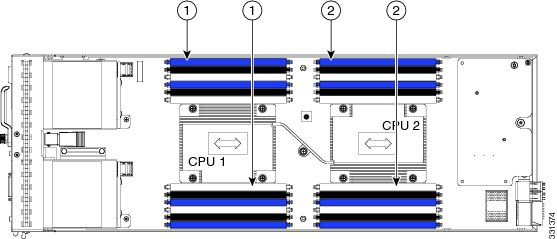
| 1 | Channels A-D for CPU 1 | 2 | Channels E-H for CPU 2 |
DIMMs and Channels
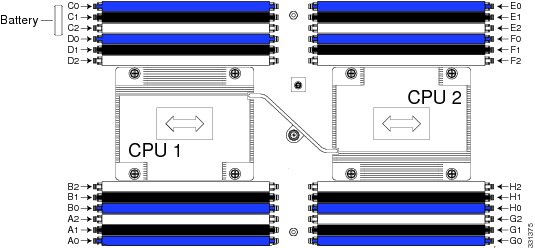
Each channel is identified by a letter—A, B, C, D for CPU1, and E, F, G, H for CPU 2. Each DIMM slot is numbered 0, 1, or 2. Note that each DIMM slot 0 is blue, each slot 1 is black, and each slot 2 is off-white or beige.
The figure below shows how DIMMs and channels are physically laid out on the blade server. The DIMM slots in the upper and lower right are associated with the second CPU (CPU shown on right in the diagram), while the DIMM slots in the upper and lower left are associated with the first CPU (CPU shown on left).
Courtesy: Cisco
Microsoft is Adding a Native SSH Client and Server to Windows
As Microsoft has shifted towards a more customer-oriented culture, Microsoft engineers are using social networks, tech communities and direct customer feedback as an integral part on how we make decisions about future investments. A popular request the PowerShell team has received is to use Secure Shell protocol and Shell session (aka SSH) to interoperate between Windows and Linux – both Linux connecting to and managing Windows via SSH and, vice versa, Windows connecting to and managing Linux via SSH. Thus, the combination of PowerShell and SSH will deliver a robust and secure solution to automate and to remotely manage Linux and Windows systems.
SSH solutions are available today by a number of vendors and communities, especially in the Linux world. However, there are limited implementations customers can deploy in Windows production environments. After reviewing these alternatives, the PowerShell team realized the best option will be for our team to adopt an industry proven solution while providing tight integration with Windows; a solution that Microsoft will deliver in Windows while working closely with subject matter experts across the planet to build it. Based on these goals, I’m pleased to announce that the PowerShell team will support and contribute to the OpenSSH community – Very excited to work with the OpenSSH community to deliver the PowerShell and Windows SSH solution!
A follow up question the reader might have is When and How will the SSH support be available? The team is in the early planning phase, and there’re not exact days yet. However the PowerShell team will provide details in the near future on availability dates.
Finally, I’d like to share some background on today’s announcement, because this is the 3rd time the PowerShell team has attempted to support SSH. The first attempts were during PowerShell V1 and V2 and were rejected. Given our changes in leadership and culture, we decided to give it another try and this time, because we are able to show the clear and compelling customer value, the company is very supportive. So I want to take a minute and thank all of you in the community who have been clearly and articulately making the case for why and how we should support SSH! Your voices matter and we do listen.
Thank you!
Angel Calvo
Group Software Engineering Manager
PowerShell Team
Additional Information
For more information on SSH please go to http://www.ietf.org/rfc/rfc4251.txt
For information on OpenSSH go to: http://www.openssh.com/index.html
 Lazy Admin Blog