
Day: Nov 21, 2015
How to rename the local administrator with Group Policy
To improve security in your Active Directory domain, you should rename the administrator account because this lowers the risk of brute force attacks. Renaming the administrator account and resetting its password on all computers in your AD domain can be easily done via Group Policy.
Open the Active Directory Group Policy Management console, create a new GPO, and link it to your desired OU. Of course, you can also work with an existing GPO.
Linking a GPO to an OU
Right-click the new GPO or an existing GPO and select Edit. This will launch the Group Policy editor. Now, browse to the following Group Policy setting: Computer Configuration > Preferences > Control Panel Settings > Local Users and Groups.
Renaming the administrator account
As you can see in the screenshot above, right-click Local Users and Groups and then navigate toNew > Local User.
On the next screen, you select the user name you would like to use for the administrator account:
Selecting the user name
Select the following:
Action – Select Update.
User name – Select Administrator (built-in).
Rename to – Enter the new user name.
Full name – Enter your desired name.
Description – Add a description (optional).
Password – Set a new password (optional).
Check boxes – Verify that the check boxes comply with your company policies.
The GPO is now configured and can be deployed in your network. The refresh interval for computer settings is 90 minutes. If you want to apply the GPO immediately on a client computer, open a command prompt and type gpupdate /force at the command line.
Alternatively, you can reboot the computer. If you are finding that a computer isn’t applying the policy, simply run gpresult /r at a command line to see whether your new GPO is listed:
Checking if the GPO has been applied
If it’s not listed or if you see a permission error message, go back to Active Directory Users and Computers and check the OU to which you have the policy applied. Also check whether the computer contains that OU. Perhaps the computer is in a different OU and therefore doesn’t pick up the policy.
Also check the GPO settings. In the Security Filtering section, ensure that the GPO is applied to Authenticated Users; in the Links section, verify that the correct OU is linked to the GPO :
GPO security filtering
If the policy is still not applied to some of your computers and you have checked all the above, then your domain controllers might not replicate the GPO properly.
How to reset ESXi 5.x root password using Host Profiles
According to VMware, the only supported way to reset a lost password is to do a fresh install. However, there are ways around it if your host is already connected to vCenter.
If you do NOT know the host password but it’s currently connected to vCenter, you can use Host Profiles to reset the password. This is only possible because the vpxa user on each ESXi host, added when the ESXi host is connected to vCenter Server, has root privileges.
Host Profiles are a feature of Enterprise Plus licensing only.
The is a VMware KB which mentions root password recovery is this one and it clearly states that it’s not supported to reset passwords on ESXi 5.x and ESXi in general as there is no longer the Linux console where you would use the single-user mode for the job:
Reinstalling the ESXi host is the only supported way to reset a password on ESXi. Any other method may lead to a host failure or an unsupported configuration due to the complex nature of the ESXi architecture. ESXi does not have a service console and as such traditional Linux methods of resetting a password, such as single-user mode.
But using host profiles to change the root password on ESXi host is supported and if you got the appropriate licensing then you should be able to change the root password.
Steps:
1. Right click the host, choose All vCenter Actions, Host Profiles, and select Extract Host Profile. Run through the wizard to create the new profile.
2. At the top of the vSphere client, click Home and Host Profiles under the Management section. Right click the newly created profile and choose Edit.
3. Click Next to the Edit Host Profile step and expand Security and Services, then expand Security Settings. Click on Security Configuration. Modify the dropdown list and select the “Configure a fixed administrator password” option. Enter the new password.
4. Complete the wizard which will save all your changes.
5. Back in the Hosts and Clusters view, right click your host and go to All vCenter Actions, Host Profiles, and Attach Host Profile. Select your profile you created and customized and finish the wizard.
6. Put your host in maintenance mode.
7. Right click the host again, All vCenter Actions, Host Profiles, and Remediate. If your host is not in maintenance mode, you’ll get the message “Remediate operation is allowed only for hosts in maintenance mode”
8. Once the Host Profile is applied, the host will reboot and your password will now be updated.
How to Remove Storage Devices from ESXi Hosts
Unmounting a LUN checklist
Before unmounting a LUN, ensure that:
- If the LUN is being used as a VMFS datastore, all objects (such as virtual machines, snapshots, and templates) stored on the VMFS datastore are unregistered or moved to another datastore.Note: All CD/DVD images located on the VMFS datastore must also be unregistered from the virtual machines.
- The datastore is not used for vSphere HA heartbeat.
- The datastore is not part of a datastore cluster.
- The datastore is not managed by Storage DRS.
- The datastore is not configured as a diagnostic coredump partition.
- Storage I/O Control is disabled for the datastore.
- No third-party scripts or utilities running on the ESXi host can access the LUN that has issue. If the LUN is being used as a datastore, unregister all objects (such as virtual machines and templates) stored on the datastore.
- If the LUN is being used as an RDM, remove the RDM from the virtual machine. Click Edit Settings, highlight the RDM hard disk, and click Remove. Select Delete from disk if it is not selected, and click OK.Note: This destroys the mapping file, but not the LUN content.
- Check if the LUN/datastore is used as the persistent scratch location for the host.This PowerCLI script can be used to check the current scratch location:
$vcServer = “vCenter01”
$cluster = “CL01”
$esxCred = Get-Credential
Connect-VIServer $vcServer | Out-Null
#Connect to ESX hosts in cluster
foreach ($esx in Get-Cluster $cluster | Get-VMHost) {
Connect-VIServer $esx -Credential $esxCred | Out-Null
Get-VMHostAdvancedConfiguration -Name “ScratchConfig.ConfiguredScratchLocation”
}
Note: When using the vSphere Web Client with vSphere 5.1, 5.5 and 6.0, only these checks are performed during the datastore unmount operation:
- Host should not have any virtual machines residing on this datastore
- Host should not use the datastore for HA heartbeats
Obtaining the NAA ID of the LUN to be removed
From the vSphere Client, this information is visible in the Properties window of the datastore.
From the ESXi host, run this command:
# esxcli storage vmfs extent list
You see output similar to:
Volume Name VMFS UUID Extent Number Device Name Partition
———– ———————————– ————- ———————————— ———
datastore1 4de4cb24-4cff750f-85f5-0019b9f1ecf6 0 naa.6001c230d8abfe000ff76c198ddbc13e 3
Storage2 4c5fbff6-f4069088-af4f-0019b9f1ecf4 0 naa.6001c230d8abfe000ff76c2e7384fc9a 1
Storage4 4c5fc023-ea0d4203-8517-0019b9f1ecf4 0 naa.6001c230d8abfe000ff76c51486715db 1
LUN01 4e414917-a8d75514-6bae-0019b9f1ecf4 0 naa.60a98000572d54724a34655733506751 1
Make a note of the NAA ID of the datastore to use this information later in this procedure.
Note: Alternatively, you can run the esxcli storage filesystem list command, which lists all file systems recognized by the ESXi host.
Unmounting a LUN using the vSphere Client
To unmount a LUN from an ESXi 5.0 host using the vSphere Client:
- If the LUN is an RDM, skip to step 2. Otherwise, in the Configuration tab of the ESXi host, click Storage. Right-click the datastore being removed, and click Unmount.A Confirm Datastore Unmount window appears. When the prerequisite criteria have been passed, click OK.Note: To unmount a datastore from multiple hosts in the vSphere Client, click Hosts and Clusters > Datastores and Datastore Clusters view (Ctrl+Shift+D). Perform the unmount task and select the appropriate hosts that should no longer access the datastore to be unmounted.
- Click the Devices view (under Configuration > Storage):

- Right-click the NAA ID of the LUN (as noted above) and click Detach. A Confirm Device Unmount window is displayed. When the prerequisite criteria are passed, click OK. Under the Operational State of the Device, the LUN is listed as Unmounted.Note: The Detach function must be performed on a per-host basis and does not propagate to other hosts in vCenter Server. If a LUN is presented to an initiator group or storage group on the SAN, the Detach function must be performed on every host in that initiator group before unmapping the LUN from the group on the SAN. Failing to follow this step results in an all-paths-down (APD) state for those hosts in the storage group on which Detach was not performed for the LUN being unmapped.
- Confirm if the LUN is successfully detached. The LUN can then be safely unpresented from the SAN. For more information, contact your storage array vendor.
- Perform a rescan on all ESXi hosts which had visibility to the LUN. The device is automatically removed from the Storage Adapters.
When the device is detached, it stays in an unmounted state even if the device is re-presented (that is, the detached state is persistent). To bring the device back online, the device must be attached.
If you want the device to permanently decommission from an ESXi host, manually remove the NAA entries from the host configuration:
- To list the permanently detached devices, run this command:# esxcli storage core device detached listYou see output similar to:Device UID State
———————————— —–
naa.50060160c46036df50060160c46036df off
naa.6006016094602800c8e3e1c5d3c8e011 off - To permanently remove the device configuration information from the system, run this command:# esxcli storage core device detached remove -d NAA_IDFor example:# esxcli storage core device detached remove -d naa.50060160c46036df50060160c46036df
Standard Windows Monitoring Threshold Parameters
Confused with setting up Threshold Parameters on the Tools Server for Performance Monitoring?
Here are the typical parameters and the threshold limit with Warning, High, Alert levels with polling intervals. This will depend upon the SoW signed with the client.
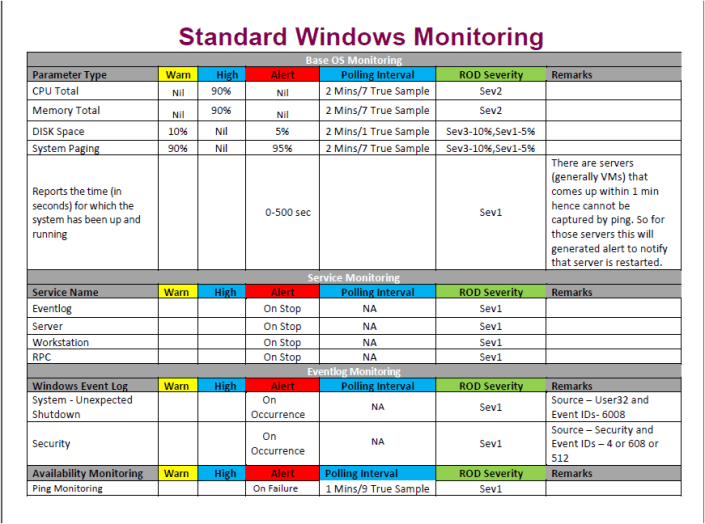
RoD is nothing but Remedy on Demand.
 Lazy Admin Blog