
How to update Offline Windows Servers to the latest Patch Level using WSUS
Update Offline Windows Servers to the latest Patch Level using WSUS
WSUS (Windows Server Update Services) is a method to update windows servers that are offline.
The best way to achieve patch management like this is to set up a WSUS server. What I am going to discuss is the downloading of patches from one machine that is connected to the Internet and copying the patches to an offline machine using a memory stick or DVD. This is a good solution when you have to update the patch level once to a few machines. It is not practical as a long term solution as every time Microsoft releases a patch you would have to manually update the off line servers.
First, download WSUS from http://download.wsusoffline.net/ Extract the file to a directory. Open the directory and run Update Generator.
Tick the box beside the OS you want to download updates for. In the image above Windows 7 / Windows Server 2008 R2 x64 is selected. If you want to select any other options, go ahead and then click, “Start”.
The updates will start to download. As a rough idea of the download time, the updates for Vista x64 was 2.5GB, Windows Server 2008R2 was 800MB.
Next step is to copy the WSUS folder to some sort of removable media, a memory stick, DVD, external hard disk etc. Insert it into the server you want to update.
Open the WSUS folder, open the folder, “client” and run the update executable.
This will update your system to the latest patch level.
Not enough server storage is available to process this command
Here is the offending registry value:
HKEY_LOCAL_MACHINE
\SYSTEM
\CurrentControlSet
\Services
\LanmanServer
\Parameters
IRPStackSize DWORD 0x0000000f (15)
Check for the presence of the value named IRPStackSize. If it doesn’t exist, create it as type DWORD and make sure you have the capitalization absolutely correct (5 upper case, 7 lower case characters), because the system strangely seems to depend on that.
With base set to decimal, enter the value 16 or higher. 15 is the default, so entering 15 should have the same effect as removing that value altogether.
What are the countries in LATAM?
Latin America can be subdivided into several sub regions based on geography, politics, demographics and culture. If defined as all of the Americas south of the United States, the basic geographical subregions are North America, Central America, the Caribbean and South America;[20] the latter contains further politico-geographical subdivisions such as the Southern Cone, the Guianas and the Andean states. It may be subdivided on linguistic grounds into Hispanic America, Portuguese America and French America.
| Name | Area | Population | Capital | Name(s) in official language(s) |
| (km²) | ||||
| Argentina | 2,780,400 | 41,660,417 | Buenos Aires | Argentina |
| Bolivia | 1,098,581 | 10,461,053 | Sucre and La Paz | Bolivia |
| Brazil | 8,515,767 | 201,032,714 | Brasília | Brasil |
| Chile | 756,096 | 17,556,815 | Santiago | Chile |
| Colombia | 1,141,748 | 47,387,109 | Bogotá | Colombia |
| Costa Rica | 51,100 | 4,667,096 | San José | Costa Rica |
| Cuba | 109,884 | 11,061,886 | Havana | Cuba |
| Dominican Republic | 48,442 | 10,219,630 | Santo Domingo | República Dominicana |
| Ecuador | 283,560 | 15,439,429 | Quito | Ecuador |
| El Salvador | 21,040 | 6,108,590 | San Salvador | El Salvador |
| French Guiana* | 83,534 | 250,109 | Cayenne | Guyane française |
| Guadeloupe* | 1,628 | 405,739 | Basse-Terre | Guadeloupe |
| Guatemala | 108,889 | 15,438,384 | Guatemala City | Guatemala |
| Haiti | 27,750 | 9,996,731 | Port-au-Prince | Haïti, Ayiti |
| Honduras | 112,492 | 8,555,072 | Tegucigalpa | Honduras |
| Martinique* | 1,128 | 386,486 | Fort-de-France | Martinique |
| Mexico | 1,972,550 | 118,395,054 | Mexico City | Estados Unidos Mexicanos |
| Nicaragua | 130,375 | 5,788,531 | Managua | Nicaragua |
| Panama | 75,517 | 3,661,868 | Panama City | Panamá |
| Paraguay | 406,752 | 6,800,284 | Asunción | Paraguay |
| Peru | 1,285,216 | 30,475,144 | Lima | Perú |
| Puerto Rico* | 9,104 | 3,615,086 | San Juan | Puerto Rico |
| Saint Barthélemy* | 53.2 | 36,286 | Gustavia | Saint-Barthélemy |
| Saint Martin* | 25 | 9,035 | Marigot | Saint-Martin |
| Uruguay | 176,215 | 3,324,460 | Montevideo | Uruguay |
| Venezuela | 916,445 | 31,648,930 | Caracas | Venezuela |
Help and support service not running in Windows 2003
To fix this:
- Open a Command Prompt
- Run the following commands
- %SystemDrive%
- CD %windir%\PCHealth\HelpCtr\Binaries
- start /w helpsvc /svchost netsvcs /regserver /install
The service should install and start automatically.
How to Uninstall IE 8 on Windows Server 2003
Just go to Run and insert this: %windir%\ie8\spuninst\spuninst.exe
If you do not find SPUNINST folder under C:\Windows\ie8
Please copy the same folder structure from another server and run spuninst.exe.
It would probably as some files that may be required to uninstall, as and when it asks for a file find the file in another pc and copy it on to the PC.
IMP: IEENCODE.DLL.000 file is required.
I could not find this file any location.
What i did was, i copied the IEENCODE.DLL file to another location and renamed it as IEENCODE.DLL.000
and feed this file when uninstaller asks.
done.. your IE 8 is uninstalled successfully!
![220px-Socrates_Louvre[1]](https://lazyadminblog.com/wp-content/uploads/2015/05/220px-socrates_louvre1.jpg)
How to Clean up the WinSxS Directory on Windows Server 2008 R2
Prior to this we need to install Disk Cleanup on Windows 2008. Disk Cleanup is not installed by default on Windows Server 2008 R2. It is instead a component installed with the Desktop Experience feature.
To install Disk Cleanup without reboot the server – How to install Disk Cleanup without reboot the server in Window 2008
Now download the appropriate package and install the on the system.
| Operating system | Update |
|---|---|
| All supported x86-based versions of Windows 7 | |
| All supported x64-based versions of Windows 7 | |
| All supported x64-based versions of Windows Server 2008 R2 |

Looking at my Windows 2008 R2 Server with SP1 installed, according to Windows Explorer, the size of my Windows/WinSxS directory is as follows:
![pic1[1]](https://lazyadminblog.com/wp-content/uploads/2015/05/pic11.png)
The size of the WinSxS directory will vary by server. Some of you will have smaller WinSxS directories, some larger.
Installing the update is just like installing any other update. Just download and double-click on the .msu file:
![pic2[1]](https://lazyadminblog.com/wp-content/uploads/2015/05/pic21.png)
Now we need to run the disk cleanup wizard. Disk Cleanup option can be found under Start –> All Programs –> Accessories –> System Tools: or go to run and type ‘cleanmgr’ to launch it.
![pic8[1]](https://lazyadminblog.com/wp-content/uploads/2015/05/pic81.png)
On launch, Disk Cleanup prompts for the drive you want to clean up, default drive will be C: drive
![pic9[1]](https://lazyadminblog.com/wp-content/uploads/2015/05/pic91.png)
After clicking Ok, a scan is performed:
![pic10[1]](https://lazyadminblog.com/wp-content/uploads/2015/05/pic101.png)
Several options are provided for cleanup, including a new option for Windows Update Cleanup:
![pic11[1]](https://lazyadminblog.com/wp-content/uploads/2015/05/pic111.png)
If you didn’t launch Disk Cleanup as Administrator, at this point, you’ll need to take a couple extra steps. You’ll need to click on the Clean up system files button.
![3348.diskcleanup3[1]](https://lazyadminblog.com/wp-content/uploads/2015/05/3348-diskcleanup31.png)
The actual cleanup occurs during the next reboot. After the reboot, taking a look at the WinSxS directory, it has shrunk to the following:
![pic12[1]](https://lazyadminblog.com/wp-content/uploads/2015/05/pic121.png)
VMware Interview Questions
- ESX vs ESXi
- ESXi has no service console which is a modified version of RHEL
- ESXi is extremely thin hence results in fast installation + fast boot
- ESXi can be purchased as an embedded hypervisor on hardware
- ESXi has builtin server health status check
- ESXi 4.1 vs ESXi 5.0 – Migration
- Local upgrade from CD
- VMware update manager (only supports upgrade of ESX/ESXi 4.x to ESXi 5.0)
- ESXi 4.1 vs ESXi 5.0 – Features
- vSphere Auto deploy
- Storage DRS
- HA – Primary/secondary concept changed to master/slave
- Profile driven storage
- VMFS version – 3 → 5
- ESXi firewall
- VMware hardware version – 7 → 8
- VMware tools version – 4.1 → 5
- vCPU – 8 → 32
- vRAM – 256 → 1 TB
- VMs per host – 320 → 512
- RAM per host – 1TB → 2TB
- USB 3.0 support
- vApp
- HA 5.0
- Uses an agent called FDM – Fault domain manager
- HA now talks directly to hostd instead of using vcenter agent vpxa
- Master/slave concept
- Master
- monitors availability of hosts/VMs
- manages VM restarts after host failure
- maintains list of all VMs in each host
- restarting failed VMs
- exchanging state with vcenter
- monitor state of slaves
- Slave
- monitor running VMs and send status to master and performs restart on request from master
- monitors master node health
- if master fails, participates in election
- Two different heartbeat mechanisms – Network heartbeat and datastore heartbeat
- Network heartbeat
- Sends between slave and master per second
- When slave is not receiving heartbeat from master, checks whether it is isolated or master is isolated or has failed
- Datastore heartbeat
- To distinct between isolation and failure
- Uses ‘Power On’ file in datastore to determine isolation
- This mechanism is used only when master loses network connectivity with hosts
- 2 datastores are chosen for this purpose
- Isolation response
- PowerOff
- Leave Powered On
- Shutdown
- vMotion
- vMotion enables live migration of running virtual machines from one host to another with zero downtime
- Prerequisites
- Host must be licensed for vMotion
- Configure host with at least one vMotion n/w interface (vmkernel port group)
- Shared storage (this has been compromised in 5.1)
- Same VLAN and VLAN label
- GigaBit ethernet network required between hosts
- Processor compatibility between hosts
- vMotion does not support migration of applications clustered using Microsoft clustering service
- No CD ROM attached
- No affinity is enabled
- vmware tools should be installed
- What is DRS? Types of DRS
- Distributed Resource Scheduler
- It is a feature of a cluster
- DRS continuously monitors utilization across the hosts and moves virtual machines to balance the computing capacity
- DRS uses vMotion for its functioning
- Types of DRS
- Fully automated – The VMs are moved across the hosts automatically. No admin intervention required.
- Partially automated – The VMs are moved across the hosts automatically during the time of VM bootup. But once up, vCenter will provide DRS recommendations to admin and has to perform it manually.
- Manual – Admin has to act according to the DRS recommendations
- DRS prerequisites
- Shared storage
- Processor compatibility of hosts in the DRS cluster
- vMotion prerequisites
- vMotion is not working. What are the possible reasons?
- Ensure vMotion is enabled on all ESX/ESXi hosts
- Ensure that all vmware pre requisites are met
- Verify if the ESXi/ESX host can be reconnected or if reconnecting the ESX/ESXi host resolves the issue
- Verify that time is synchronized across environment
- Verify that the required disk space is available
- What happens if a host is taken to maintenance mode
- Hosts are taken to maintenance mode during the course of maintenance
- In a single ESX/ESXi setup, all the VMs need to be shutdown before getting into maintenance mode
- In a vCenter setup If DRS is enabled, the VMs will be migrated to other hosts automatically.
- How will you clone a VM in an ESXi without vCenter
- Using vmkftools
- Copy the vmdk file and attach to a new VM
- Using VMware converter
- What is vSAN?
- It is a hypervisor-converged storage solution built by aggregating the local storage attached to the ESXi hosts managed by a vCenter.
- Recommended iSCSI configuration?
- A separate vSwitch, and a separate network other than VMtraffic network for iSCSI traffic. Dedicated physical NICs should be connected to vSwitch configured for iSCSI traffic.
- What is iSCSI port binding ?
- Port binding is used in iSCSI when multiple VMkernel ports for iSCSI reside in the same broadcast domain and IP subnet, to allow multiple paths to an iSCSI array that broadcasts a single IP address.
- iSCSI port binding considerations ?
- Array Target iSCSI ports must reside in the same broadcast domain and IP subnet as the VMkernel port.
- All VMkernel ports used for iSCSI connectivity must reside in the same broadcast domain and IP subnet.
- All VMkernel ports used for iSCSI connectivity must reside in the same vSwitch.
- Currently, port binding does not support network routing.
- Recommended iSCSI configuration of a 6 NIC infrastructure ? (Answer changes as per the infrastructure requirements)
- 2 NICs for VM traffic
- 2 NICs for iSCSI traffic
- 1 NIC for vMotion
- 1 NIC for management network
- Post conversion steps in P2V
- Adjust the virtual hardware settings as required
- Remove non present device drivers
- Remove all unnecessary devices such as serial ports, USB controllers, floppy drives etc..
- Install VMware tools
- Which esxtop metric will you use to confirm latency issue of storage ?
- esxtop –> d –> DAVG
- What are standby NICs
- These adapters will only become Active if the defined Active adapters have failed.
- Path selection policies in ESXi
- Most Recently Used (MRU)
- Fixed
- Round Robin
- Which networking features are recommended while using iSCSI traffic
- iSCSI port binding
- Jumbo Frames
- Ports used by vCenter
- 80,443,902
- What is ‘No Access’ role
- Users assigned with the ‘No Access’ role for an object, cannot view or change the object in any way
- When is a swap file created
- When the guest OS is first installed in the VM
- The active directory group, where the members will be ESXi administrators by default.
- ESX Admins
- Which is the command used in ESXi to manage and retrieve information from virtual machines ?
- vmware-cmd
- Which is the command used in ESXi to view live performance data?
- esxtop
- Command line tool used in ESXi to manage virtual disk files?
- vmkfstools
- Port used for vMotion
- 8000
- Log file location of VMware host
- \var\log\vmware
- Can you map a single physical NIC to multiple virtual switches ?
- No
- Can you map a single virtual switch to multiple physical NICs?
- Yes. This method is called NIC teaming.
- VMKernel portgroup can be used for:
- vMotion
- Fault Tolerance Logging
- Management traffic
- Major difference between ESXi 5.1 and ESXi 5.5 free versions
- Till ESXi 5.1 free version there was a limit to the maximum physical memory to 32 GB. But from 5.5 onwards this limit has been lifted.
- Maximum number of LUNs that can be attached to a host (ESXi 5.0)
- 256
- Maximum number of vCPUs that can be assigned to a VM (ESXi 5.0)
- 32
- What is CPU affinity in VMware? Its impact on DRS?
- CPU refers to a logical processor on a hyperthreaded system and refers to a core on a non-hyperthreaded system
- By setting CPU affinity for each VM, you can restrict the assignment of VMs to a subset of available processors
- The main use of setting CPU affinity is when there are display intensive workloads which requires additional threads with vCPUs.
- DRS will not work with CPU affinity
- VMversion 4 vs VMversion 7
- Version 4
- Runs on ESX 3.x
- Max supported RAM 64 GB
- Max vCPUs 4
- MS cluster is not supported
- 4 NICs/VM
- No USB Support
- Version 7
- Runs on vSphere 4.x
- Max supported RAM 256 GB
- Max vCPUs 8
- MS cluster is supported
- 10 NICs/VM
- USB support
- What happens to the VMs if a standalone host is taken to maintenance mode?
- In case of standalone servers , VMware recommends that VMs should be powered off before putting the server in maintenance mode
- If we put the standalone host in maintenance mode without powering off the VMs, it will remain in the ‘entering maintenance mode’ state until the VMs are all shutdown
- When all the VMs are powered down, the host status changes to ‘under maintenance’
- How can you edit a vm template?
- The VM templates cannot be modified as such
- First , the VM template have to be converted to a virtual machine
- After making necessary machines in the virtual machine, convert the virtual machine back to template
- VMware hardware version comparison

How to change default snapshot location in VMware ESXi 5
Defaulty the snapshots which are taken for any virtual machine are stored with their parent in the same directory or storage. Sometimes you may run out of space and you might not be able to take anymore snapshots so in that case you can always use some other location for the storage of snapshots.
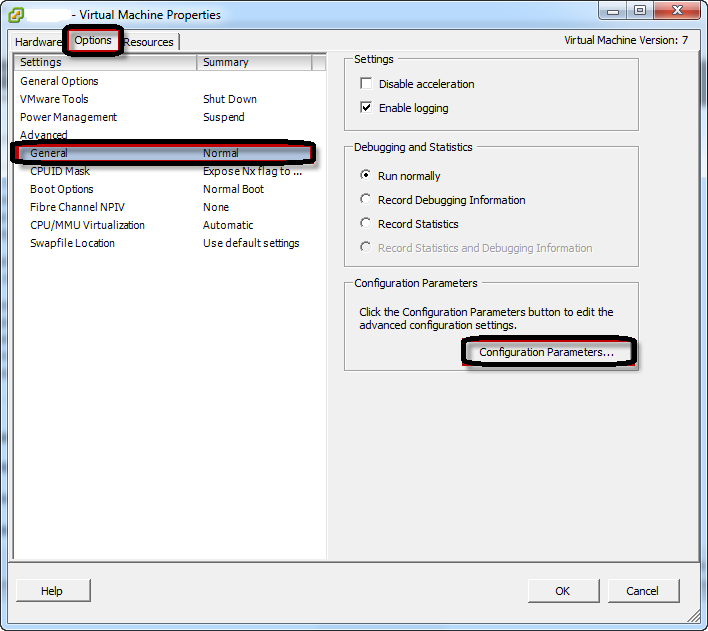
These are the required steps to be taken to change the default locations of all the snapshots .
NOTE: Please ensure that the vm you are working on is powered OFF.
Right Click the vm and select Edit Settings
Click on Options from the top TAB, select General and open the Configuration parameters
Add a new row with the following details
snapshot.redoNotWithParent
Save this parameter with a value “true” as shown below
Now open the CLI of the host where the vm is located
Go to the vm’s parent directory where all the vm files are stored and open the main .vmx file
As in my case
# cd /vmfs/volumes/53652b45-90f342h4-v3r3-s5dw676h5674/Windows2003
# vi Windows2003.vmx
Now add this line anywhere in the .vmx file with the path location where you want your snapshots to be stored
workingDir = “/vmfs/volumes/54332bf4-gd3bf353-g45b-g2ft353b5545/snapshots”
Save the file and exit
Now you need to reload this vm to make the changes take affect.
# vim-cmd vmsvc/getallvms | grep Windows2003
13 Windows2003 [iSCSI-Datastore15] Windows2003/Windows2003 win2003 vmx-07
Here 13 is the vm id which you can find out using the above command
# vim-cmd vmsvc/reload 13
Now when you take snapshots the snapshot files and vm swap files will be created in a different location.
How to redirect vm’s swap file
In case you do not want vm swap file to be redirected to another location and you want it to the same parent directory.
Add an extra parameter in the Configuration Parameter option shown above
sched.swap.dir=”<path_to_vm_directory>”
For example
/vmfs/volumes/54332bf4-gd3bf353-g45b-g2ft353b5545/vmswap
Save the settings and exit. Now each time you take snapshot the snapshot files and vm swap files will be saved at specified different location.
 LazyAdminBlog