
VMware
VMware vCenter Release and Build Number History
| vCenter Build Numbers | |||||
| Name | Version | Release | Build | Installer | Version |
| vCenter Server 6.0.0 Update 1 | 6.0 U1 | 9/10/2015 | 3018524 | 3040890 | |
| vCenter Server 6.0.0b | 6.0.0b | 7/7/2015 | 2776511 | 2800571 | |
| vCenter Server 6.0 Express Patch 1 | 6.0.0a | 4/16/2015 | 2656758 | 2656757 | |
| vCenter Server 6.0 | 6.0 GA | 3/12/2015 | 2494585 | 2562643 | |
| vCenter Server 5.5 Update 3 | 5.5 U3 | 9/16/2015 | 3000241 | 3000346 | |
| vCenter Server 5.5 Update 2e | 5.5 U2e | 4/16/2015 | 2646482 | 2646481 | 5.5.0.44687 |
| vCenter Server 5.5 Update 2d | 5.5 U2d | 1/27/2015 | 2442329 | 2442328 | 5.5.0.43769 |
| vCenter Server 5.5 Update 2b | 5.5 U2b | 10/9/2014 | 2183111 | 2183112 | 5.5.0.43013 |
| vCenter Server 5.5 Update 2 | 5.5 U2 | 9/9/2014 | 2001466 | 2105955 | 5.5.0.42389 |
| vCenter Server 5.5 Update 1c | 5.5 U1c | 7/22/2014 | 1945274 | 1945270 | 5.5.0.42156 |
| vCenter Server 5.5 Update 1b | 5.5 U1b | 6/12/2014 | 1891310 | 1891314 | 5.5.0.41927 |
| vCenter Server 5.5 Update 1a | 5.5 U1a | 4/19/2014 | 1750795 | 1750787 | 5.5.0.41222 |
| vCenter Server 5.5c | 5.5c | 4/19/2014 | 1750596 | 1750597 | 5.5.0.41218 |
| vCenter Server 5.5 Update 1 | 5.5 U1 | 3/11/2014 | 1623101 | 1623099 | 5.5.0.40799 |
| vCenter Server 5.5b | 5.5b | 12/22/2013 | 1476327 | 1476387 | 5.5.0.39885 |
| vCenter Server 5.5a | 5.5a | 10/31/2013 | 1378903 | 1378901 | 5.5.0.38845 |
| vCenter Server 5.5 | 5.5 GA | 9/22/2013 | 1312298 | 1312299 | 5.5.0.38036 |
| vCenter Server 5.1 Update 3b | 5.1 U3b | 10/1/2015 | 3070521 | 3072311 | |
| vCenter Server 5.1 Update 3a | 5.1 U3a | 4/30/2015 | 2669725 | 2670344 | |
| vCenter Server 5.1 Update 3 | 5.1 U3 | 12/4/2014 | 2306353 | 2308386 | 5.1.0.43263 |
| vCenter Server 5.1 Update 2c | 5.1 U2c | 10/30/2014 | 2207772 | 2212977 | 5.1.0.43068 |
| vCenter Server 5.1 Update 2a | 5.1 U2a | 7/7/2014 | 1882349 | 1917403 | 5.1.0.41903 |
| vCenter Server 5.1 Update 2 | 5.1 U2 | 1/16/2014 | 1473063 | 1474365 | 5.1.0.39867 |
| vCenter Server 5.1 U1c | 5.1 U1c | 10/30/2013 | 1364037 | 1364079 | 5.1.0.38659 |
| vCenter Server 5.1 U1b | 5.1 U1b | 8/1/2013 | 1235232 | 1235309 | 5.1.0.37189 |
| vCenter Server 5.1 U1a | 5.1 U1a | 5/22/2013 | 1123961 | 1123966 | 5.1.0.36098 |
| vCenter Server 5.1 Update 1 | 5.1 U1 | 4/25/2013 | 1064983 | 1065152 | 5.1.0.35539 |
| vCenter Server 5.1b | 5.1b | 12/20/2012 | 947673 | 947939 | 5.1.0.34460 |
| vCenter Server 5.1a | 5.1a | 11/19/2012 | 880146 | 880471 | 5.1.0.33762 |
| vCenter Server 5.1 | 5.1 GA | 9/11/2012 | 799731 | 799735 | 5.1.0.32743 |
| vCenter Server 5.0 Update 3e | 5.0 U3e | 10/1/2015 | 3073236 | 3073234 | |
| vCenter Server 5.0 Update 3d | 5.0 U3d | 4/30/2015 | 2656067 | 2692807 | |
| vCenter Server 5.0 Update 3c | 5.0 U3c | 11/20/2014 | 2210222 | 2215678 | 5.0.0.43079 |
| vCenter Server 5.0 Update 3a | 5.0 U3a | 7/1/2014 | 1917469 | 1923446 | 5.0.0.42044 |
| vCenter Server 5.0 Update 3 | 5.0 U3 | 10/17/2013 | 1300600 | 1343691 | 5.0.0.37933 |
| vCenter Server 5.0 Update 2 | 5.0 U2 | 12/20/2012 | 913577 | 923238 | 5.0.0.34130 |
| vCenter Server 5.0 U1b | 5.0 U1b | 8/16/2012 | 804277 | 804276 | 5.0.0.32829 |
| vCenter Server 5.0 U1a | 5.0 U1a | 7/12/2012 | 755629 | 757163 | 5.0.0.31955 |
| vCenter Server 5.0 Update 1 | 5.0 U1 | 3/15/2012 | 623373 | 639890 | 5.0.0.29542 |
| vCenter Server 5.0 | 5.0 GA | 8/24/2011 | 456005 | 456005 | 5.0.0.16964 |
| vCenter Server 4.1 U3a | 1/31/2013 | 925676 | 978694 | ||
| vCenter Server 4.1 U3 | 8/30/2012 | 799345 | 816786 | ||
| vCenter Server 4.1 U2 | 10/27/2011 | 491557 | 493063 | ||
| vCenter Server 4.1 U1 | 2/10/2011 | 345043 | 345042 | ||
| VUM-KB-1023962 | 7/19/2010 | 275390 | |||
| vCenter Server 4.1 | 7/13/2010 | 259021 | 259021 | ||
| vCenter Server 4.0 Update 4b | 4.0 U4b | 2/7/2013 | 934016 | ||
| vCenter Server 4.0 U4 | 11/17/2011 | 496403 | |||
| vCenter Server 4.0 U3 | 5/5/2011 | 385281 | |||
| vCenter Server 4.0 U2 | 6/10/2010 | 258672 | |||
| vCenter Server 4.0 U1 | 11/19/2010 | 208111 | |||
| vCenter Server 4.0 Patch 1 | 2/25/2010 | 183347 | |||
| vCenter Server 4.0 | 5/21/2009 | 162856 | |||
| VirtualCenter 2.5.0 U6b | 3/8/2012 | 598800 | |||
| VirtualCenter 2.5.0 U6a | 5/5/2011 | 341471 | |||
| VirtualCenter 2.5.0 U6 Localized | 1/29/2010 | 227640 | |||
| VirtualCenter 2.5.0 U6 English | 1/29/2010 | 227637 | |||
| VirtualCenter 2.5.0 U5 Localized | 7/10/2009 | 174835 | |||
| VirtualCenter 2.5.0 U5 English | 7/10/2009 | 174768 | |||
| VirtualCenter 2.5.0 U4 Localized | 2/23/2009 | 147704 | |||
| VirtualCenter 2.5.0 U4 German | 2/23/2009 | 147697 | |||
| VirtualCenter 2.5.0 U4 English | 2/23/2009 | 147633 | |||
| VirtualCenter 2.5.0 U3 | 10/3/2008 | 119598 | |||
| VirtualCenter 2.5.0 U2 | 7/25/2008 | 104215 | |||
| VirtualCenter 2.5.0 U1 | 4/10/2008 | 84767 | |||
| VirtualCenter 2.5.0 | 12/10/2007 | 64192 |
How to generate diagnostic logs for SRM if you cannot login to the SRM via vSphere Client
Browse to the below path on the server where SRM() is intalled:
- In 32bit Windows –
C:\Program Files (32 bit)\VMware\VMware vCenter Site Recovery Manager\bin\ - In 64bit Windows –
C:\Program Files\VMware\VMware vCenter Site Recovery Manager\bin\
SRM 1.0 – C:\Program Files\VMware\VMware Site Recovery Manager\bin\
Double Click the file srm-support.wsf, in a few seconds a compressed log bundle named srm-plugin-support- MM-DD-YYYY-hh-mm.zip will be placed on the Desktop of the current user. You can share this log with VMware support for analysis.
Depending on the issue, VMware support may need Site Recovery Manager logs from the protected site, the recovery site, or both.
Site Recovery Manager log bundles do not specify the role of the site where they were collected, as a single site may have both protected and recovery roles at the same time. To help VMware support quickly distinguish between logs, VMware recommends that you prepend the wordsprotected or recovery to each log bundle name before uploading. For example:
protected-srm-support-MM-DD-YYYY-hh-mm.ziprecovery-srm-support-MM-DD-YYYY-hh-mm.zip
To upload to VMware, please check How to generate VMware ESXi logs and how to Upload via the FTP portal using a third party FTP client for a VMware Support Case
Storage Replication Adapters (SRAs) write logs in locations specific to the SRA type and vendor. Contact the SRA vendor’s documentation for more information. Common locations include:
C:\Program Files\VMware\VMware vCenter Site Recovery Manager\scripts\SAN\<SRA Vendor Name>\log\C:\Program Files\<SRA Vendor Name>\
Note: The logs can also be gathered from the GUI of the vSphere Client if connection to the SRM plug-in is still available. The Gather Logslink from the SRM Site window imports the logs from the preceding location(s).
-
\config\extention.xml -
\config\vmware-dr.xml
Raising a support case for ProLiant/Blades Series Servers, the step by step approach!
Now a days HP has segregated the support types, the server support comes under Hewlett Packard Enterprise.
Select your product
HP ProLiant DL Multi Node Servers
HP ProLiant Packaged Cluster Servers
HP ProLiant WS Workstation Blades
Or
if you are not able to find your product, check the below link to manually search the server model/ number in the Hewlett Packard Enterprise Products: eg. ProLiant DL360 Gen9

You will get log of results like below:
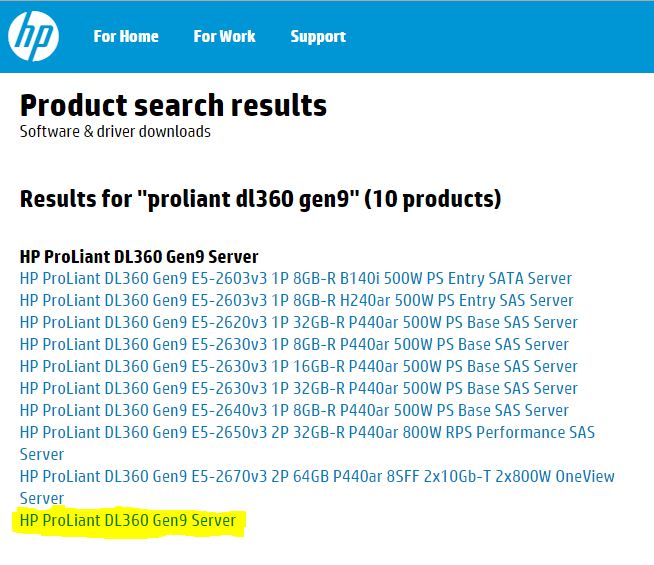

Finally if the above of these do not help then you can raise case by clicking the below link. You need to create a HP passport login in case you do not have an account. HP Passport is a single sign in service that lets you use one User ID and password for all HP Passport-enabled websites.
Submit or manage support cases

You may also check existing ticket updates by providing the case ID.
I hope techies find it useful 🙂
Connections and Ports in ESX and ESXi
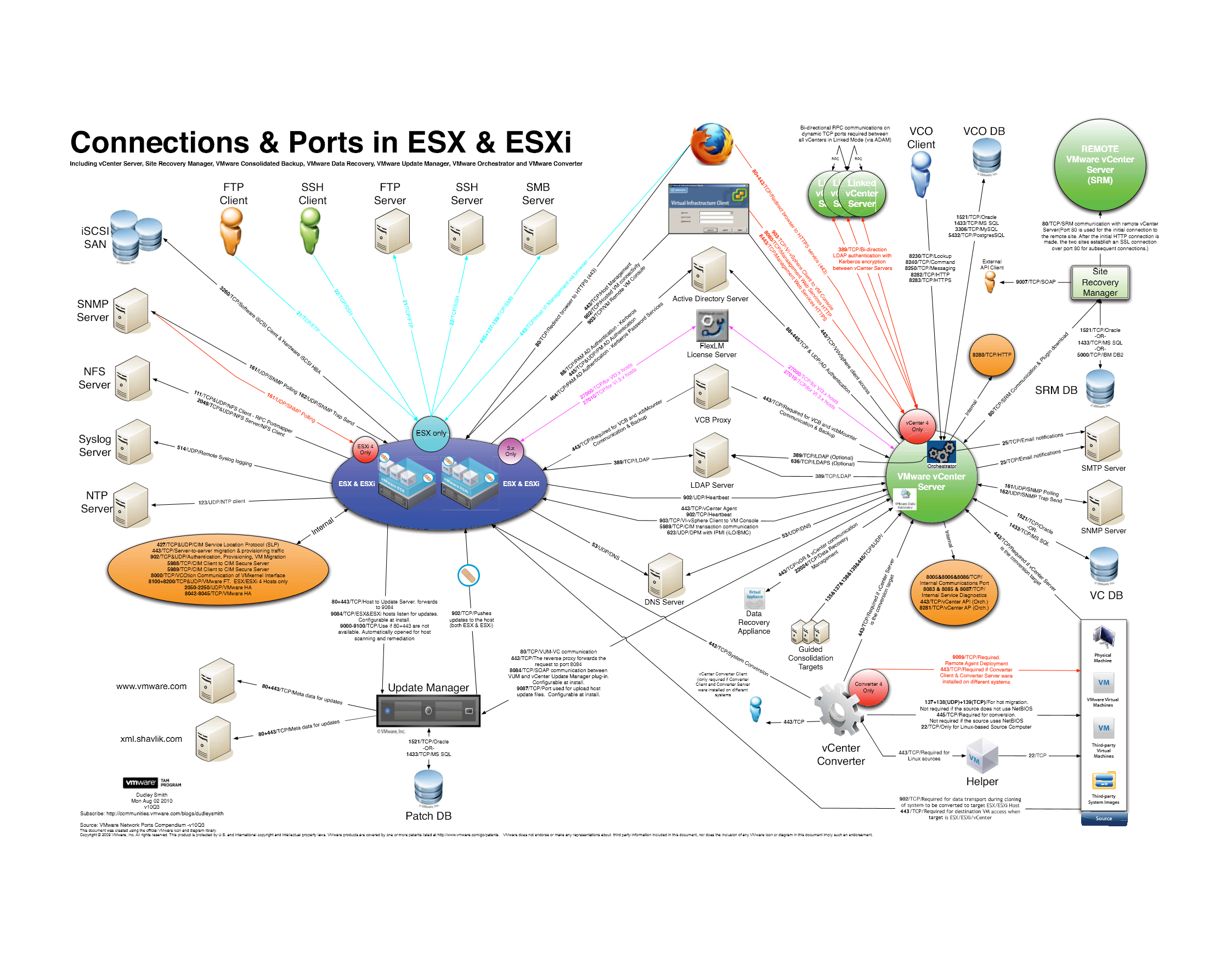
A high resolution pdf can be downloaded here Connections and Ports in ESX and ESXi
VMware ESXi Release and Build Number History – A must for confirming your ESXi hosts are up to date!
The following listings are a comprehensive collection of the flagship hypervisor product by VMware. All bold versions are downloadable releases.
vSphere ESXi 6.0
| Name | Version | Release | Build |
|---|---|---|---|
| ESXi600-201511001 | ESXi 6.0 Express Patch 4 | 2015-11-25 | 3247720 |
| ESXi600-201510001 | ESXi 6.0 Update 1a | 2015-10-06 | 3073146 |
| VMware ESXi 6.0 Update 1 | ESXi 6.0 Update 1 | 2015-09-10 | 3029758 |
| ESXi600-201507001 | ESXi 6.0b | 2015-07-07 | 2809209 |
| ESXi600-201505001 | ESXi 6.0 Express Patch 2 | 2015-05-14 | 2715440 |
| ESXi600-201504001 | ESXi 6.0 Express Patch 1 | 2015-04-09 | 2615704 |
| VMware ESXi 6.0 | ESXi 6.0 GA | 2015-03-12 | 2494585 |
vSphere ESXi 5.5
| Name | Version | Release | Build |
|---|---|---|---|
| ESXi550-201512001 | 2015-12-08 | 3248547 | |
| ESXi550-201510001 | ESXi 5.5 Update 3a | 2015-10-06 | 3116895 |
| VMware ESXi 5.5 Update 3 | ESXi 5.5 Update 3 | 2015-09-16 | 3029944 |
| ESXi550-201505002 | ESXi 5.5 Patch 5 | 2015-05-08 | 2718055 |
| ESXi550-201504002 | Recalled | 2015-04-30 | 2702864 |
| ESXi550-201504001 | ESXi 5.5 Express Patch 7 | 2015-04-07 | 2638301 |
| ESXi550-201502001 | ESXi 5.5 Express Patch 6 | 2015-02-05 | 2456374 |
| ESXi550-201501001 | ESXi 5.5 Patch 4 | 2015-01-27 | 2403361 |
| ESXi550-201412001 | ESXi 5.5 Express Patch 5 | 2014-12-02 | 2302651 |
| ESXi550-201410001 | ESXi 5.5 Patch 3 | 2014-10-15 | 2143827 |
| VMware ESXi 5.5 Update 2 | ESXi 5.5 Update 2 | 2014-09-09 | 2068190 |
| ESXi550-201407001 | ESXi 5.5 Patch 2 | 2014-07-01 | 1892794 |
| ESXi550-201406001 | ESXi 5.5 Express Patch 4 | 2014-06-10 | 1881737 |
| ESXi550-201404020 | ESXi 5.5 Express Patch 3 | 2014-04-19 | 1746974 |
| ESXi550-201404001 | ESXi 5.5 Update 1a | 2014-04-19 | 1746018 |
| VMware ESXi 5.5.1 Driver Rollup | 2014-03-11 | 1636597 | |
| VMware ESXi 5.5 Update 1 | ESXi 5.5 Update 1 | 2014-03-11 | 1623387 |
| ESXi550-201312001 | ESXi 5.5 Patch 1 | 2013-12-22 | 1474528 |
| vSAN Beta Refresh | 2013-11-25 | 1439689 | |
| VMware ESXi 5.5 | ESXi 5.5 GA | 2013-09-22 | 1331820 |
vSphere ESXi 5.1
| Name | Version | Release | Build |
|---|---|---|---|
| ESXi510-201510001 | 2015-10-01 | 3070626 | |
| ESXi510-201503001 | 5.1.0 Patch 7 | 2015-03-26 | 2583090 |
| VMware ESXi 5.1 Update 3 | 5.1.0 U3 | 2014-12-04 | 2323236 |
| ESXi510-201410001 | 5.1.0 Patch 6 | 2014-10-31 | 2191751 |
| ESXi510-201407001 | 5.1.0 Patch 5 | 2014-07-31 | 2000251 |
| ESXi510-201406001 | 5.1.0 Express Patch 5 | 2014-06-17 | 1900470 |
| ESXi510-201404001 | 5.1.0 Patch 4 | 2014-04-29 | 1743533 |
| ESXi510-201402001 | 5.1.0 Express Patch 4 | 2014-02-27 | 1612806 |
| VMware ESXi 5.1 Update 2 | 5.1.0 U2 | 2014-01-16 | 1483097 |
| ESXi510-201310001 | 5.1.0 Patch 3 | 2013-10-17 | 1312873 |
| ESXi510-201307001 | 5.1.0 Patch 2 | 2013-07-25 | 1157734 |
| ESXi510-201305001 | 5.1.0 Express Patch 3 | 2013-05-22 | 1117900 |
| VMware ESXi 5.1 Update 1 | 5.1.0 U1 | 2013-04-25 | 1065491 |
| ESXi510-201303001 | 5.1.0 Express Patch 2 | 2013-03-07 | 1021289 |
| ESXi510-201212001 | 5.1.0 Patch 1 | 2012-12-20 | 914609 |
| ESXi510-201210001 | 5.1.0a | 2012-10-24 | 838463 |
| KB2034796 | 5.1.0 | Hot-Patch | 837262 |
| VMware ESXi 5.1 | 5.1.0 GA | 2012-09-11 | 799733 |
vSphere ESXi 5.0
| Name | Version | Release | Build |
|---|---|---|---|
| ESXi500-201510001 | 2015-10-01 | 3086167 | |
| ESXi500-201502001 | 5.0.0 Patch 11 | 2015-02-26 | 2509828 |
| ESXi500-201412001 | 5.0.0 Patch 10 | 2014-12-04 | 2312428 |
| ESXi500-201408001 | 5.0.0 Patch 9 | 2014-08-28 | 2000308 |
| ESXi500-201407001 | 5.0.0 Express Patch 6 | 2014-07-01 | 1918656 |
| ESXi500-201405001 | 5.0.0 Patch 8 | 2014-05-29 | 1851670 |
| ESXi500-201401001 | 5.0.0 Patch 7 | 2014-01-23 | 1489271 |
| VMware ESXi 5.0 Update 3 | 5.0.0 U3 | 2013-10-17 | 1311175 |
| ESXi500-201308001 | 5.0.0 Patch 6 | 2013-08-29 | 1254542 |
| ESXi500-201305001 | 5.0.0 Express Patch 5 | 2013-05-15 | 1117897 |
| ESXi500-201303001 | 5.0.0 Patch 5 | 2013-03-28 | 1024429 |
| VMware ESXi 5.0 Update 2 | 5.0.0 U2 | 2012-12-20 | 914586 |
| ESXi500-201209001 | 5.0.0 Patch 4 | 2012-09-27 | 821926 |
| ESXi500-201207001 | 5.0.0 Patch 3 | 2012-07-12 | 768111 |
| ESXi500-201206001 | 5.0.0 Express Patch 4 | 2012-06-14 | 721882 |
| ESXi500-201205001 | 5.0.0 Express Patch 3 | 2012-05-03 | 702118 |
| ESXi500-201204001 | 5.0.0 Express Patch 2 | 2012-04-12 | 653509 |
| VMware ESXi 5.0 Update 1 | 5.0.0 U1 | 2012-03-15 | 623860 |
| ESXi500-201112001 | 5.0.0 Patch 2 | 2011-12-15 | 515841 |
| ESXi500-201111001 | 5.0.0 Express Patch 1 | 2011-11-03 | 504890 |
| ESXi500-201109001 | 5.0.0 Patch 1 | 2011-09-13 | 474610 |
| VMware ESXi 5.0 | 5.0.0 | 2011-08-24 | 469512 |
vSphere ESXi 4.1
| Name | Version | Release | Build |
|---|---|---|---|
| ESXi410-201404001 | 4.1.0 Patch 11 | 2014-04-10 | 1682698 |
| ESXi410-201312001 | 4.1.0 Patch 10 | 2013-12-05 | 1363503 |
| ESXi410-201307001 | 4.1.0 Patch 9 | 2013-07-31 | 1198252 |
| ESXi410-201304001 | 4.1.0 Patch 8 | 2013-04-30 | 1050704 |
| ESXi410-201301001 | 4.1.0 Patch 7 | 2013-01-31 | 988178 |
| ESXi410-201211001 | 4.1.0 Patch 6 | 2012-11-15 | 874690 |
| VMware ESXi 4.1 Update 3 | 4.1.0 U3 | 2012-08-30 | 800380 |
| ESXi410-201206001 | 4.1.0 Express Patch 3 | 2012-06-14 | 721871 |
| ESXi410-201205001 | 4.1.0 Express Patch 2 | 2012-05-03 | 702113 |
| ESXi410-201204001 | 4.1.0 Patch 5 | 2012-04-26 | 659051 |
| ESXi410-201201001 | 4.1.0 Patch 4 | 2012-01-30 | 582267 |
| VMware ESXi 4.1 Update 2 | 4.1.0 U2 | 2011-10-27 | 502767 |
| ESXi410-201107001 | 4.1.0 Patch 3 | 2011-07-28 | 433742 |
| ESXi410-201104001 | 4.1.0 Patch 2 | 2011-04-28 | 381591 |
| VMware ESXi 4.1 Update 1 | 4.1.0 U1 | 2011-02-10 | 348481 |
| ESXi410-201011001 | 4.1.0 Express Patch 1 | 2010-11-29 | 320137 |
| ESXi410-201010001 | 4.1.0 Patch 1 | 2010-11-15 | 320092 |
| VMware ESXi 4.1 | 4.1.0 | 2010-07-13 | 260247 |
How to generate VMware ESXi logs and how to Upload via the FTP portal using a third party FTP client for a VMware Support Case
How to generate VMware ESXi logs:
Identify the ESXi host on which the server is hosted, putty to the Host and run the following command. But before you run the command, you need to select a desired datastore to direct the support log bundle to a location using the same command (mentioning the destination path).
For example:
vm-support -s > /vmfs/volumes/datastorexxx/vm-support-Hostname.tgz
Datastorexxx = will be datastore with free space
vm-support-Hostname.tgz = host name
- After the log bundle has been collected and downloaded from the datastore by browsing the particular datastore normally using the vSphere client, then upload the logs to the SFTP/FTP site.
How to Upload via the FTP portal using a Filezilla (FTP Client)
There are many third-party GUI-based FTP clients that run on multiple platforms. These clients are able to perform the operations in this article using an intuitive GUI interface. Feel free to use the FTP client of your choice, which supports passive mode.
FileZilla is a popular third party FTP client.
To upload files from Windows using FileZilla:
- Open the FileZilla client.
- Set the transfer mode to binary:
Go to the Transfer menu > Transfer type > Binary
- Go to the File menu > Site Manager.
- Add the VMware FTP site to My Sites using the Site Manager. The credentials are:
Address = ftpsite.vmware.com
Logon Type = normal
User = inbound
Password = inbound - Click Connect.
- Change to the correct destination directory for your Support Request:
- If this is the first time you are uploading files to the VMware FTP Server for this case, create a directory in the root of the VMware FTP. To do this, right click the root directory on the remote site in the right pane and choose Create directory.
- If this is not the first time you are uploading files for this case, proceed to step 7.
- Change to your SR directory using the Remote site field.
For example:
Remote site: /12345678901
Notes:
- For security reasons, you do not see any files or directories on the VMware FTP server, including files you have uploaded.
- The destination directory should contain numbers only. Do not enter letters or other characters.
- Once you connect to the correct destination directory, browse to the location of the log files on your local system using the file browser in the left pane or enter the full path in the Local site field.
- Right click the file and select Upload to start the transfer.
- Monitor the transfer progress in the Queued files pane.
How to power off a Virtual Machine on an ESXi host via Putty
Sometime a virtual machine may not responsive and cannot be stopped or killed, then this is a workaround to reboot the virtual machine via putty.
The esxcli command can be used locally or remotely to power off a virtual machine running on ESXi 5.x or later.
- Open a console session where the esxcli tool is available, either in the ESXi Shell, the vSphere Management Assistant (vMA), or the location where the vSphere Command-Line Interface (vCLI) is installed.
- Get a list of running virtual machines, identified by World ID, UUID, Display Name, and path to the.vmx configuration file, using this command:esxcli vm process list
- Power off one of the virtual machines from the list using this command:esxcli vm process kill –type=[soft,hard,force]–world-id=WorldNumber
Notes:
Three power-off methods are available. Soft is the most graceful, hard performs an immediate shutdown, and force should be used as a last resort.
Alternate power off command syntax is: esxcli vm process kill -t [soft,hard,force] -w WorldNumber - Repeat Step 2 and validate that the virtual machine is no longer running.
Microsoft is Adding a Native SSH Client and Server to Windows
As Microsoft has shifted towards a more customer-oriented culture, Microsoft engineers are using social networks, tech communities and direct customer feedback as an integral part on how we make decisions about future investments. A popular request the PowerShell team has received is to use Secure Shell protocol and Shell session (aka SSH) to interoperate between Windows and Linux – both Linux connecting to and managing Windows via SSH and, vice versa, Windows connecting to and managing Linux via SSH. Thus, the combination of PowerShell and SSH will deliver a robust and secure solution to automate and to remotely manage Linux and Windows systems.
SSH solutions are available today by a number of vendors and communities, especially in the Linux world. However, there are limited implementations customers can deploy in Windows production environments. After reviewing these alternatives, the PowerShell team realized the best option will be for our team to adopt an industry proven solution while providing tight integration with Windows; a solution that Microsoft will deliver in Windows while working closely with subject matter experts across the planet to build it. Based on these goals, I’m pleased to announce that the PowerShell team will support and contribute to the OpenSSH community – Very excited to work with the OpenSSH community to deliver the PowerShell and Windows SSH solution!
A follow up question the reader might have is When and How will the SSH support be available? The team is in the early planning phase, and there’re not exact days yet. However the PowerShell team will provide details in the near future on availability dates.
Finally, I’d like to share some background on today’s announcement, because this is the 3rd time the PowerShell team has attempted to support SSH. The first attempts were during PowerShell V1 and V2 and were rejected. Given our changes in leadership and culture, we decided to give it another try and this time, because we are able to show the clear and compelling customer value, the company is very supportive. So I want to take a minute and thank all of you in the community who have been clearly and articulately making the case for why and how we should support SSH! Your voices matter and we do listen.
Thank you!
Angel Calvo
Group Software Engineering Manager
PowerShell Team
Additional Information
For more information on SSH please go to http://www.ietf.org/rfc/rfc4251.txt
For information on OpenSSH go to: http://www.openssh.com/index.html
How to fix if you are unable to upgrade existing VMware Tools in a Windows 2003 virtual machine
As per VMware, the cause of this issue is currently unknown and is under investigation. In order to help identify the cause, report this issue to VMware Support and provide answers to the following questions:
- What version of the tools are you upgrading from?
- What version of the tools are you upgrading to?
- What method is being used to upgrade the tools?
In order to determine the previous versions of the VMware Tools that were installed on your system, open the Microsoft Windows event viewer and search for Event Source of MsiInstaller and Event ID of 1034 for more information on viewing events, see the Filter Displayed Events Tech Net article from Microsoft.
Now, to fix this issue involves modifies the Windows registry. Before making any registry modifications, ensure that you have a current and valid backup of the registry and the virtual machine.
- Start the virtual machine and log on as the Administrator.
- Take a full backup of the registry prior to editing it. Do not skip this step.
- Open the Windows Registry editor. Click Start > Run, type
regedit, and press Enter. - Delete these registry keys if they exist:
HKEY_CLASSES_ROOT\Installer\Features05014B32081E884E91FB41199E24004HKEY_CLASSES_ROOT\Installer\Products05014B32081E884E91FB41199E24004HKEY_LOCAL_MACHINE\SOFTWARE\Classes\Installer\Features05014B32081E884E91FB41199E24004HKEY_LOCAL_MACHINE\SOFTWARE\Classes\Installer\Products05014B32081E884E91FB41199E24004HKEY_LOCAL_MACHINE\SOFTWARE\Microsoft\Windows\CurrentVersion\Installer\UserData\S-1-5-18\ComponentsB150AC107B12D11A9DD0006794C4E25HKEY_LOCAL_MACHINE\SOFTWARE\Microsoft\Windows\CurrentVersion\Uninstall\{3B410500-1802-488E-9EF1-4B11992E0440}HKEY_LOCAL_MACHINE\SOFTWARE\VMware, Inc.
- Some services might need to be removed manually from the registry. Delete these as well if they exist:
HKEY_LOCAL_MACHINE\SYSTEM\CurrentControlSet\Services\VMToolsHKEY_LOCAL_MACHINE\SYSTEM\CurrentControlSet\Services\VMUpgradeHelperHKEY_LOCAL_MACHINE\SYSTEM\CurrentControlSet\Services\VMware Physical Disk Helper ServiceHKEY_LOCAL_MACHINE\SYSTEM\CurrentControlSet\Services\vmvss
- Search the registry for vmware and delete all associated entries.Note: On virtual machines with any other VMware products installed (for example, vCenter Server), you might not want to delete all entries. If you do have another VMware product installed, then you can skip this step if you have already removed the entries in the previous procedures.
- Close the registry editor.
- Open Windows Explorer.
- Delete the %ProgramFiles%\VMware\VMware Tools folder.
- Restart the virtual machine.
- Install the new version of VMware Tools.
The request failed because the remote server took too long to respond. (The command has timed out as the remote server is taking too long to respond)
You will notice this error “The request failed because the remote server “Vcenter name / ip” took too long to respond. (The command has timed out as the remote server is taking too long to respond), ” while checking the storage view of a VM or DataCenter.
To solve this, Just type your credentials manually in the vsphere client and login as the “Use Windows Session Credentials” doesn’t work always with SSO.
Thereby be sure to follow http://kb.vmware.com/kb/2035510 when adding external domains. After that, add the trusted domains to the default domains and reorder the domains to suit your needs and save it.
- ← Previous
- 1
- 2
- 3
- 4
- Next →
 LazyAdminBlog