
Microsoft 365
The “Lazy Admin” Guide to the Entra ID Passkey Rollout (March 2026)
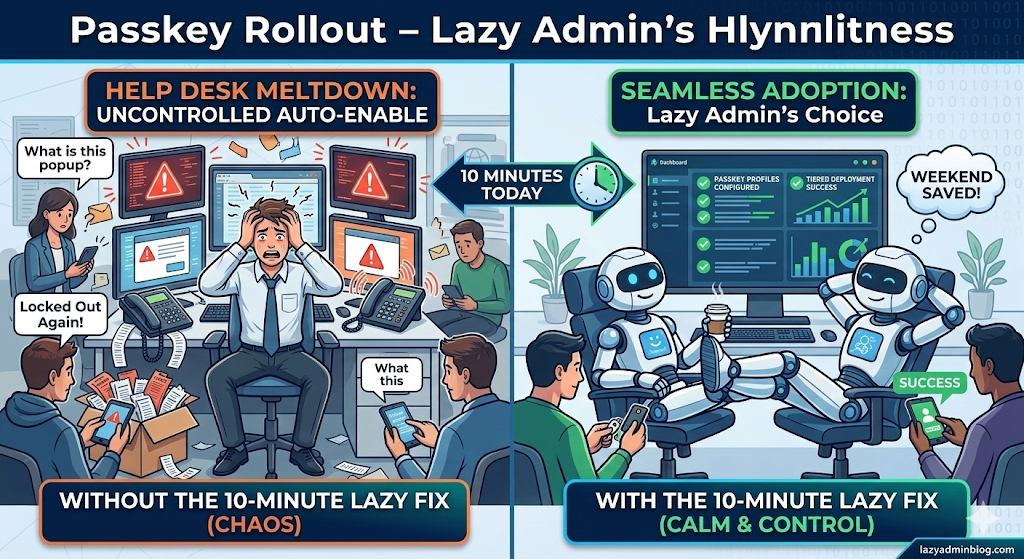
How to avoid 500 helpdesk tickets by spending 10 minutes in the Admin Center today.
If you woke up this morning to find a new “Default Passkey Profile” in your Entra tenant, don’t panic. Microsoft is officially “encouraging” (read: forcing) the world toward phishing-resistant auth. As a Lazy Admin, your goal isn’t to fight the change—it’s to control it so it doesn’t control your weekend.
1. The Big Change: Passkey Profiles
Previously, FIDO2 was a simple “On/Off” switch. Now, we have Passkey Profiles.
- The Default Behavior: If you didn’t opt-in, Microsoft has created a “Default Profile” for you.
- The Trap: If you had “Enforce Attestation” set to No, Microsoft is now allowing Synced Passkeys (iCloud Keychain, Google Password Manager). This means users can put corporate credentials on their personal iPhones.
2. The “Lazy” Strategy: Tiered Security
Don’t treat your CEO and your Summer Intern the same way. Use the new Group-Based Profiles to save yourself the headache of “One Size Fits None.”
| User Group | Recommended Profile | Why? |
| IT Admins | Device-Bound Only | Requires a physical YubiKey or Windows Hello. No syncing to the cloud. |
| Standard Users | Synced & Device-Bound | Maximum convenience. If they lose their phone, iCloud/Google restores the key. Zero helpdesk calls. |
| Contractors | AAGUID Restricted | Only allow specific hardware models you’ve issued to them. |
3. Avoid the “Registration Deadlock”
Many admins are seeing “Helpdesk Hell” because their Conditional Access (CA) policies are too strict.
The Problem: You have a policy requiring “Phishing-Resistant MFA” to access “All Apps.” A user tries to register a passkey, but they can’t log in to the registration page because… they don’t have a passkey yet.
The Lazy Fix: Exclude the “Register security information” user action from your strictest CA policies, or better yet, issue a Temporary Access Pass (TAP) for 24 hours. A TAP satisfies the MFA requirement and lets them onboard themselves without calling you.
🛠️ The 5-Minute “Lazy Admin” Checklist
- [ ] Check your Attestation: Go to Security > Authentication Methods > Passkey (FIDO2). If you want to block personal iPhones, set Enforce Attestation to Yes.
- [ ] Kill the Nudges: If you aren’t ready for the rollout, disable the “Microsoft-managed” registration campaigns before they start bugging your users on Monday.
- [ ] Review AAGUIDs: If you only use YubiKeys, make sure their AAGUIDs are explicitly whitelisted in your Admin profile.
Bottom Line: Spend 10 minutes setting up your profiles today, or spend 10 hours resetting MFA sessions next week. Choose wisely.
 LazyAdminBlog