
Lost Your VM? How to Find Its ESXi Host from the Guest OS | Lazy Admin Blog
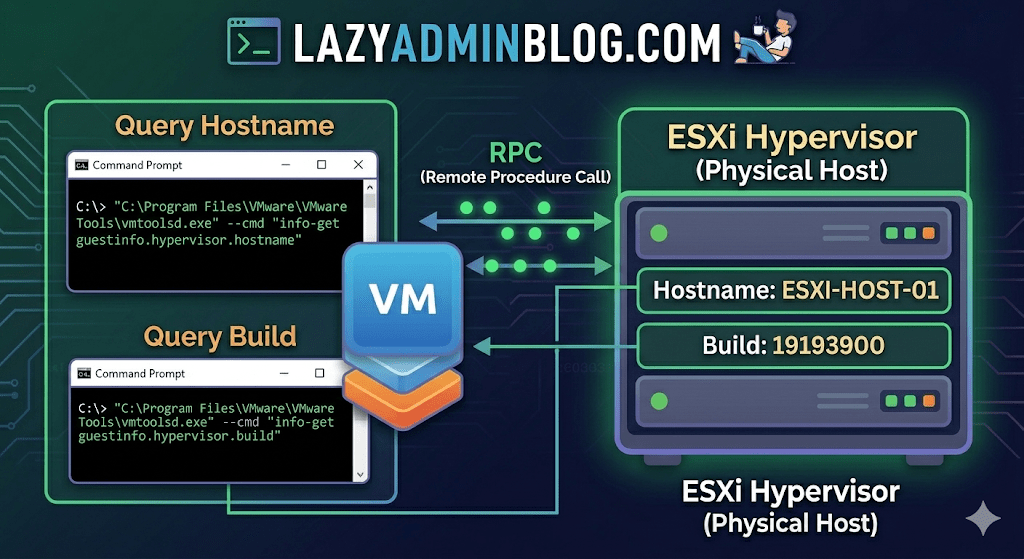
It’s a classic “Ghost in the Machine” scenario: You can RDP or SSH into a virtual machine, but you can’t find it in vCenter. Maybe it’s a massive environment with thousands of VMs, maybe the naming convention doesn’t match, or maybe you’re dealing with a rogue host that isn’t even in your main cluster.
If VMware Tools is installed and running, the VM actually knows exactly where it lives. You just have to ask it nicely through the Command Prompt.
The Magic Tool: vmtoolsd.exe
On Windows VMs, the VMware Tools service includes a CLI utility called vmtoolsd.exe. This tool can query the hypervisor for specific environment variables that are passed down to the guest.
1. Find the ESXi Hostname
If you need to know which physical server is currently crunching the cycles for your VM, run this command:
"C:\Program Files\VMware\VMware Tools\vmtoolsd.exe" --cmd "info-get guestinfo.hypervisor.hostname"
2. Get the ESXi Build Details
Need to know if the underlying host is patched or running an ancient version of ESXi? Query the build number:
"C:\Program Files\VMware\VMware Tools\vmtoolsd.exe" --cmd "info-get guestinfo.hypervisor.build"
Why is this useful?
- vCenter Search is failing: Sometimes the inventory search index gets corrupted, and “Name contains” returns nothing.
- Nested Environments: If you are running VMs inside VMs, this helps you verify which layer of the onion you are currently on.
- Troubleshooting Performance: If a VM is lagging, you can quickly identify the host to check for hardware alerts or CPU contention without leaving the OS.
What if I’m on Linux?
The same logic applies! Most modern Linux distributions use open-vm-tools. You can run the same query via the terminal:
vmtoolsd --cmd "info-get guestinfo.hypervisor.hostname"
Important Requirement: Guest RPC
For these commands to work, the VM must have VMware Tools installed and the guestinfo variables must be accessible. In some hardened environments, admins might disable these RPC (Remote Procedure Call) queries in the .vmx file for security reasons, but in 95% of standard builds, this will work out of the box.
How to Force Cancel a Hung Task in vCenter or ESXi | Lazy Admin Blog
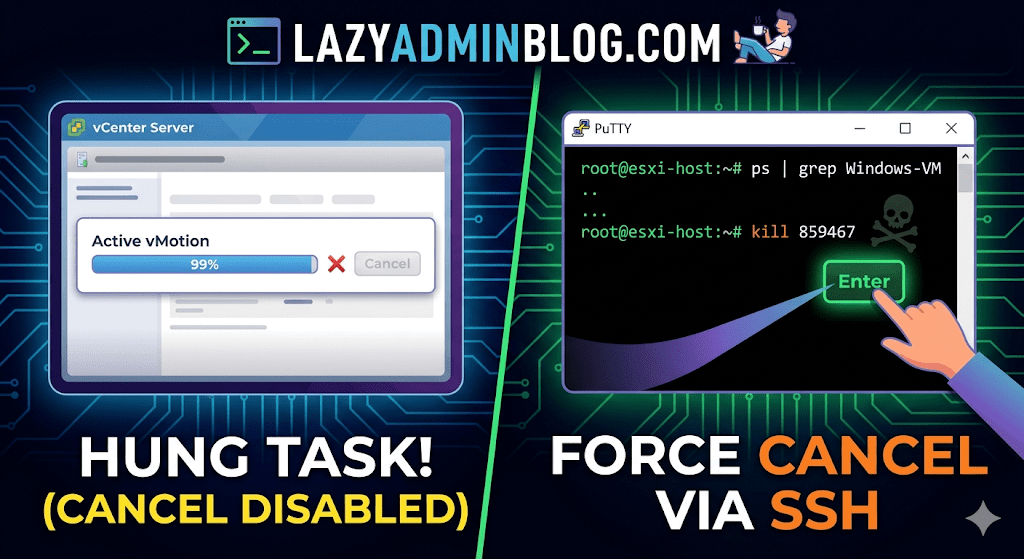
We’ve all been there: a vMotion hits 99% and just… stays there. Or a backup job finishes on the proxy side, but vCenter still thinks the VM is “busy.” Usually, the Cancel button is grayed out, leaving you stuck in management limbo.
When the GUI fails you, it’s time to hop into the CLI. Here is how to manually kill a hung task by targeting the VM’s parent process.
Step 1: Verify the Task
Before pulling the trigger, confirm the task is actually stuck and not just slow. Check the Monitor > Tasks and Events tab for the specific VM. If the progress bar hasn’t budged in an hour and the “Cancel” option is disabled, proceed to the host.
Step 2: Enable and Connect via SSH
To kill a process, you need to be on the specific ESXi host where the VM is currently registered.
- Enable SSH: Go to the ESXi host in vSphere > Configure > System > Services > Start SSH.
- Connect: Open your terminal (Putty, CMD, or Terminal) and log in as
root.
Step 3: Locate the Parent Process ID (PID)
We need to find the specific process tied to your VM. Use the ps command combined with grep to filter for your VM’s name.
Run the following command:
ps -v | grep "Your_VM_Name"
(Note: Using the -v flag in ESXi provides a more detailed view of the world ID and parent processes.)
Look for the line representing the VM’s main process. You are looking for the Leader ID or the first ID listed in the row.
Step 4: Kill the Process
Once you have identified the ID (e.g., 859467), send the kill signal. Start with a standard terminate signal, which allows the process to clean up after itself.
Run the command:
kill 859467
Lazy Admin Tip: If the process is extremely stubborn and won’t die, you can use
kill -9 859467to force an immediate termination. Use this as a last resort!
Step 5: Verify in vSphere
Give vCenter a minute to catch up. The hung task should now disappear or show as “Canceled” in the Tasks and Events console. Your VM should return to an “Idle” state, allowing you to power it on, move it, or restart your backup.
The Robocopy Masterclass: Faster Migrations with Multi-Threading | Lazy Admin Blog

Why use File Explorer when you can use a 128-thread engine?
If you are still using “Drag and Drop” to move terabytes of data, stop. Not only is it slow, but if the network blips for half a second, the whole process fails. Robocopy is built to survive network hiccups and, since Windows 7, it has a “Turbo” button called Multi-threading (/MT).
1. The “Standard” Lazy Migration Command
If you just want to move a folder and make sure all the permissions (ACLs) stay intact, this is your go-to string:
ROBOCOPY C:\sourcefolder C:\destinationfolder /E /COPY:DATS /LOG+:C:\temp\Robocopy_logs.txt
- /E: Copies all subfolders, even the empty ones.
- /COPY:DATS: This is the magic. It copies Data, Attributes, Timestamps, and Security (NTFS ACLs).
- /LOG+: Appends the results to a text file. Always log your copies. If something is missing later, the log is your evidence.
2. Going “Turbo” with Multi-Threading (/MT)
By default, Windows copies files one by one (Serial). With the /MT switch, you can open up to 128 “lanes” of traffic.
- Default:
/MT:8(8 files at once) - Aggressive:
/MT:32(Sweet spot for most servers) - Extreme:
/MT:128(Use this for thousands of tiny files)
Pro Tip:
/MTis not compatible with/IPG(which slows down copies to save bandwidth) or/EFSRAW. If you want speed, stick to/MT.
3. Real-World Examples: Migrating Mapped Drives
When migrating large volumes (like a mapped Y: or Z: drive), you want to use the /MIR (Mirror) switch. This makes the destination an exact clone of the source.
Example: Migrating a Production Volume
ROBOCOPY Y:\lfvolumes\DEFAULT E:\MIGRATE_PRD\E_Drive /MIR /MT:24 /LOG+:D:\Logs\Edrive.txt
Example: Copying a Single Giant SQL Backup (.BAK)
ROBOCOPY T:\ E:\Migrations\ db_backup.BAK /ZB /J /LOG+:D:\Logs\backup.txt
- /ZB: Restartable mode (if the network drops, it picks up where it left off).
- /J: Unbuffered I/O (Recommended for huge files like database backups).
4. The “Cheat Sheet” of Switches
| Switch | What it does |
| /MIR | Mirroring. Deletes files in destination that no longer exist in source. |
| /Z | Restartable Mode. Survives network glitches. |
| /R:n | Number of retries (Default is 1 million—set this to 3 or 5 instead!). |
| /W:n | Wait time between retries (Default is 30 seconds). |
| /FFT | Use this if copying to a Linux NAS to avoid timestamp issues. |
🛡️ Lazy Admin Warning:
Be careful with /MIR. If you accidentally point it at an empty source folder, it will “Mirror” that emptiness by deleting everything in your destination. Always test with the /L (List Only) switch first to see what would happen without actually doing it.
vSphere IDs: The Ultimate Quick Reference Guide | Lazy Admin Blog

Ever feel like you’re drowning in a sea of GUIDs and MoRefs? When you’re scripting or troubleshooting, using the wrong ID is the fastest way to break a backup job or target the wrong server.
Here is the “Lazy Admin” breakdown of the most common vSphere identifiers and how to grab them with PowerCLI.
1. vCenter Instance UUID (serverGuid)
This is the “SSN” of your vCenter server. It’s generated at install time and stays durable for that instance.
- Why it matters: In Linked Mode or cross-vCenter environments, this identifies which vCenter owns an object.
- PowerCLI:PowerShell
$vcenter = Connect-viserver vcsa-01a.corp.local $vcenter.InstanceUuid
2. ESXi Host UUID
Unlike other IDs, this isn’t generated by VMware. It’s pulled from the hardware’s SMBIOS.
- Why it matters: It’s unique to the physical motherboard/vendor.
- PowerCLI:PowerShell
(Get-VMHost | Select -First 1).ExtensionData.hardware.systeminfo.uuid
3. VC-VM Instance UUID (The “Management” ID)
Found in the .vmx file as vc.uuid. This is what vCenter uses to track VMs.
- The “Magic”: vCenter actively scans for duplicates of this ID and will “patch” (change) it automatically if it finds a conflict within its own inventory.
- PowerCLI:PowerShell
(Get-VM | Select -First 1).extensiondata.config.InstanceUUID
4. VM SMBIOS UUID (The “Guest” ID)
Found as uuid.bios in the .vmx. This is what the Guest OS (Windows/Linux) sees as the hardware serial number.
- The “Magic”: vCenter tries not to change this because many applications use it for licensing. If you move/copy a VM, vCenter will ask you what to do to prevent duplicates.
- PowerCLI:PowerShell
(Get-VM | Select -First 1).extensiondata.Config.UUID
5. VM Location ID
Stored as uuid.location. This is a hash of the VM’s configuration file path and the ESXi host UUID.
- The “I Moved It” Prompt: When this hash doesn’t match the current environment, vSphere triggers that famous “Did you move it or copy it?” popup.
- PowerCLI:PowerShell
(Get-VM | Select -First 1).extensiondata.config.LocationId
6. VM MoRef (Managed Object Reference)
The MoRef is the “Short ID” (like vm-43) used by the API and the vCenter database.
- Why it matters: This is the most important ID for database associations (stats, events, tasks). It is not unique across different vCenters.
- PowerCLI:PowerShell
(Get-VM | Select -First 1).ExtensionData.Moref.Value
Quick ID Reference Table
| ID Name | Scope | Persistence | Best Use Case |
| MoRef | Single vCenter | Changes if re-inventoried | API calls & DB tracking |
| Instance UUID | Single vCenter | High (Patched by VC) | Unique VM tracking |
| SMBIOS UUID | Global/Guest OS | Very High | Guest Software Licensing |
| Host UUID | Physical Hardware | Permanent | Hardware Asset Tracking |
Dealing with ESXi: “Lost connectivity to the device backing the boot filesystem” | Lazy Admin Blog

Meta Description: Seeing the “naa.60xxx backing the boot filesystem” error in ESXi? Learn why your VMs are safe and how to clear this persistent alert without a full reboot.
The Scenario
You open your vCenter console to find a critical alert screaming at you:
Lost connectivity to the device naa.60xxxxxxxxxxxxxxxxxxxxxxxxxxxxxxx backing the boot filesystem /vmfs/devices/disks/naa.60xxxxxxxxxxxxxxxxxxxxxxxxxxxxxxx. As a result, host configuration changes will not be saved to persistent storage.
For any SysAdmin, “Lost Connectivity” and “Boot Filesystem” in the same sentence is usually a reason to start reaching for the coffee and the backup tapes. But before you initiate an emergency failover, let’s look at what is actually happening.
Why did this happen?
If you are booting from a SAN (specifically using iSCSI boot), your ESXi host relies on a connection to a Boot LUN. Unlike your data datastores, iSCSI boot does not support Multipathing.
If a switch reboots, a cable is bumped, or the Storage Processor (SP) on your array (like a VNXe) fails over, the single path to that boot device is severed. Even if the hardware recovers a second later, the ESXi “heartbeat” to the boot device has been interrupted.
The “Lazy” Good News: No Outage
Here is the secret: ESXi is a resident-in-memory OS. Once the host has finished booting, the entire kernel is loaded into RAM. Because the VMs are running on different datastores (which should have multipathing), they will continue to hum along without a hiccup.
The Risk: The only thing you can’t do while this error is active is save configuration changes. If you change a vSwitch setting or a license key, it won’t be written to the “disk” (the LUN), and it will be lost if the host reboots.
The Fix: Clear the Ghost Alert
Often, once connectivity is restored, ESXi doesn’t realize the path is back. You have two ways to fix this:
1. The “Smart” Fix (No Downtime)
Instead of a full reboot, you can simply restart the Management Agents. This force-refreshes the host’s connection to its management services and the underlying boot filesystem.
Via DCUI:
- Connect to the console of your ESXi host.
- Press F2 to customize the system.
- Select Troubleshooting Options.
- Select Restart Management Agents.
Via SSH: Run the following command: services.sh restart
2. The “Maintenance” Fix
If the agents don’t clear the alert, you’ll need a clean slate:
- vMotion your VMs to another host.
- Put the host into Maintenance Mode.
- Reboot the host.
Summary for the Modern SysAdmin
- Is there an outage? No.
- Can I save changes? Not until fixed.
- Why? iSCSI boot has no multipathing.
- Quick Fix: Restart Management Agents.
Finding RDM LUN UUIDs in a vSphere Cluster | Lazy Admin Blog
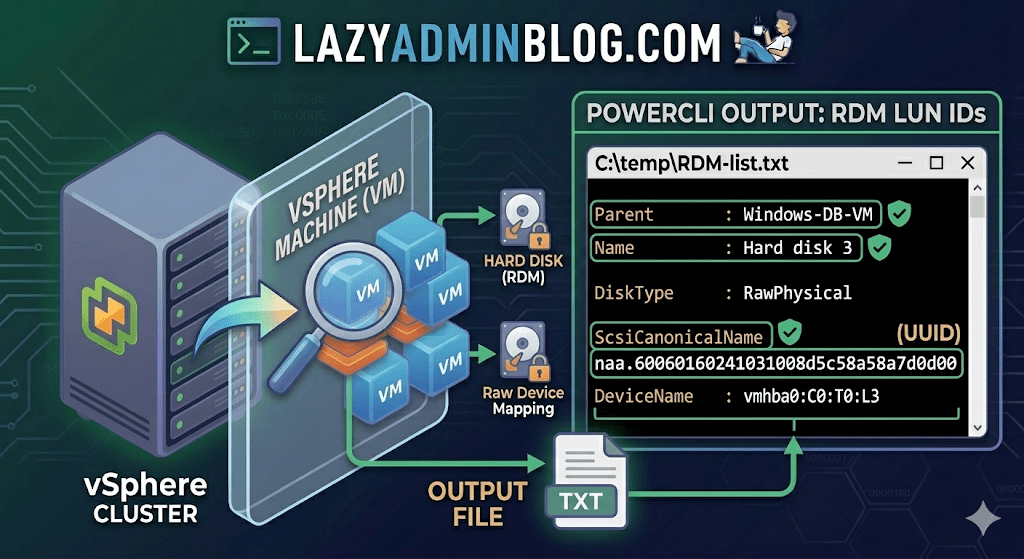
If you’re managing a large virtual environment, keeping track of Raw Device Mappings (RDMs) can be a nightmare. Unlike standard virtual disks (VMDKs) that live neatly inside a datastore, RDMs are directly mapped to a LUN on your SAN.
When your storage team asks, “Which VM is using LUN ID 55?”, you don’t want to check every VM manually. This PowerCLI script will scan your entire cluster and export a list of all RDMs along with their Canonical Name (NAA ID) and Device Name.
The PowerCLI One-Liner
This command connects to your cluster, filters for disks that are either RawPhysical (Pass-through) or RawVirtual, and spits out the details to a text file for easy searching.
Run this in your PowerCLI window:
PowerShell
Get-Cluster 'YourClusterName' | Get-VM | Get-HardDisk -DiskType "RawPhysical","RawVirtual" | Select-Object @{N="VM";E={$_.Parent.Name}},Name,DiskType,ScsiCanonicalName,DeviceName | Format-List | Out-File –FilePath C:\temp\RDM-list.txt
Breaking Down the Output
Once you open C:\temp\RDM-list.txt, here is what you are looking at:
- Parent: The name of the Virtual Machine.
- Name: The label of the hard disk (e.g., “Hard disk 2”).
- DiskType: Confirms if it’s Physical (direct SCSI commands) or Virtual mode.
- ScsiCanonicalName: The NAA ID (e.g.,
naa.600601...). This is the “Universal ID” your storage array uses. - DeviceName: The internal vSphere path to the device.
Why do you need this?
- Storage Migrations: If you are decommissioning a storage array, you must identify every RDM to ensure you don’t leave a “Ghost LUN” behind.
- Troubleshooting Performance: If a specific LUN is showing high latency on the SAN side, this script tells you exactly which VM is the “noisy neighbor.”
- Audit & Compliance: Great for keeping a monthly record of physical hardware mappings.
Lazy Admin Note: This script specifically uses VMware PowerCLI cmdlets (
Get-HardDisk). If you are looking for similar info on a Hyper-V host, you would typically useGet-VMHardDiskDriveand look for theDiskNumberproperty to correlate with physical disks inDisk Management.
Hyper-V Performance Hack: The Essential Antivirus Exclusions List | Lazy Admin Blog
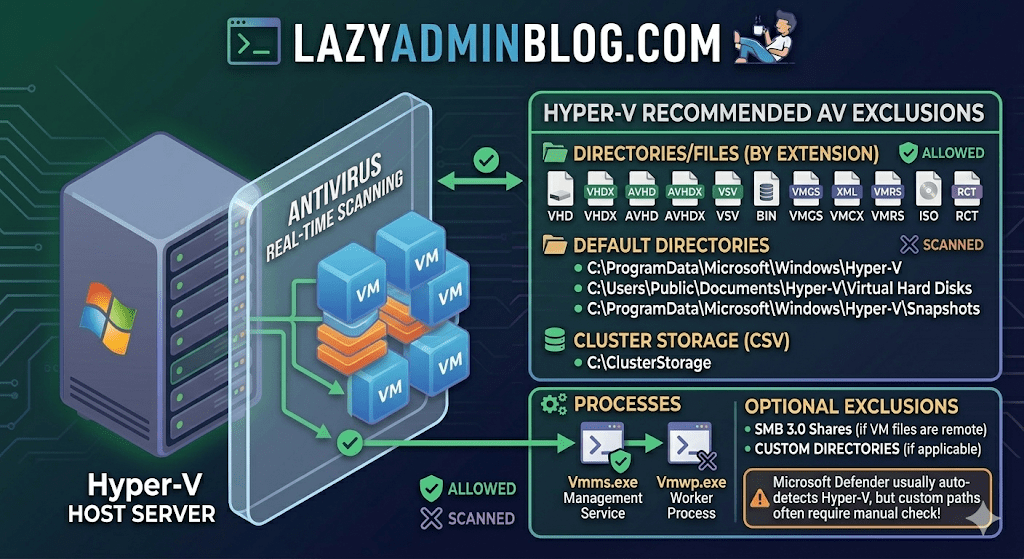
Running antivirus on your Hyper-V host is a security must, but if you don’t configure it correctly, you’re asking for trouble. We’re talking “disappearing” VMs, corrupted virtual disks, and performance so sluggish you’ll think you’re back on physical hardware from 2005.
The culprit is usually the Real-Time Scanning engine trying to “inspect” a 100GB .vhdx file every time the guest OS writes a single bit. Here is the definitive “Lazy Admin” guide to Hyper-V AV exclusions.
1. File Extension Exclusions
Tell your AV to keep its hands off these specific virtual machine file types:
- Virtual Disks:
.vhd,.vhdx - Snapshots/Checkpoints:
.avhd,.avhdx - Saved State:
.vsv,.bin,.vmgs - Configuration:
.xml,.vmcx,.vmrs - ISO Images:
.iso - Tracking:
.rct(Resilient Change Tracking)
2. Directory Exclusions
If you are using the default paths, exclude these. If you have a dedicated D:\VMs drive (which you should!), exclude that entire custom path as well.
- Default Configs:
C:\ProgramData\Microsoft\Windows\Hyper-V - Default VHDs:
C:\Users\Public\Documents\Hyper-V\Virtual Hard Disks - Default Snapshots:
C:\ProgramData\Microsoft\Windows\Hyper-V\Snapshots - Cluster Shared Volumes (CSV):
C:\ClusterStorage - Hyper-V Replica: Any custom replication data folders.
- SMB 3.0 Shares: If your VMs live on a remote file server, apply these same exclusions to that file server!
Lazy Admin Pro-Tip: If you’re using a Cluster, don’t just exclude the
C:\ClusterStoragefolder by path. Use the Volume ID (get it viamountvol) to ensure the exclusion sticks even if drive letters or paths shift.
3. Process Exclusions
Sometimes excluding the file isn’t enough; you need to exclude the “person” opening the file. Exclude these core Hyper-V executables:
- Vmms.exe: The Virtual Machine Management Service.
- Vmwp.exe: The Virtual Machine Worker Process (one runs for every active VM).
- Vmcompute.exe: (For Windows Server 2019+) The Host Compute Service.
Why this matters (The “Error 0x800704C8”)
If you don’t set these, you’ll eventually see the dreaded Error 0x800704C8 (The process cannot access the file because it is being used by another process). This happens when your AV locks the VM’s configuration file exactly when Hyper-V tries to start it.
What about Windows Defender?
Good news for the truly lazy: if you are using built-in Microsoft Defender on Windows Server, it automatically detects the Hyper-V role and applies most of these exclusions for you. However, it does not always catch your custom storage paths (like E:\MyVMs), so always double-check your work!
Windows Server 2008 R2 Stuck in Recovery Loop? Here’s the Fix | Lazy Admin Blog

A sudden power failure is the ultimate “stress test” for a server, and sometimes the OS fails that test, landing you in an endless loop of Startup Repair. If F8 > Last Known Good Configuration didn’t save your skin, it’s time to break out the installation media.
The Prerequisites
Before you start, ensure you have your Windows Server 2008 R2 Installation Disc (or a bootable USB) ready.
- Boot from the media.
- Select your language/input settings and click Next.
- Select Repair your computer.
- Choose the OS you want to fix and click Next.
- Select Command Prompt from the System Recovery Options.
Method 1: The System File Checker (SFC)
If the power cut corrupted a core system file, SFC is your first line of defense. It compares your system files against the “known good” versions on the disc.
- In the Command Prompt, type:
sfc /scannow - Wait: This can take a while. If it finds and fixes errors, reboot and see if the loop is broken.
Method 2: Rebuilding the BCD
Sometimes the boot configuration data gets scrambled. This command scans for Windows installations and lets you add them back to the boot list.
- In the Command Prompt, type:
Bootrec /RebuildBcd - If it finds a Windows installation, press Y to add it to the boot list.
Method 3: The “Nuclear” Boot Repair
If the Master Boot Record (MBR) or the boot sector itself is toast, you need to rewrite them entirely. This is the heavy-duty fix for when the BIOS simply can’t find where Windows starts.
Run these three commands in order:
- Fix the MBR:
BOOTREC /FIXMBR - Fix the Boot Sector:
BOOTREC /FIXBOOT - Force the Update:
D:\boot\Bootsect.exe /NT60 All(Note: Replace D: with the actual drive letter of your installation disc).
ZCP Study Guide: Zerto Certified Professional Exam Q&A | Lazy Admin Blog

Ready to become a Master of Disaster? If you are preparing for the Zerto Certified Professional (ZCP) exam, you know that understanding the nuances of Continuous Data Protection (CDP) is key.
Below is a quick-reference study guide based on the core competencies of the Zerto 4.5+ curriculum. We’ve highlighted the correct answers to help you review.
ZCP Practice Exam Questions
1) After performing a failover operation (Test, Live, Move) Zerto allows you to generate a report detailing the steps performed during the operation.
- True
- False
2) VPGs can only protect virtual machines running Mac OS X or Windows XP and newer.
- True
- False (Note: Zerto is generally OS-agnostic as it operates at the hypervisor replication level.)
3) To recover a single VPG after a corrupted database, which of these operations would be most effective?
- Journal file-level restore
- Offsite clone
- Live failover
- Backup restore
4) ZVR’s Journal is stored where?
- Production/source site
- Recovery/target site
- Both
- Neither
5) During a VPG sync, which of the following operations can be performed? (Select all that apply)
- Add a VM to the group
- Remove a VM from the group
- Change length of Journal history for the group
- Change hard limit of Journal size for the group
6) Offsite Backups for a VPG should be scheduled to run at least every four hours, but no more than every 12 hours.
- True
- False
7) How much memory can be allocated to a Virtual Replication Appliance (VRA)?
- 1 GB
- 3 GB
- Between 1-16 GB
- Between 2-8 GB
8) If both sites (target/recovery and source/production) are up, healthy, and accessible, which VPG-level operation is most appropriate?
- Live Failover
- Move/migration
- Offsite Clone
- JFLR
9) What basic method does ZVR use to protect data and applications?
- VM-level continuous replication
- Scheduled and on-demand snapshots
- Daily delta syncs
- Guest/agent-based replication
10) ZVR cannot function across different hypervisors, storage configurations, or host OS versions.
- True
- False (Note: Cross-replication between VMware and Hyper-V is a core Zerto strength.)
11) What must be true for a Move operation to be effective? (Select all that apply)
- Both source (or production) and target (recovery) sites are up and accessible
- Each VM in the VPG has an up-to-date Journal
- The very latest copy of the data is required
- One of the site’s hosts has either a new VRA installed or an upgraded VRA
12) A fully configured ZVM on each paired site—e.g. production and recovery—requires which of the following? (Select all that apply)
- Adding a site-specific license under Site Settings
- Creating matching VPGs on each site
- Installing VRAs on that site’s host(s)
13) Enabling auto-commit will always provide 30 minutes to validate the results of a failover before committing the changes.
- True
- False (Note: The timeout is configurable.)
14) ZVR has built-in support for scheduled bandwidth throttling that can work with or without other hardware/software also managing this.
- True
- False
15) What characterizes the kinds of VMs you should group together in the same VPG?
- Each are using the same datastore or volume for storage
- They need to maintain consistency with each other and all be failed over or recovered together
- All are running both the same OS and same hypervisor
- The journal is sized the same on each VM
16) Adding a VM to an existing VPG means… (Select all that apply)
- The entire VPG will be re-synchronized to ensure group consistency
- The VPG protection will need to be paused before adding the additional VM
- A checkpoint will be automatically inserted in the Journal prior to adding the VM
- A Live Failover cannot be executed until the updated VPG is fully synchronized
17) What is the Journal?
- Audit trail to track which operations were performed and when
- Series of checkpoints tracking block-level changes within VMs
- Detailed list of every snapshot, whether automatic or manually generated snapshots
- Compliance record of each VPG’s replication status at any given checkpoint
18) The ZVR installer includes which of the following components? (Select all that apply)
- Local copies of the ZVR documentation specific to your hypervisor
- One license key for each site you’ll use with Zerto
- Microsoft .NET Framework in case the machine does not already have it installed
- VRA template for a custom-designed Zerto VM
- A Virtual Backup Appliance (VBA) for managing backups
19) If you needed to test the failover of an entire virtualized datacenter, what best practices should be followed? (Select all that apply)
- Perform the test during off hours or on the weekend
- Clone the VPGs you want to test prior to starting the failover test
- Use an isolated/fenced network for testing
- Always stop the test from within ZVM and not your hypervisor’s management console(s)
- Provision a sandbox where ZVR can deploy the test VMs
20) What is a Virtual Replication Appliance (VRA)?
- Lightweight agent installed on each VM in a protection group
- Snapshot engine that powers the ZVR Journal
- Custom Linux VM performing continuous replication
- A hypervisor plugin/add-on to manage cross-hypervisor replication
21) ZVR 4.5 allows for Journal Compression to increase storage capacity for journal history.
- True
- False
22) If the hypervisor service/admin account provided during installation is incorrect, ZVR will still proceed with the installation and ask for re-validation after installation is complete.
- True
- False
23) When configuring a Failover Test network, what is Zerto’s recommended best practice?
- Test and production network should be the same to ensure consistency
- Test network should be isolated/fenced
- The ZVM should be on a test network
- Pause replication on production network when using a test network during a test
24) What operating system is running on the VRA virtual machine?
- Ubuntu
- Debian
- Red Hat Enterprise Linux
- Windows Server 2012
25) What VPG configuration option would give you the ability to stagger when and how your protected VMs start?
- Bandwidth Throttling
- Re-IP
- Pre/Post Operation Scripting
- Boot Order Groups
Level Up: Becoming a Zerto Certified Professional (ZCP) | Lazy Admin Blog
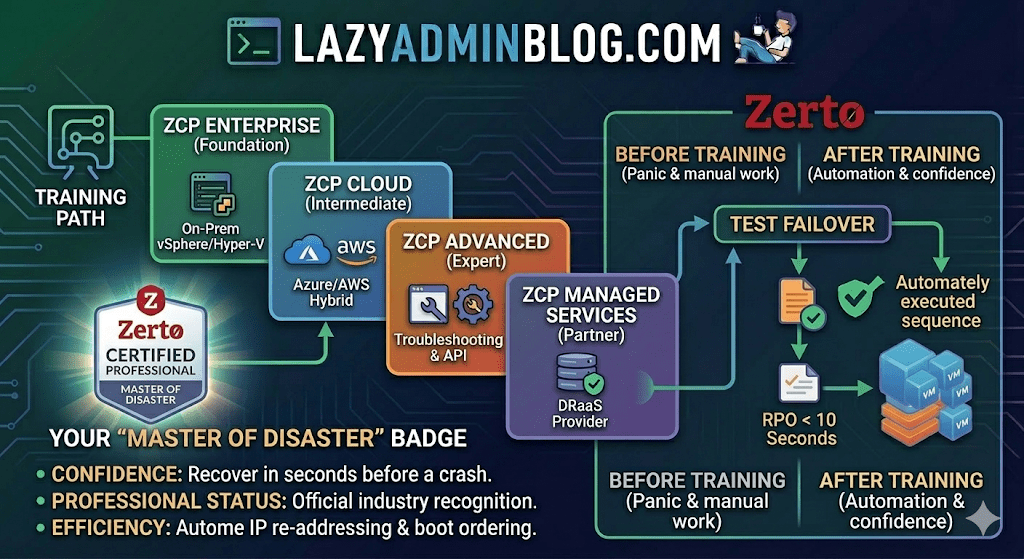
In the world of Disaster Recovery, there are two types of admins: those who panic during an outage, and those who have “Master of Disaster” status.
If you’re looking to join the elite ranks of the latter, it’s time to talk about Zerto Certified Professional (ZCP) training. While the original ZVR 4.5 training was a game-changer for its time, Zerto’s training ecosystem has evolved significantly since then to keep pace with modern cloud and ransomware threats.
What is ZCP Training?
Zerto Certified Professional (ZCP) is the official technical certification program designed for customers and partners. It moves you beyond the basics of “click and replicate” into the deep engineering of Continuous Data Protection (CDP).
The current curriculum has shifted from just “Basic” to a more modular, role-based approach available through the myZerto University platform.
Key Learning Pillars:
- Architecture & Installation: Setting up the Zerto Virtual Manager (ZVM) and Virtual Replication Appliances (VRAs).
- VPG Management: Creating Virtual Protection Groups (VPGs) to keep multi-VM applications consistent.
- The “Time Machine” (Journal): Master file-level restores and point-in-time recovery to defeat ransomware.
- The Big Red Button: Coordinating Test Failovers, Live Failovers, and Move operations without breaking a sweat.
Is it still “Basic”?
Zerto has streamlined its certifications into several paths to match your specific environment:
| Certification | Level | Focus Area |
| ZCP Enterprise | Foundation | Core vSphere/Hyper-V to On-Prem replication. |
| ZCP Azure/AWS | Intermediate | Hybrid Cloud DR and migration to public clouds. |
| ZCP Advanced | Expert | Complex troubleshooting, multi-site, and API automation. |
| ZCP Managed Services | Partner | Specifically for DRaaS (Disaster Recovery as a Service) providers. |
Why Bother Getting Certified?
- Confidence: Knowing exactly how the journal works means you can recover data from seconds before a crash.
- Professional Status: It officially recognizes you as a “Master of Disaster” within the community.
- Efficiency: You’ll learn the “Lazy Admin” way to automate IP re-addressing and boot ordering, so you don’t have to do it manually during a crisis.
How to Get Started
- Access: Head over to the myZerto Portal. (Note: You still need to be a customer or partner to access full technical training).
- Time Investment: Most foundational courses take between 90 minutes and 3 hours of self-paced e-learning.
- The Exam: You’ll typically need a 75% or higher to pass. The exams are online, unproctored, and refreshingly focused on real-world scenarios rather than trivia.
Lazy Admin Tip: Don’t just watch the videos. If you have a lab environment, try to break a VPG and see how the ZVM alerts you. Real learning happens when the lights go red!